• ×
    Information
    Need Windows 11 help?
    Check documents on compatibility, FAQs, upgrade information and available fixes.
    Windows 11 Support Center.
  • post a message
  • ×
    Information
    Need Windows 11 help?
    Check documents on compatibility, FAQs, upgrade information and available fixes.
    Windows 11 Support Center.
  • post a message
Guidelines
Join the HP Community Solve‑a‑thon | Help Others & Share Your Solutions | Live on Zoom | 2:30 PM to 2:30 AM IST | Every Wednesday Click here to know more
HP Recommended
LaserJet Pro M15w
iOS
Using HpSmart App. Everything is connected to the correct network but the set up would not finish last step. Printer and iPhone are on same network but printer is not found on the phone.
1 REPLY 1
HP Recommended

@Juliabradsher


Thanks for reaching out to us on HP Forums. 


I understand that you're unable to print from your iPhone to your HP LaserJet Pro M15w Printer. Not to worry, I'll be glad to assist you with this case.


During my research, I found that the printer needs to be added as an Airprint printer in the iOS. The AirPrint is a mobile printing solution included with the Apple iOS v4.2 and later mobile operating systems. Therefore iOS 4.2 or later version shoud be running on the iPhone


Please perform the following steps to print from your iPhone:

What if a 'No AirPrint Printers Found' message displays on your Apple iOS device? Not to worry, the following steps should do the trick for you:


  1. Make sure the printer is on and in a ready state. If the printer is in sleep mode (power light is dim), turn the printer on or press the power button to wake it.

  2. Open the document, photo, email, or webpage you want to print, and then tap the Action icon  or  to display menu options.

  3. Tap Print or the Print icon , depending on the type of file you want to print.
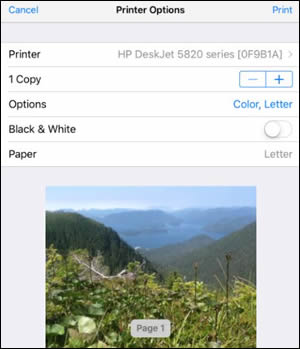
  4. On the Printer Options menu, tap Select Printer, and then select your printer from the list.

    If a No Airprint Printers Found message displays, go to the What if a 'No AirPrint Printers Found' message displays on my Apple iOS device?FAQ for more information.

  5. Tap Options to change other settings if necessary. Some options, such as paper size, might not be adjustable and must be changed from the printer.

    The Options menu might not display if your printer is black ink only.

    Figure : Printer Options screen

    Printer Options screen
  6. Select the number of copies you'd like to print, and then tap Print.

       NOTE: If you are using a Wi-Fi Direct/HP wireless direct connection, be sure to go back into Wi-Fi settings and connect your Apple iOS device to your network.


When you try to select a printer, a No AirPrint Printers Found message displays. To resolve the issue, restart the printer and Apple iOS device, and then make sure they are connected to the same network.

   NOTE: If your printer is connected to a computer with a USB cable, you must use Wi-Fi Direct/HP wireless direct (if available) as an alternative


Step 1: Move the router closer to the printer

Make sure other household items do not interfere with the wireless signal, and then move the router closer to the printer.

  1. Move the router away from household items that can interfere with the wireless signal, such as microwave ovens and cordless phones.

  2. Move the printer closer to the wireless router.

  3. Make sure your router is set at 2.4 GHz.

    If you are unsure how to check this setting, consult your router documentation or contact your Internet Service Provider (ISP).

Step 2: Restart all devices, and make sure they are on the same network

Restart the router and printer, verify wireless connectivity and status on a Network Configuration page, and then turn on the Apple device to check wireless settings.

  1. Turn off the router, and then turn it on.

    Contact the router manufacturer for instructions on how to turn off the router.

       NOTE: Do not reset the router.

  2. Turn off the printer, and then turn it on.

  3. Turn off the Apple device.

       NOTE: Do not turn on the Apple iOS device yet.

  4. Print a Network Configuration page.

    For instructions on printing a Network Configuration page, go to HP Customer Support. Type your printer model, and then search for the document to "print a configuration page."

  5. Check the Active Connection Type in the General Information section on the report. The connection type should be Wireless.

  6. Check the status in the 802.11 Wireless section on the report. The status should be Connected. The printer IP Address also displays in the 802.11 section of the report for active wireless connections.

  7. Make sure the Network Name (SSID) on the report is the same as the name of the wireless network for your networked printer.

    • If the HP printer is connected to the correct wireless network, continue with these steps.

    • If the HP printer is not connected to the correct wireless network, go to HP Customer Care, type your printer model in the search field, and then browse to the support document about how to connect your printer to a wireless network.

  8. Turn on your Apple iOS device.

  9. Tap the Settings icon .

  10. Tap Wi-Fi.

  11. Make sure Wi-Fi is turned on and there is a checkmark next to your wireless network name.

  12. Return to the Settings menu, and then make sure Bluetooth is turned off.

Try to print. If the issue persists, continue to the next step.


Step 3: Update the printer firmware

Go to Updating Firmware on the Printer to download and install the latest printer firmware

Try to print. If the issue persists, continue to the next step.


Step 4: Make sure AirPrint is enabled

Open the Embedded Web Server (EWS), and then make sure AirPrint is enabled.

  1. Print a Network Configuration page to obtain the printer IP address needed to view the EWS webpage.

    For instructions on printing a Network Configuration page, go to HP Customer Support. Type your printer model, and then search for the document to "print a configuration page."

  2. Find the printer IP address on the Network Configuration page.

    Figure : Example of a printer IP address

    Example of a printer IP address.
  3. On your computer, open an Internet browser.

  4. Type the printer IP address in the browser address bar, and then press Enter.

       NOTE: Make sure to type the IP address into the Internet browser's address box. If typed into a toolbar search box or search engine, the EWS does not open.

  5. If a website security certificate displays in the Internet browser, click Continue.

    The EWS information page for the printer opens.

  6. Click the Settings tab.

  7. Click Security, and then click Administrator Settings.

  8. Under Network Settings, select AirPrint, if it is not already selected, and then click Apply.

    Figure : Selecting AirPrint

  9. Restart the printer.

Try to print. If the issue persists, continue to the next step.


Step 5: Make sure the router can forward Bonjour packets

Not all wireless routers support Bonjour or all of Bonjour's features. Since Bonjour is the default method for discovering printers on a network, you must first make sure your wireless router supports Bonjour, and then turn the Apple device off and on.

Check the specifications or support documentation for your router or contact the router manufacturer to make sure your router supports Bonjour. It must also support forwarding Bonjour packets.

  • If your router supports Bonjour, skip to the next step.

  • If your router does not support Bonjour, use a router that supports Bonjour or add the printer to your printer list using the IP tab and the printer IP address.

    Try to print. If the issue persists, continue to the next step.

Step 6: Try to print from another device or computer

Try to print from another networked device to the HP printer. Examples of networked devices include your computer and another Apple device.

I sincerely hope these steps would now make the printer from your iPhone.


Feel free to keep me posted for any further assistance.


Cheers!


† The opinions expressed above are the personal opinions of the authors, not of HP. By using this site, you accept the <a href="https://www8.hp.com/us/en/terms-of-use.html" class="udrlinesmall">Terms of Use</a> and <a href="/t5/custom/page/page-id/hp.rulespage" class="udrlinesmall"> Rules of Participation</a>.