• ×
    Information
    Need Windows 11 help?
    Check documents on compatibility, FAQs, upgrade information and available fixes.
    Windows 11 Support Center.
  • post a message
  • ×
    Information
    Need Windows 11 help?
    Check documents on compatibility, FAQs, upgrade information and available fixes.
    Windows 11 Support Center.
  • post a message
Guidelines
Join the HP Community Solve‑a‑thon | Help Others & Share Your Solutions | Live on Zoom | 2:30 PM to 2:30 AM IST | Every Wednesday Click here to know more
HP Recommended
2632 HP printer
iOS

Dear all,


I have got 2632 all in one HP jet printer. From couple of days the printer is not printing. The ink levels are showing sufficient on the HP app. I welcome your suggestions or inputs.


thanks,

Debs

1 REPLY 1
HP Recommended

Hi @Debs114

Welcome to the HP Support Community. I'd be happy to assist you.

  • Do you get any errors while printing?
  • Are you using the HP Smart app to print from your iOS device?
  • Which version of iOS are you using?
  • Try making a standalone copy and check if that works. By this, we can conclude if this is a hardware or a driver issue.

Check for any pending updates on your iOS device

Click here to know how.


Update the printer firmware

Click here to know different methods of updating printer firmware.


Check the connection between the printer and the iOS device

Make sure both the devices are on the same wireless network. Use 2.4GHz network.


Try printing using AirPrint:

  1. Open the item you want to print, and then tap the Share icon  or  .

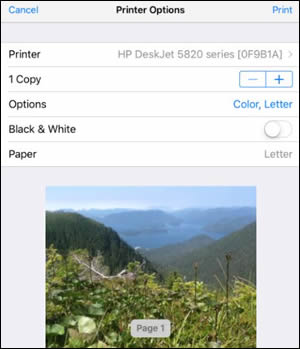
  2. Tap Print or the Print icon  to open Printer Options.

  3. Tap Select Printer to select your printer.

  4. Change any of the following print job settings. Available settings vary depending on the app you are printing from, the print job type, and your printer.

    • Paper: Make any paper size changes on the printer. AirPrint automatically detects the paper size loaded in the printer or the size selected on the printer control panel. If the detected size is different than the paper in the tray, an error might display asking to confirm the size.

    • Number of copies: Select how many copies you want to print.

    • Black & White: Select to print in grayscale. This option only displays for color printers.

    • Double-sided printing: Print on both sides of the paper for certain file types.

    • Page range: Select specific pages within a document or webpage to print.

    Printer Options screen

Hope this helps! Keep me posted. 


Please click “Accept as Solution” if you feel my post solved your issue, it will help others find the solution.

Click the “Kudos, Thumbs Up" on the bottom right to say “Thanks” for helping!

Have a great day! 

KUMAR0307
I am an HP Employee

† The opinions expressed above are the personal opinions of the authors, not of HP. By using this site, you accept the <a href="https://www8.hp.com/us/en/terms-of-use.html" class="udrlinesmall">Terms of Use</a> and <a href="/t5/custom/page/page-id/hp.rulespage" class="udrlinesmall"> Rules of Participation</a>.