• ×
    Information
    Need Windows 11 help?
    Check documents on compatibility, FAQs, upgrade information and available fixes.
    Windows 11 Support Center.
  • post a message
  • ×
    Information
    Need Windows 11 help?
    Check documents on compatibility, FAQs, upgrade information and available fixes.
    Windows 11 Support Center.
  • post a message
Guidelines
Join the HP Community Solve‑a‑thon | Help Others & Share Your Solutions | Live on Zoom | 2:30 PM to 2:30 AM IST | Every Wednesday Click here to know more
HP Recommended
HP1200a

Worst printers 

I have purchased a   1200 a  Printer

But it does not print the full A4 Paper

It keeps blank from 4 side of paper.

So important things could not print

1 REPLY 1
HP Recommended

@1200a Welcome to HP Community!

I have a few steps that should help resolve this issue once and for all:


Step 1: Check the paper

The quality and type of paper can affect the print job. Follow these guidelines to make sure the paper is appropriate. If it is not, load an appropriate paper type.

  • Use paper designed for HP Laser printers. Do not use paper designed only for inkjet printers.

  • Do not use paper that is too rough. Smoother paper might result in better print quality.

Print another page. If the print quality is still unacceptable, continue to the next step.


Step 2: Check the paper guides

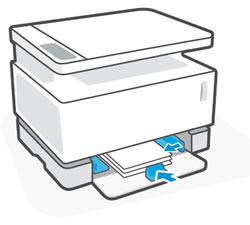
Incorrectly positioned paper guides can affect print quality and cause smudging. Make sure the paper guides rest against the edges of the paper in the input tray.

Sliding the paper guides in

If the print quality is still unacceptable, continue to the next step.


Step 3: Check the toner level

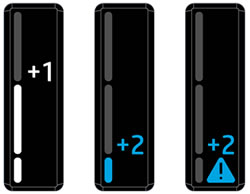
Check the toner level on the Toner Level indicator.

Toner level indicator displaying +1 and +2

  • If the Toner Level indicator is full or displays +1, skip to the next step.

  • If the Toner Level indicator displays +2, or +2 and the Toner Level warning icon , toner is low or very low and might affect print quality. Use at least one Toner Reload Kit to reload toner into the printer.

    For more information, go to Reloading Toner.

Print another page. If the print quality is still unacceptable, continue to the next step.


Step 4: Restart the printer

Restart the printer to dissipate static buildup on the paper, which can affect print quality.

Turn the printer off, turn it back on, and then print another page.

If the print quality is still unacceptable, continue to the next step.


FOR DETAILS & FURTHER INSTRUCTIONS, USE THIS LINK: CLICK HERE & SKIP TO STEP 5 ONWARD

(By the end of this article all the issues should be resolved)


Keep us posted,

If you would like to thank us for our efforts to help you, 

Give us a virtual high-five by clicking the 'Thumbs Up' icon below, followed by clicking on the "Accept as solution" on this post, 

Have a great day!

Riddle_Decipher
I am an HP Employee


Learning is a journey, not a destination.
Let's keep asking questions and growing together.
† The opinions expressed above are the personal opinions of the authors, not of HP. By using this site, you accept the <a href="https://www8.hp.com/us/en/terms-of-use.html" class="udrlinesmall">Terms of Use</a> and <a href="/t5/custom/page/page-id/hp.rulespage" class="udrlinesmall"> Rules of Participation</a>.