• ×
    Information
    Need Windows 11 help?
    Check documents on compatibility, FAQs, upgrade information and available fixes.
    Windows 11 Support Center.
  • post a message
  • ×
    Information
    Need Windows 11 help?
    Check documents on compatibility, FAQs, upgrade information and available fixes.
    Windows 11 Support Center.
  • post a message
Guidelines
Join the HP Community Solve‑a‑thon | Help Others & Share Your Solutions | Live on Zoom | 2:30 PM to 2:30 AM IST | Every Wednesday Click here to know more
HP Recommended
HP Color Laserjet Pro M252
Microsoft Windows 10 (64-bit)

When trying to print I get the error:


Print Failure

If error repeats turn off and then on

Press Ok to continue


I have shut the printer off and then back on with no success.  I have even removed the power cord, shut the printer off and waited 1 min with no success.   When printing pages the printer is only printing partial pages and not completing the entire print job.


1 REPLY 1
HP Recommended

@Riversoap


Welcome to HP forums.

  • Did you make a copy and check if that prints fine?

If that prints fine, follow the below steps:

Check the EconoMode settings.


  1. From the software program, select the Print option.

  2. Select the printer, and then click Properties or Preferences.

  3. Click the Paper/Quality tab, and then locate the Print Quality area.

  4. If the entire page is too dark, use these settings:

    • Select the 600 dpi option.

    • Select the EconoMode check box to enable it.

    If the entire page is too light, use these settings:

    • Select the FastRes 1200 option.

    • Clear the EconoMode check box to disable it.

  5. Click OK, and then click OK to print the job.

If that does not copy fine, inspect the toner cartridge for damage

  1. Remove the toner cartridge from the printer, and then make sure that the sealing tape has been removed.

  2. Check the memory chip for damage.

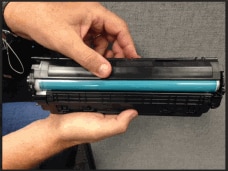
  3. Slide back the cartridge cover to expose the imaging drum.

  4. Figure : Slide back the cartridge cover

  5. Image: Slide back the cartridge cover

  6. Examine the surface of the imaging drum on the toner cartridge.

    • If you see any scratches, fingerprints, or other damage on the imaging drum, replace the toner cartridge.

    • If the imaging drum does not appear to be damaged, close the cover, and then reinstall the cartridge in the printer.

    • Try to print again to see if the issue is resolved:

You can refer this HP document for more assistance:- Click here


Let me know how it goes.

To thank me for my efforts to help you, please mark my post as an accepted solution so that it benefits several others.

Cheers.

Sandytechy20
I am an HP Employee

† The opinions expressed above are the personal opinions of the authors, not of HP. By using this site, you accept the <a href="https://www8.hp.com/us/en/terms-of-use.html" class="udrlinesmall">Terms of Use</a> and <a href="/t5/custom/page/page-id/hp.rulespage" class="udrlinesmall"> Rules of Participation</a>.