• ×
    Information
    Need Windows 11 help?
    Check documents on compatibility, FAQs, upgrade information and available fixes.
    Windows 11 Support Center.
  • post a message
  • ×
    Information
    Need Windows 11 help?
    Check documents on compatibility, FAQs, upgrade information and available fixes.
    Windows 11 Support Center.
  • post a message
Guidelines
Seize the moment! nominate yourself or a tech enthusiast you admire & join the HP Community Experts!
HP Recommended
MFP m281cdw
Microsoft Windows 10 (64-bit)

We have had a Color Laser Jet MFP M281cdw printer for about 6 months.  It has always been finicky for my computer.  My husband has never had issues.  Now we both can't print.


(Stage 1) Initially when the wireless wouldn't print, I could just use the usb and it would work.  I never really knew if the wireless would work or if I would have to use the usb.  Wasn't really a big deal so I just dealt with it.  It was very random if/when the wireless would work or not.


(Stage 2) After a 3-4 months  that stopped working and I would have to restart my computer every day or so and it would print.  If I didn't restart my computer it wouldn't work with the usb or wireless.  This lasted for maybe a month or two tops.


(Stage 3) The above stopped and the only way I could print was if I saved as a PDF and then opened the PDF and printed the document from there.  This lasted for a about a week.  When that stopped working my husband said he couldn't print from his computer either.


He uninstalled and reinstalled all drivers and that didn't work.


I downloaded and ran some diagnostic app, which resulted in a test page printing, and a couple PDF's printing, but only 3 out of maybe 10 that I tried printed.  Nothing further printed after that.


I ran the diagnostic a second time and the test page didn't even print, but now my printer says "ready" not "offline", even though it still doesn't print.  It looks like it sends the job, but nothing even shows up in the printer job status.


Please help.  This is terribly frustrating.


1 REPLY 1
HP Recommended

@Megan13


Welcome to HP support community.


Use HP Print and Scan Doctor to check connectivity

Download HP Print and Scan Doctor.

  1. Run HPPSdr.exe from the download location on your computer.

  2. Once HP Print and Scan Doctor opens, click Start, and then select your printer.

    • If your printer in not in the list, turn it off and on, and then click Retry.

    • If there is a connection problem, follow the instructions in HP Print and Scan Doctor.

  3. If a screen prompts you to turn on printer updates, click Yes.

  4. If a screen prompts you to make your printer the default printer, click Yes.

  5. Try to print.

Assign manual IP address and that should fix the issue.

To identify which IP address is currently assigned to the printer, do the following:

a. From the Home screen on the product control panel, swipe until the Setup menu displays. Touch the Setup icon to open the menu.

b. Open the Reports menu.

c. Select configuration Report.


Setting a Static IP Address

Once you know your printer’s IP address, entering it is pretty easy. Here’s what you do:

HP Printer Static IP Address

  1. Run your Web browser.
  2. In the Web browser’s address bar, type the IP address of your printer and press Enter. Assuming you entered the right address, the HP printer control panel should appear.
  3. Click the Networking tab.
  4. Under Connections, click Wireless.
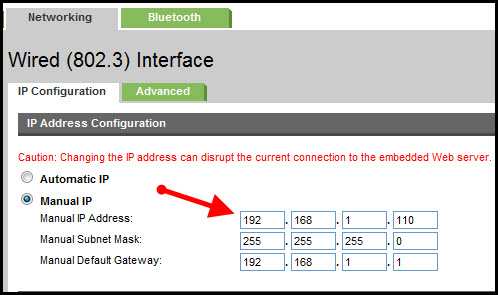
  5. Under IP Address Configuration, click Manual IP.
  6. Enter the IP address, subnet mask, and default gateway in the appropriate boxes.
  7. Click Apply.

You can refer this HP document for more assistance:- Click here


Let me know how it goes.

To thank me for my efforts to help you, please mark my post as an accepted solution so that it benefits several others.

Cheers.

Sandytechy20
I am an HP Employee

† The opinions expressed above are the personal opinions of the authors, not of HP. By using this site, you accept the <a href="https://www8.hp.com/us/en/terms-of-use.html" class="udrlinesmall">Terms of Use</a> and <a href="/t5/custom/page/page-id/hp.rulespage" class="udrlinesmall"> Rules of Participation</a>.