• ×
    Information
    Need Windows 11 help?
    Check documents on compatibility, FAQs, upgrade information and available fixes.
    Windows 11 Support Center.
  • post a message
  • ×
    Information
    Need Windows 11 help?
    Check documents on compatibility, FAQs, upgrade information and available fixes.
    Windows 11 Support Center.
  • post a message
Guidelines
Seize the moment! nominate yourself or a tech enthusiast you admire & join the HP Community Experts!
HP Recommended
HP Laser Jet Pro M281fdw
Microsoft Windows 10 (64-bit)

I have downloaded the newest printersoftware, but it fails to install.

It terminates with the error:

Installation error. The nescesarry software for the device could not be installed.

c:\windows\system32\driverstore\filerepository\hpwia_ljm278-281.inf

The one calling driverpackageinststall must be a member of the group administrator to install this driverpackage.


I can add that I ran the installation file as administrator.


What can be done?

1 REPLY 1
HP Recommended
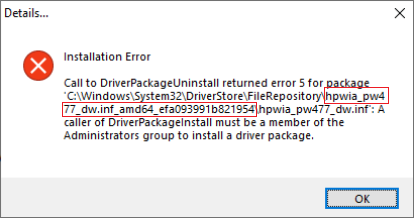
Is this error sample similar to the one you see?

DriverPackageUninstallError5.png

Solution

Note: if you have an HP Computer, follow the steps within the HP PC Solution section and do not follow any further steps within this section


  • From the search bar type CMD, right-click on Command Prompt and select Run as Administrator.
  • Copy the following command, then right-click the Command Prompt dialog and select Paste, then press Enter till any command completes
  • processing:
    takeown /f %windir%\System32\DriverStore\FileRepository /r /d y
    icacls "%windir%\System32\DriverStore\FileRepository" /grant %username%:(OI)(CI)F /T
    for /d %G in ("%windir%\System32\DriverStore\FileRepository\hp*") do rd /s /q "%~G"
    takeown /f %windir%\System32\DriverStore\FileRepository /A /r /d y
    Note: This provides your user full permissions to the File Repository system folder and deletes all HP's folders from within the system folder
    Note: if you receive any Syntax error and your operating system language is in a different language than English, review the following Takeown command documentation from Microsoft for your language and modify the syntax accordingly.

  • From the Start menu click the Gear icon, select Apps and uninstall the HP Basic Device Software for your printer.
  • Download and install the latest HP Basic Device Software for your printer as necessary:
    https://support.hp.com/us-en/drivers/printers


HP PC Solution
  • From the search bar type CMD, right-click on Command Prompt and select Run as Administrator.
  • Copy the following command, then right-click the Command Prompt dialog and select Paste, then press Enter till any command completes processing:
    takeown /f %windir%\System32\DriverStore\FileRepository /r /d y
    icacls "%windir%\System32\DriverStore\FileRepository" /grant %username%:(OI)(CI)F /T
    takeown /f %windir%\System32\DriverStore\FileRepository /A /r /d y
     Note: This provides your user full permissions to the File Repository system folder
    Note: if you receive any Syntax error and your operating system language is in a different language than English, review the following Takeown command documentation from Microsoft for your language and modify the syntax accordingly.
  • From the Start menu click the Gear icon, select Apps and uninstall the HP Basic Device Software for your printer and evaluate the error message, then close the Uninstall dialog.
  • Right-click the Start button and select Run, then paste the following path and press OK:

    %windir%\System32\DriverStore\FileRepository
  • Locate and delete only the HP Folder listed in the error message.
    Example: following below error message, delete the hpwia_pw477dw.inf_amd64_efa093991b821954 folder as an example:
    DriverPackageUninstallError5HP.png
  • From the Start menu click the Gear icon, select Apps and uninstall the HP Basic Device Software for your printer.
  • Download and install the latest HP Basic Device Software for your printer as necessary:
    https://support.hp.com/us-en/drivers/printers


Click the Yes button to reply that the response was helpful or to say thanks.
If my post resolve your problem please mark it as an Accepted Solution 🙂
† The opinions expressed above are the personal opinions of the authors, not of HP. By using this site, you accept the <a href="https://www8.hp.com/us/en/terms-of-use.html" class="udrlinesmall">Terms of Use</a> and <a href="/t5/custom/page/page-id/hp.rulespage" class="udrlinesmall"> Rules of Participation</a>.