
-
×InformationNeed Windows 11 help?Check documents on compatibility, FAQs, upgrade information and available fixes.
Windows 11 Support Center. -
-
×InformationNeed Windows 11 help?Check documents on compatibility, FAQs, upgrade information and available fixes.
Windows 11 Support Center. -
- HP Community
- Printers
- LaserJet Printing
- Re: Printing error on HP printer...."Printing - Scanner Erro...

Create an account on the HP Community to personalize your profile and ask a question
Your account also allows you to connect with HP support faster, access a personal dashboard to manage all of your devices in one place, view warranty information, case status and more.

It has been a while since anyone has replied. Simply ask a new question if you would like to start the discussion again.

09-06-2019 06:12 AM
 HP Recommended
Product: HP LaserJet CP1025nw
Operating System: Mac OS X 10.11 El Capitan
Hello....my HP LaserJet CP1025nw printer won't print. In my printer message window on my Mac, I'm getting the following...
"To continue, turn the device off then turn the device on. Printing - Scanner error"
I've done all of the printer resetting solutions, but nothing is working. Any help would be greatly appreciated.
Thanks!
5 REPLIES 5


09-09-2019 12:22 PM
HP Recommended
@JThealey, Welcome to HP Support Community!
Ensure that the printer is up to date with its firmware and Mac is up to date with its software. If you are unsure you may use the links below to update the printer firmware and Mac software:
Remove and add the printer
Click the Apple menu, and then select System Preferences.
Depending on your operating system version, click Print & Fax, Print & Scan, or Printers & Scanners.
Click the name of your printer, click the Minus sign , and then delete the printer.
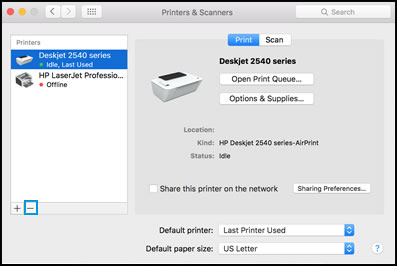
Click the Plus sign , and then click Add Printer or Scanner.
Click the Use or Print Using box, and then select AirPrint
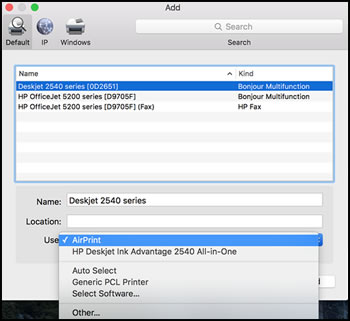
Click Add to add the printer to the list.
Try to print.
Keep me posted for further assistance.
Please click “Accept as Solution” if you feel my post solved your issue, it will help others find the solution. Click the “Kudos/Thumbs Up" on the bottom right to say “Thanks” for helping!
TEJ1602
I am an HP Employee

09-11-2019 11:28 AM
HP Recommended
Reset the printer-
- Turn the printer on, if it is not already on.
- Wait until the printer is idle and silent before you continue.
- With the printer turned on, disconnect the power cord from the rear of the printer.
- Unplug the power cord from the wall outlet.
- Wait at least 60 seconds.
- Plug the power cord back into the wall outlet.
- Reconnect the power cord to the rear of the printer.
- Turn on the printer, if it does not automatically turn on.
- Wait until the printer is idle and silent before you proceed.
And if the issue persists, share the picture of the alert light on the printer to isolate this issue further.
Keep me posted.
Please click “Accept as Solution” if you feel my post solved your issue, it will help others find the solution. Click the “Kudos/Thumbs Up" on the bottom right to say “Thanks” for helping!
TEJ1602
I am an HP Employee

09-12-2019 08:19 AM
HP Recommended
The product has experienced a fatal error from which it cannot recover. Follow the steps below to restart the product.
If the error persists, contact HP customer support.
Solution one: Reset the printer
-
Press the Power button (
 ) to turn off the product.
 -
Disconnect the power cord from the back of the product.
-
Wait 30 seconds.
-
Reconnect the power cord to the product.
-
Press the Power button (
) to turn on the product. -
Wait for the product to start up before proceeding.
Solution two: Service the printer
Service or replace your HP product if the issue persists after completing all the preceding steps.
Go to Contact HP Customer Support to schedule a product repair or replacement. If you are in the Asia Pacific, you will be directed to a local service center in your area.
To confirm your warranty status, go to the HP Product Warranty Check. Repair fees might apply for out-of-warranty products.
Hope this helps!
Please click “Accept as Solution” if you feel my post solved your issue, it will help others find the solution. Click the “Kudos/Thumbs Up" on the bottom right to say “Thanks” for helping!
TEJ1602
I am an HP Employee

Be alert for scammers posting fake support phone numbers and/or email addresses on the community.
If you think you have received a fake HP Support message, please report it to us by clicking on "Flag Post".
† The opinions expressed above are the personal opinions of the authors, not of HP. By using this site, you accept the Terms of Use and Rules of Participation.


Didn't find what you were looking for?
Ask the community
† The opinions expressed above are the personal opinions of the authors, not of HP. By using this site, you accept the <a href="https://www8.hp.com/us/en/terms-of-use.html" class="udrlinesmall">Terms of Use</a> and <a href="/t5/custom/page/page-id/hp.rulespage" class="udrlinesmall"> Rules of Participation</a>.