• ×
    Information
    Need Windows 11 help?
    Check documents on compatibility, FAQs, upgrade information and available fixes.
    Windows 11 Support Center.
  • post a message
  • ×
    Information
    Need Windows 11 help?
    Check documents on compatibility, FAQs, upgrade information and available fixes.
    Windows 11 Support Center.
  • post a message
Guidelines
Seize the moment! nominate yourself or a tech enthusiast you admire & join the HP Community Experts!
HP Recommended
mfpm281fdw
macOS 10.15 Catalina

It does not print my document, instead it is printing the following:

ERROR: limitcheck

OFFENDING COMMAND: imagemask


1 REPLY 1
HP Recommended

Hi @AnnRo7


Welcome to the HP Support Community. I'd be happy to assist you with the "cannot print from computer" issue. 


To better assist you - 

 1) Are you able to make copies using the printer?
2) What's the application you are trying to print from? Have you tried printing from a different application or devices? 


Meanwhile, if you're printing a PDF document 


Try to print the PDF file as an Image. Please follow this link to know-how


then, try deleting and adding the printer.


Removing the existing printer driver and setting up the printer with Apple AirPrint may resolve the issue. Let's try these steps:


1. Click the Apple menu, click System Preferences, and then click Print & Scan or Printers & Scanners.
2. Check if your printer name displays in the Printers list, If your printer is listed, click the printer name, click the minus sign to delete the printer.

3. If you see multiple printer queues for the same printer, remove all extra printers by selecting them one at a time, and then clicking the minus button  at the bottom of the list.

4. Click the plus sign , click Add Printer or Scanner, click the printer name.
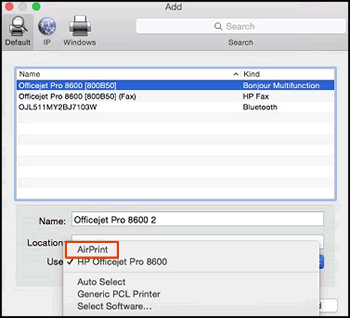
 

5. Click the Use or Print Using menu, select AirPrint or Secure AirPrint in the pop-up menu. Then click Add.

Select AirPrint from the Use menu


6. Try to print


(try the steps step2 if its not a PDF document)


Hope this helps! Keep me posted. 


Please click “Accept as Solution” if you feel my post solved your issue, it will help others find the solution.

Click the “Kudos, Thumbs Up" on the bottom right to say “Thanks” for helping!


Have a great day! 

† The opinions expressed above are the personal opinions of the authors, not of HP. By using this site, you accept the <a href="https://www8.hp.com/us/en/terms-of-use.html" class="udrlinesmall">Terms of Use</a> and <a href="/t5/custom/page/page-id/hp.rulespage" class="udrlinesmall"> Rules of Participation</a>.


