
-
×InformationNeed Windows 11 help?Check documents on compatibility, FAQs, upgrade information and available fixes.
Windows 11 Support Center. -
-
×InformationNeed Windows 11 help?Check documents on compatibility, FAQs, upgrade information and available fixes.
Windows 11 Support Center. -
- HP Community
- Printers
- LaserJet Printing
- Re: Printing problem

Create an account on the HP Community to personalize your profile and ask a question
Your account also allows you to connect with HP support faster, access a personal dashboard to manage all of your devices in one place, view warranty information, case status and more.

It has been a while since anyone has replied. Simply ask a new question if you would like to start the discussion again.

01-04-2019 09:20 AM
 HP Recommended
Product: HP Envy 4526
Operating System: Mac OS X 10.5 Leopard and older
Hi there,
Since I installed the web connection with HP (for Instant Ink) my printer doesn't print in black anymore (with a new cartridge), color is nog problem. Can this be caused by the web connection? And what should I do to solve this problem?
Anyone, any ideas?
Thanx!
Solved! Go to Solution.
1 ACCEPTED SOLUTION
Accepted Solutions


01-05-2019 10:07 AM
HP Recommended
Hi! @Penvogel, Welcome to HP forums.
I understand after installing the new cartridge you have issues printing in black from the printer.
Don't worry I'll try to help you out.
Did you make any changes to your printer?
Are you registered in the instant ink services?
Does the issue persist when you make a copy from your printer?
Have you tried printing using a different ink cartridge?
Are you using regular ink cartridges or Instant ink cartridges on your printer?
Splendid analysis and remarkable patience shown. It is immensely appreciated.
Print a print quality diagnostics page from the printer and check if you see black colour.
Check the ink levels on your printer and replace the low, empty or faulty ink cartridges.
Clean the electrical contacts on the ink cartridges.
Remove, inspect, then reseat the ink cartridges
The printer might display an error if the ink cartridges are not correctly installed.
NOTE:
If you are enrolled in the HP Instant Ink program, you receive special HP Instant Ink cartridges. Some HP Instant Ink cartridges are larger than standard ink cartridges, but they fit in the carriage in the same way. HP Instant Ink is not available in all countries/regions or for all printer models. For more information, go to HP Instant Ink.
Standard ink cartridge
HP Instant Ink cartridge
-
Turn on the printer, if it is not on already.
-
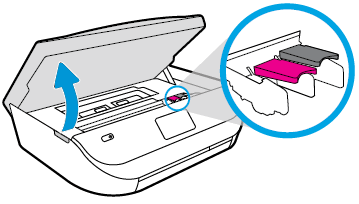
Gently grasp the handles on either side of the printer, then raise the ink cartridge access door until it locks into place.
The carriage moves to the center of the printer.
Figure : Opening the ink cartridge access door
-
Wait until the carriage is idle and silent before you proceed.
-
To release the ink cartridge, lift the lid on the ink cartridge slot, then gently push the lid back until it stops.
-
Pull up on the ink cartridge to remove it from the slot.
Figure : Removing the ink cartridge
-
Lift the lid
-
Gently push the lid back
-
Pull up on the ink cartridge
-
-
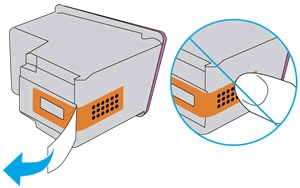
Inspect the contacts for any protective tape that still might be on the nozzles.
CAUTION:
Do not touch the copper-colored contacts or the ink nozzles. Touching these parts can result in clogs, ink failure, and bad electrical connections.
-
Remove the protective tape from the contacts, if necessary.
CAUTION:
Do not try to remove the copper electrical strip.
Figure : Removing the plastic tape
-
Hold the ink cartridge by its sides with the nozzles toward the printer, then slide the ink cartridge forward into the slot.
-
Close the lid on the ink cartridge slot to secure the ink cartridge into place.
Figure : Inserting the ink cartridges
-
Insert the ink cartridge
-
Close the lid
-
The color ink cartridge is on the left, and the black ink cartridge is on the right
-
-
Repeat the previous steps to remove, inspect, and reseat the other ink cartridge, if necessary.
-
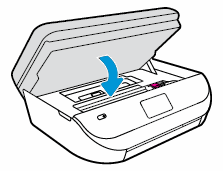
Close the ink cartridge access door.
Figure : Closing the ink cartridge access door.
Refer this article to further troubleshoot print quality issues with the printer. Click Here
If you have registered in the instant ink services. Please share few details in a private message, So I can check the account details and ship you the replacement ink cartridges.
Instant ink account number-
Instant ink email address-
Printer serial number-
Cartridges needed (Colour or Black)-
Shipping address-
Let me know if this helps!
Have a beautiful day ahead! 🙂
Please click “Accept as Solution” if you feel my post solved your issue, it will help others find the solution.
Click the “Kudos, Thumbs Up" on the bottom right to say “Thanks” for helping!
A4Apollo
I am an HP Employee
3 REPLIES 3
01-05-2019 10:07 AM
HP Recommended
Hi! @Penvogel, Welcome to HP forums.
I understand after installing the new cartridge you have issues printing in black from the printer.
Don't worry I'll try to help you out.
Did you make any changes to your printer?
Are you registered in the instant ink services?
Does the issue persist when you make a copy from your printer?
Have you tried printing using a different ink cartridge?
Are you using regular ink cartridges or Instant ink cartridges on your printer?
Splendid analysis and remarkable patience shown. It is immensely appreciated.
Print a print quality diagnostics page from the printer and check if you see black colour.
Check the ink levels on your printer and replace the low, empty or faulty ink cartridges.
Clean the electrical contacts on the ink cartridges.
Remove, inspect, then reseat the ink cartridges
The printer might display an error if the ink cartridges are not correctly installed.
NOTE:
If you are enrolled in the HP Instant Ink program, you receive special HP Instant Ink cartridges. Some HP Instant Ink cartridges are larger than standard ink cartridges, but they fit in the carriage in the same way. HP Instant Ink is not available in all countries/regions or for all printer models. For more information, go to HP Instant Ink.
Standard ink cartridge
HP Instant Ink cartridge
-
Turn on the printer, if it is not on already.
-
Gently grasp the handles on either side of the printer, then raise the ink cartridge access door until it locks into place.
The carriage moves to the center of the printer.
Figure : Opening the ink cartridge access door
-
Wait until the carriage is idle and silent before you proceed.
-
To release the ink cartridge, lift the lid on the ink cartridge slot, then gently push the lid back until it stops.
-
Pull up on the ink cartridge to remove it from the slot.
Figure : Removing the ink cartridge
-
Lift the lid
-
Gently push the lid back
-
Pull up on the ink cartridge
-
-
Inspect the contacts for any protective tape that still might be on the nozzles.
CAUTION:
Do not touch the copper-colored contacts or the ink nozzles. Touching these parts can result in clogs, ink failure, and bad electrical connections.
-
Remove the protective tape from the contacts, if necessary.
CAUTION:
Do not try to remove the copper electrical strip.
Figure : Removing the plastic tape
-
Hold the ink cartridge by its sides with the nozzles toward the printer, then slide the ink cartridge forward into the slot.
-
Close the lid on the ink cartridge slot to secure the ink cartridge into place.
Figure : Inserting the ink cartridges
-
Insert the ink cartridge
-
Close the lid
-
The color ink cartridge is on the left, and the black ink cartridge is on the right
-
-
Repeat the previous steps to remove, inspect, and reseat the other ink cartridge, if necessary.
-
Close the ink cartridge access door.
Figure : Closing the ink cartridge access door.
Refer this article to further troubleshoot print quality issues with the printer. Click Here
If you have registered in the instant ink services. Please share few details in a private message, So I can check the account details and ship you the replacement ink cartridges.
Instant ink account number-
Instant ink email address-
Printer serial number-
Cartridges needed (Colour or Black)-
Shipping address-
Let me know if this helps!
Have a beautiful day ahead! 🙂
Please click “Accept as Solution” if you feel my post solved your issue, it will help others find the solution.
Click the “Kudos, Thumbs Up" on the bottom right to say “Thanks” for helping!
A4Apollo
I am an HP Employee
01-09-2019 02:28 PM
HP Recommended
It appears that the new cartridge that was sent to me by HP (before I started with Instant Ink) was empty...
I just didn't think of that possibility, but it was obvious when I checked the levels of ink in the printer.
I then thought I put the wrong cartridge in. I still had that other one, but it was the old one (empty too).
Is it possible to get my money back for the empty cartridge?
01-10-2019 03:56 AM
HP Recommended
@Penvogel, thanks for your prompt response and time.
I appreciate your efforts for writing back to us.
As you mentioned the old ink cartridge was empty due to which you had issues printing.
And I'm glad to know after replacing the ink cartridges your issue got resolved.
However, as you needed to know if you can get a refund for the empty ink cartridge.
Is the empty ink cartridge an instant ink cartridge?
If Yes, you will not get a refund. However, we can ship you another set of ink cartridges.
If No, I will share you few details through a private message about the contact details for support.
Please watch your inbox for more information.
Hope this answers your query!
Take Care! 🙂
A4Apollo
I am an HP Employee

Be alert for scammers posting fake support phone numbers and/or email addresses on the community.
If you think you have received a fake HP Support message, please report it to us by clicking on "Flag Post".
† The opinions expressed above are the personal opinions of the authors, not of HP. By using this site, you accept the Terms of Use and Rules of Participation.


Didn't find what you were looking for?
Ask the community
† The opinions expressed above are the personal opinions of the authors, not of HP. By using this site, you accept the <a href="https://www8.hp.com/us/en/terms-of-use.html" class="udrlinesmall">Terms of Use</a> and <a href="/t5/custom/page/page-id/hp.rulespage" class="udrlinesmall"> Rules of Participation</a>.