• ×
    Information
    Need Windows 11 help?
    Check documents on compatibility, FAQs, upgrade information and available fixes.
    Windows 11 Support Center.
  • post a message
  • ×
    Information
    Need Windows 11 help?
    Check documents on compatibility, FAQs, upgrade information and available fixes.
    Windows 11 Support Center.
  • post a message
Guidelines
Join the HP Community Solve‑a‑thon | Help Others & Share Your Solutions | Live on Zoom | 2:30 PM to 2:30 AM IST | Every Wednesday Click here to know more
HP Recommended
LaserJet 1020
Microsoft Windows 10 (64-bit)

Notebook ASUS, Windows 10 see the printer, shows it is ready to print the page but when I send it to printing, printer appear in tray with printing job and nothing more-no printing. There is no reaction from printer, green light only. Printer checked on Win7 - no problems appear (printing is possible).

Using of HP Print and Scan Doctor для Windows, switching on and off doesn`t make sense.

1 REPLY 1
HP Recommended

@Dimasik


Welcome to HP support community.


Delete job files and restart

  1. Turn off the printer using the power button and then unplug the printer power cord from the power outlet.

  2. In Windows, search for and open Services.

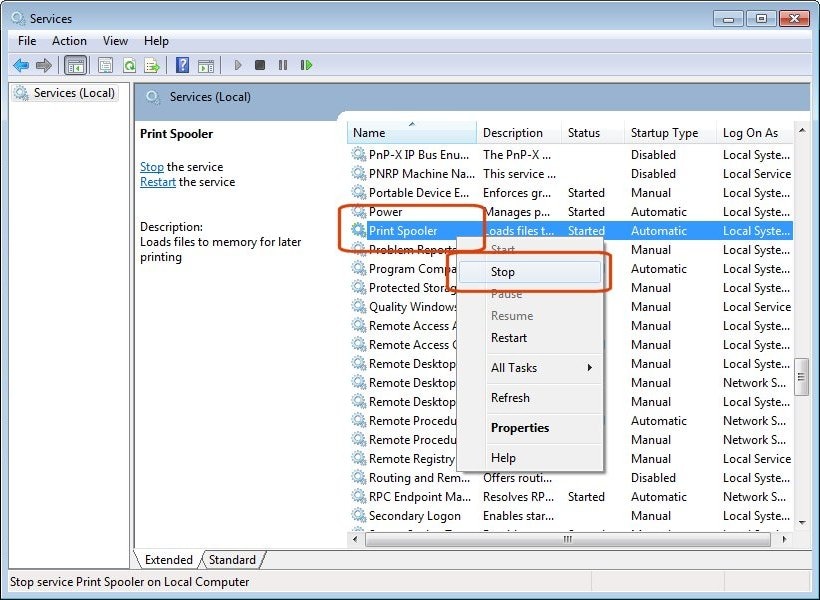
  3. In the Services window, right-click Print Spooler, and then select Stop.

     Service window the Print Spooler service selected from the Name list and the Stop selection called out.

  4. After the service stops, close the Services window.

  5. In Windows, search for and open C:Windows\System32\Spool\PRINTERS.

  6. Delete all files in the PRINTERS folder.

  7. Shut down your computer.

  8. Connect the printer power cord to the power outlet, and then turn on the printer.

  9. Turn on the computer, and then try to print.

Perform root level uninstalltion to remove all the printer related software's.

  • In Windows, search for and open Programs and Features.
  • Select your HP printer.
  • Select Uninstall.
  • In Windows, search for and open Devices and Printers.
  • In the Devices and Printers window look for your HP Printer. If you see it listed, right-click on it and choose "Delete" or "Remove Device.”
  • Open up the run command with the "Windows Key + R" key combo.
  • Type printui.exe /s and click OK.
  • Click on Drivers tab.
  • Look for HP Printer driver. If you see it click on it and click Remove at the bottom.
  • Select OK.
  • Remove all instances of the same.
  • Select Apply and OK on the Print Server Properties windows.
  • Close Devices and Printers. 
  • Restart the PC again.

Install the printer with Windows Built-in driver

Click here for the steps to install driver.


You can refer this HP document for further assistance:- Click here


Let me know how it goes.

To thank me for my efforts to help you, please mark my post as an accepted solution so that it benefits several others.

Cheers.

Sandytechy20
I am an HP Employee

† The opinions expressed above are the personal opinions of the authors, not of HP. By using this site, you accept the <a href="https://www8.hp.com/us/en/terms-of-use.html" class="udrlinesmall">Terms of Use</a> and <a href="/t5/custom/page/page-id/hp.rulespage" class="udrlinesmall"> Rules of Participation</a>.