
-
×InformationNeed Windows 11 help?Check documents on compatibility, FAQs, upgrade information and available fixes.
Windows 11 Support Center. -
-
×InformationNeed Windows 11 help?Check documents on compatibility, FAQs, upgrade information and available fixes.
Windows 11 Support Center. -
- HP Community
- Printers
- LaserJet Printing
- Stopped printing 'Filter' using OS X 10.14.2

Create an account on the HP Community to personalize your profile and ask a question
Your account also allows you to connect with HP support faster, access a personal dashboard to manage all of your devices in one place, view warranty information, case status and more.

It has been a while since anyone has replied. Simply ask a new question if you would like to start the discussion again.

01-19-2019 05:27 PM
 HP Recommended
Product: CP1025nw
Operating System: macOS 10.14 Mojave
Since upgrading my OS to 10.14 I have been unable to print to my HP printer except using the printer utility test page. I've read previous posts on this forum with this problem, and non of the techniques including resetting the printer system and re-installing the printer drivers has helped.
As I said, the printer will print using the HP printer utility but will not print from any app.
My second printer (Brother) prints fine
Any ideas?
5 REPLIES 5


01-21-2019 09:50 AM - edited 01-21-2019 09:51 AM
HP Recommended
A warm welcome to HP Forums! This is a great place to get support, find answers and tips to your technical queries.
HP Laserjet CP1025nw is AirPrint compatible. Removing the existing printer driver and then setting up the printer with Apple AirPrint may resolve the issue. If the printer is connected to your home network using an Ethernet cable or WiFi, then use the following steps to remove existing printer driver and setup the printer with Apple AirPrint:
Please ensure that the printer is up to date with its firmware and Mac is up to date with it's software. If you are unsure you may use the links below to update the printer firmware and Mac software:
1.) Click the Apple menu, click System Preferences, and then click Print & Scan or Printers & Scanners.
2.) Check if your printer name displays in the Printers list, If your printer is listed, click the printer name, click the minus sign  to delete the printer.
3.) If you see multiple printer queues for the same printer, remove all extra printers by selecting them one at a time, and then clicking the minus button at the bottom of the list.
4.) Click the plus sign  , click Add Printer or Scanner, click the printer name.
5.) Click the Use or Print Using menu, select AirPrint or Secure AirPrint in the pop-up menu. Then click Add.
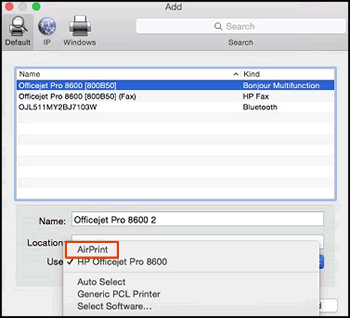
6.) Try to print and scan.
Let me know how it goes!
If the information I've provided was helpful, give us some reinforcement by clicking the Accepted Solution and Kudos buttons, that'll help us and others see that we've got the answers!
Have a great day!
Senan6806
I am an HP Employee
01-22-2019 01:25 PM
HP Recommended
Thank you for helping me. Unfortunately I'm running into difficulties. Downloaded the Firmware upgrade but it doesn't run possibily because it came out before the latest OS upgrade of 10.14. The current Firmware is dated 2010, consequently when I reload the printer "Airprint" is not available as a selection. My only choices are Bonjour or USB, neither of which work.
01-28-2019 06:39 AM - edited 01-28-2019 06:46 AM
HP Recommended
AirPrint option will only be available if the printer is connected to a network. Its possible that the printer is not connected to a wireless network. Use the following steps to connect the printer to a wireless network:
Gather the network name and pass-phrase.
NOTE:
If you do not know your network name and password, go to Find Your Wireless WEP, WPA, WPA2 Password.
Connect a USB cable to the USB port on the rear of the printer
 , and then to the computer.
Click the Apple menu, and then click System Preferences.
Depending on your operating system version, click Print & Fax, Print & Scan, or Printers & Scanners.
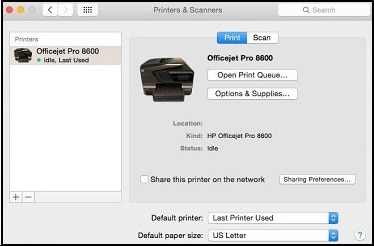
Click the name of your printer, and then click Options & Supplies.
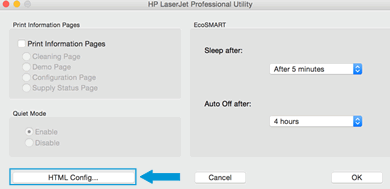
Click Utility, and then click Open Printer Utility.
Click HTML Config to open the advanced printer settings window.
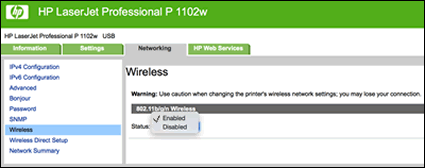
Click the Networking tab, and then click Wireless in the left pane.
Click 802.11b/g/n Wireless, and then select Enabled from the pop-up menu.
Double-click your network name to add it to the Current Network Name field, enter the network pass-phrase, and then click Apply.
Add your network name to the Current Network Name (SSID) field
Enter your network pass-phrase
Disconnect the USB cable from the printer and the computer.
In the Printers & Scanners, Print & Scan, or Print & Fax window, click the name of your printer, click the minus sign
, and then delete the USB-installed printer.Click the plus sign
, and then click Add Printer or Scanner.Click the name of your printer with Bonjour as the kind, click the Use or Print Using box, and then select AirPrint or Secure AirPrint in the pop-up menu.
Click Add to add the printer to the list.
Try to print and scan
Senan6806
I am an HP Employee

Be alert for scammers posting fake support phone numbers and/or email addresses on the community.
If you think you have received a fake HP Support message, please report it to us by clicking on "Flag Post".
† The opinions expressed above are the personal opinions of the authors, not of HP. By using this site, you accept the Terms of Use and Rules of Participation.


Didn't find what you were looking for?
Ask the community
† The opinions expressed above are the personal opinions of the authors, not of HP. By using this site, you accept the <a href="https://www8.hp.com/us/en/terms-of-use.html" class="udrlinesmall">Terms of Use</a> and <a href="/t5/custom/page/page-id/hp.rulespage" class="udrlinesmall"> Rules of Participation</a>.