-
×InformationNeed Windows 11 help?Check documents on compatibility, FAQs, upgrade information and available fixes.
Windows 11 Support Center. -

-
×InformationNeed Windows 11 help?Check documents on compatibility, FAQs, upgrade information and available fixes.
Windows 11 Support Center. -
- HP Community
- Printers
- LaserJet Printing
- Unable to install/detect/add Printer to Mac

Create an account on the HP Community to personalize your profile and ask a question
02-19-2020 05:15 AM
Hi,
I have an HP LaserJet P1102w. I've used this printer on the previous MacBook pro I once had. But ever since I've ported to the new MacBook pro, I am unable to connect the printer to my system. Neither wirelessly, nor through a USB port.
I've downloaded and installed the drivers, (reinstalled them as well!) and yet, the printer just doesn't get detected.
I haven't been able to add the printer via IP address, nor have I been able to add the printer via the HP easy start guide. Mainly because the Printer refuses to be detected.
Hope there's a solution to this problem!
Sincerely,
AA_DASH
02-21-2020 01:11 PM - edited 02-21-2020 01:14 PM
I have gone through your Post and I would like to assist
I suggest you restore the Printer back to defaults and then set it up again using Airprint
- Turn the product off.
- Turn the product on, and while it is initializing press and hold the cancel button and wireless button at the same time
Before Adding your printer as Airprint, please check the following details
- Do you have any Anti-virus software installed on your MAC? If you do, please deactivate it for now.
- Ensure the printer and the MAC are connected to the same wireless network.
-Note:- This printer supports only 2.4GHz network. Do not connect it to 5 GHz Network incase your Router supports both 2.4 and 5 GHz
- If you have a Dual-band router and both 2.4GHz and 5GHz networks share the same name/SSID, then the printer will not be able to connect to the network. In this case, contact your Internet service provider to assign different names to both the networks.
Please check with your Internet service provider if your router is able to forward 'Bonjour packets'. This is very important
Bonjour locates devices such as printers, other computers, and the services that those devices offer on a local network using multicast Domain Name System (mDNS) service records. The software comes built-in with Apple's macOS and iOS operating systems.
Also perform a ping test using the Mac Network Utility and let me know the results. Use the printer IP address to perform a ping test, the printer IP can be located by touching the wireless icon on the printer display or by printing a Network Configuration Page
Next ensure your Mac and Printer have the latest updates
Printer Firmware: https://support.hp.com/in-en/document/c02919168
Mac update: https://support.apple.com/en-us/HT2015
After checking all those details and if the Ping Test is successful, Remove and Re-add the printer using Airprint. AirPrint is an Apple technology that helps you create full-quality printed output without the need to download or install drivers.
1.) Click the Apple menu, click System Preferences, and then click Print & Scan or Printers & Scanners.
2.) Check if your printer name displays in the Printers list, If your printer is listed, click the printer name, click the minus sign
to delete the printer.
3.) If you see multiple printer queues for the same printer, remove all extra printers by selecting them one at a time, and then clicking the minus button
at the bottom of the list.
4.) Click the plus sign
, click Add Printer or Scanner, click the printer name.
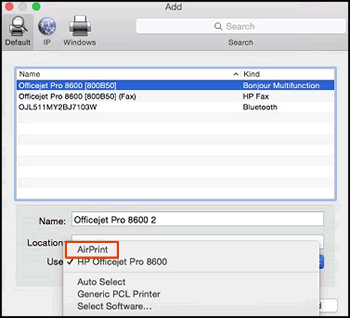
5.) Click the Use or Print Using menu, select AirPrint or Secure AirPrint in the pop-up menu. Then click Add.

6.) Try to print
Let me know how it goes😊
If the information I've provided was helpful, give us some reinforcement by clicking the "Solution Accepted" on this Post and it will also help other community members with similar issue.
KrazyToad
I Am An HP Employee

