• ×
    Information
    Need Windows 11 help?
    Check documents on compatibility, FAQs, upgrade information and available fixes.
    Windows 11 Support Center.
  • post a message
  • ×
    Information
    Need Windows 11 help?
    Check documents on compatibility, FAQs, upgrade information and available fixes.
    Windows 11 Support Center.
  • post a message
Guidelines
Seize the moment! nominate yourself or a tech enthusiast you admire & join the HP Community Experts!
HP Recommended
hp MFP M227fdw
Microsoft Windows 10 (64-bit)

how to do double side scanning on hp MFP M227fdw if possible 

1 REPLY 1
HP Recommended

Hi @SamirJ


Welcome to the HP Support Community. I'd be happy to assist you with the  "How to scan on both sides." issue. 


 What application are you scanning from?


Meanwhile, Change settings in HP Scan before you complete a scan job.


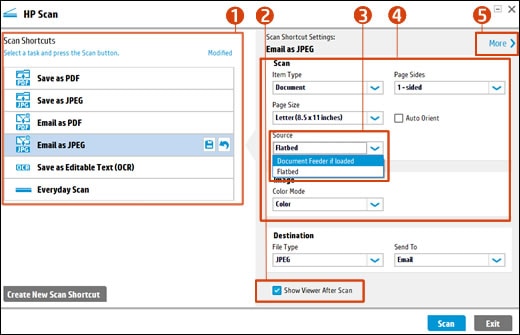
Selecting a shortcut and making sure settings are correct for the scan job

  1. Scan Shortcuts

  2. Show Viewer After Scan checkbox

  3. Source options

  4. Scan settings

  5. More

  1. Select a Scan Shortcut, such as Save as PDF or Email as JPEG.

    NOTE: 

    To save or email a multi-page scan as a single file, select a PDF shortcut. Multi-page JPEG scans save as separate files.

  2. Select the Show Viewer After Scan checkbox.

  3. If your printer has both a document feeder and scanner glass, select Document Feeder if loaded under Source.

  4. Make sure the other settings such as Page Size, Color Mode, and Page Sides match your scan job.

    NOTE: 

    If you want to scan both sides and 2-sided scanning is not an option, you can add pages to your scan later.

  5. Click More to change advanced settings, such as Resolution (ppi), Orientation, Destination, and File Name.

You may refer to - How to Scan (Windows)


Hope this helps! Keep me posted. 


Please click “Accept as Solution” if you feel my post solved your issue, it will help others find the solution.

Click the “Kudos, Thumbs Up" on the bottom right to say “Thanks” for helping!


Have a great day! 

† The opinions expressed above are the personal opinions of the authors, not of HP. By using this site, you accept the <a href="https://www8.hp.com/us/en/terms-of-use.html" class="udrlinesmall">Terms of Use</a> and <a href="/t5/custom/page/page-id/hp.rulespage" class="udrlinesmall"> Rules of Participation</a>.