• ×
    Information
    Need Windows 11 help?
    Check documents on compatibility, FAQs, upgrade information and available fixes.
    Windows 11 Support Center.
  • post a message
  • ×
    Information
    Need Windows 11 help?
    Check documents on compatibility, FAQs, upgrade information and available fixes.
    Windows 11 Support Center.
  • post a message
Guidelines
Seize the moment! nominate yourself or a tech enthusiast you admire & join the HP Community Experts!
Check out our WINDOWS 11 Support Center info about: OPTIMIZATION, KNOWN ISSUES, FAQs, VIDEOS AND MORE.
HP Recommended
Pavilion
Microsoft Windows 8.1 (64-bit)

I've had both my computer and my gaming headset for a few years. Both have been working fine. My headset and microphone use one cord that I have attached to a splitter that connects to the computer. Over the last week the computer hasn't been detecting the microphone. The headphones work just fine, but whenever I plug the microphone in it comes up as unplugged. If I specifically unplug the microphone from the splitter in registers as plugged in.


It was working fine last week and continues to work on other computers, so I know it's not the microphone or splitter. None of the hp diagnostics have been able to help. Anybody else ran into this problem?

3 REPLIES 3
HP Recommended

@Faitz

Welcome to HP Forums,  

This is a great place to get support, find answers and tips,
Thank you for posting your query, I'll be more than glad to help you out 🙂


I see that your experiencing issue with the microphone not getting detected, I appreciate your efforts to try and resolve the issue.

An old audio driver can cause your microphone to function incorrectly. Make sure the audio driver is current.

Don't worry as I'll be glad to help, however, to provide an accurate resolution, I need a few more details:

  • Did this happen after a recent window or software update?

While you respond to that, I recommend you to perform the following steps to isolate the issue and arrive at a fix:

Let's Update the audio driver​​​​​​​:

  1. Connect to the Internet.

  2. In Windows, search for and open Device Manager.

  3. Double-click Sound, video and game controllers.

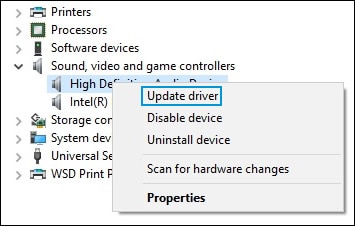
  4. Right-click the name of the sound hardware, and then select Update Driver.

    Update Driver option in Device Manager

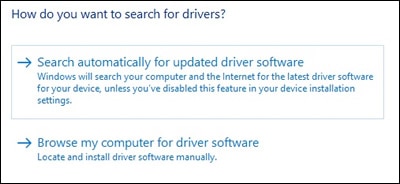
  5. Click Search automatically for updated driver software, and then wait for Windows to update the driver software.

    Updated Driver Software: Search automatically for updated driver software

  6. Windows checks to see if updated driver software is available.

    If an update is available, let Windows install the update.

  7. When the update is installed successfully, a Windows has finished installing the driver software for this device window displays.

    Test the microphone.

If updating the driver did not resolve the issue, continue to the next step.


Also, Use the Troubleshooting tool
The Troubleshooting tool automatically finds and fixes many computer issues. Use it to troubleshoot microphone problems.

  1. In Windows, search for and open Control Panel.

  2. Click Troubleshooting.

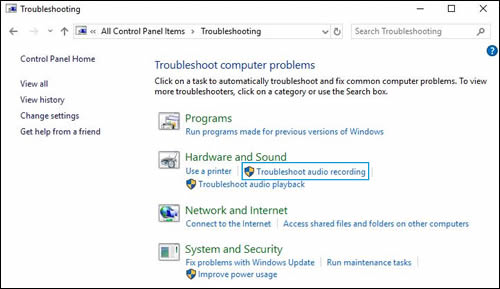
  3. Under Hardware and Sound, click Troubleshoot audio recording.

    NOTE: Administrator permission is required to run this program. If prompted, type the administrator password or provide confirmation.

    Troubleshoot audio recording

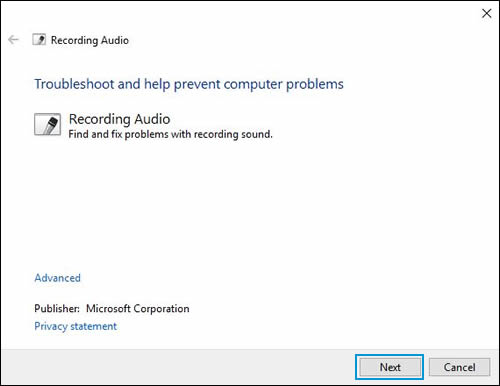
  4. The Sound troubleshooter opens. Click Next. The troubleshooter begins checking the audio service status.

    Select device to troubleshoot

  5. Select the device you want to troubleshoot, and then click Next.

  6. Follow the on-screen instructions and make any changes suggested by the troubleshooter. When done, close the troubleshooter.

  7. If the problem persists, continue to the next step.

Hope this helps! Keep me posted for further assistance.

If I have helped you resolve the issue, feel free to give me a virtual high-five by clicking the 'Thumbs Up' icon below,

Followed by clicking on "Accept as solution" from the drop-down menu on the upper right corner,

Thank you for posting in the HP Support Forum.  Have a great day!

ECHO_LAKE
I am an HP Employee

HP Recommended

I appreciate the attempt, but I've tried both of these solutions and neither of them work. The driver has been updated, I even tried uses an old version, but that didn't work either. The troubleshooter always just tells me that my problem is the microphone not being plugged in. 

HP Recommended

@Faitz

Thank you for posting back. 


I understand you are in need of support, As you've performed relevant troubleshooting steps and the issue persists, this sounds like hardware related. And to help you out, I'm sending out a Private message to assist you with the next course of action. Please check your Private message icon on the upper right corner of your HP Forums profile Next, to your profile Name, you should see a little blue envelope, please click on it or simply click on this link: https://h30434.www3.hp.com/t5/notes/privatenotespage


ECHO_LAKE
I am an HP Employee

† The opinions expressed above are the personal opinions of the authors, not of HP. By using this site, you accept the <a href="https://www8.hp.com/us/en/terms-of-use.html" class="udrlinesmall">Terms of Use</a> and <a href="/t5/custom/page/page-id/hp.rulespage" class="udrlinesmall"> Rules of Participation</a>.