• ×
    Information
    Need Windows 11 help?
    Check documents on compatibility, FAQs, upgrade information and available fixes.
    Windows 11 Support Center.
  • post a message
  • ×
    Information
    Need Windows 11 help?
    Check documents on compatibility, FAQs, upgrade information and available fixes.
    Windows 11 Support Center.
  • post a message
Guidelines
Seize the moment! nominate yourself or a tech enthusiast you admire & join the HP Community Experts!
Check out our WINDOWS 11 Support Center info about: OPTIMIZATION, KNOWN ISSUES, FAQs, VIDEOS AND MORE.
HP Recommended
HP Laptop PC 15-bs212wm

I tried to use the standard 3.5mm heaphones in the headphone jack on my laptop, but they did not fit. I cannot seem to find the answer as to the correct size. I am not really interested in USB style headphones or wireless headphones,

2 REPLIES 2
HP Recommended

@Mrs_J6516

Welcome to HP Forums,  

This is a great place to get support, find answers and tips,
Thank you for posting your query, I'll be more than glad to help you out 🙂


I see that your experiencing issue with the audio port(headphone jack) 
Don't worry as I'll be glad to help, however, to provide an accurate resolution, I need a few more details:

  • When was the last time it worked fine?
  •  Have you made any hardware/software changes?
  • Have you tried any troubleshooting steps?
  • Did this happen after a recent window or software update?
  • Have you checked with alternate headphones or earphones?
  • Do internal speakers work fine?

While you respond to that, I recommend you to perform the following steps to isolate the issue and arrive at a fix:


Check those headphones with an alternate device such as a Smartphone, laptop, etc... 

If they work on the alternate device, check if the Headphones are enabled as a playback device. 

To do this, please see the steps below: 

To Increase the volume on your headphone: 
 

Method 1:

  • Click the Start Pearl and then type Sound in the Start Search Box. 

  • Select Change Sound Card Settings in the Start Menu Options. 

  • Next, under the Playback Tab, right click and select Show Hidden Devices and Show Disconnected    Devices if available. 

  • Select Headphones and enable 

  • Right-click the volume icon in the notification area. 

  • Click Open Volume Mixer and increase the volume for Headphones. 

Method 2:

  • Right-click the volume icon in the notification area. 

  • Go to Playback devices and right click Headphones under Playback. 

  • Go to Properties and set the volume to the maximum under Levels tab. 

  • Click Apply and OK. 

Also, you can update the Audio driver:

  1. Connect to the Internet.

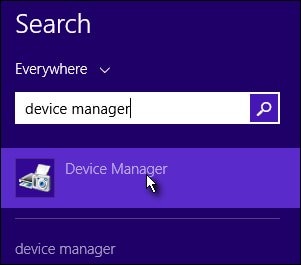
  2. From the Start screen, type device manager to open the Search charm, then select Device Manager from the search results.


  1. F Device Manager search resultsigure :

    Device Manager search results
  2. Double-click Sound, video and game controllers.

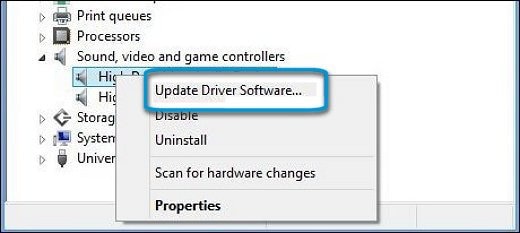
  3. Right-click the name of the sound hardware and select Update Driver Software.


  1. F Update Driver Software option in Device Managerigure :

    Update Driver Software option in Device Manager
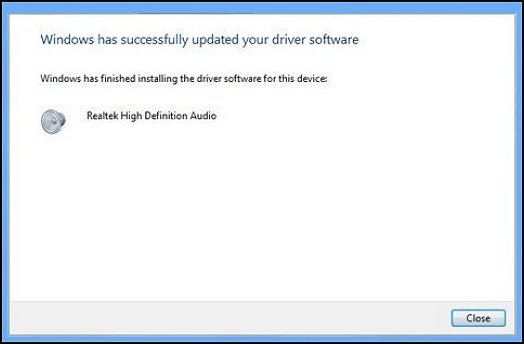
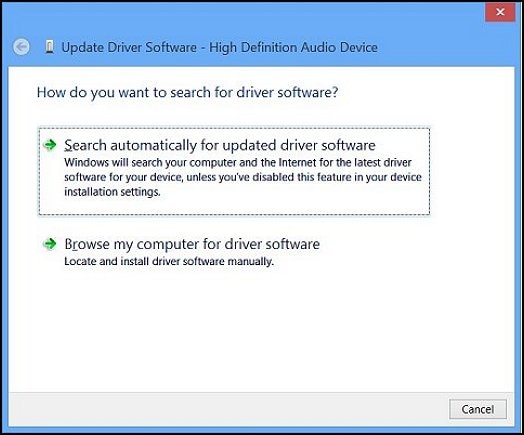
  2. Click Search automatically for updated driver software and wait for Windows to update the driver software.


  1. F Windows has successfully updated your driver softwareigure :

    Windows has successfully updated your driver software
  2. If there was no update available or updating the driver did not resolve the issue, continue to the next section.

Using the Windows troubleshooting tool:

  1. From the Start screen, type troubleshooting to open the Search charm, then select Troubleshooting from the search results.


    Figure: Troubleshooting search results
    Troubleshooting search results

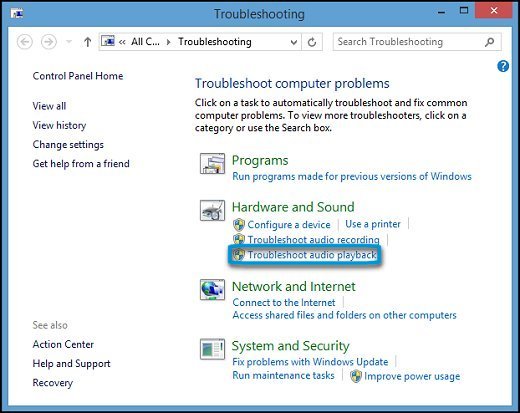
  1. Under Hardware and Sound, click Troubleshoot audio playback.


  1. Figure: Troubleshoot audio playback

    Troubleshoot audio playback
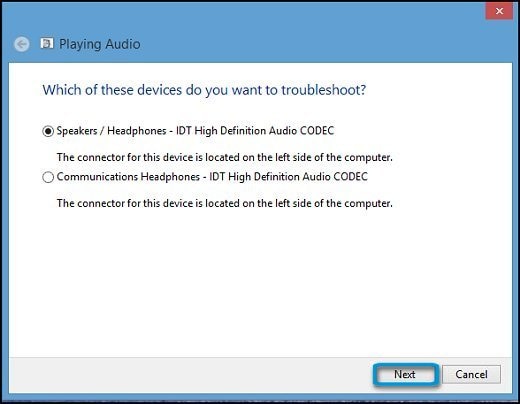
  2. The Playing Audio window opens. Click Next.


  1. Figure: Select device to troubleshoot

    Select device to troubleshoot

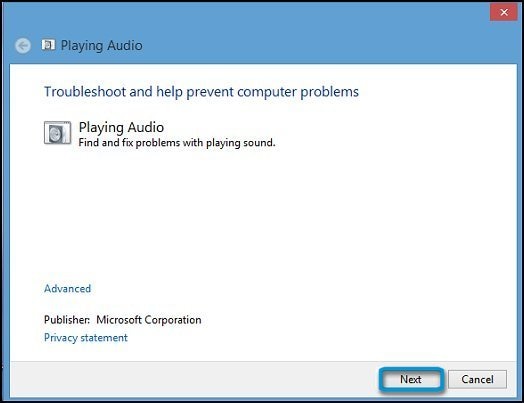
If a recommended action displays, select Apply this fix or Skip this step to continue to search for other problems. If the problem has not been resolved, continue to the next section of this article.


  1. Figure : Playing Audio window

    Playing Audio window
  2. A new window opens. Select the device you want to troubleshoot. Then click Next and follow the on-screen instructions.

  1. Figure: Updated Driver Software: Search automatically for updated driver software

    Updated Driver Software: Search automatically for updated driver software
  2. Windows checks to see if updated driver software is available.

    If an update is available, let Windows install the update.

  3. When the update is installed successfully, close the Updater and test the device.

Hope this helps! Keep me posted for further assistance.

If I have helped you resolve the issue, feel free to give me a virtual high-five by clicking the 'Thumbs Up' icon below,

Followed by clicking on "Accept as solution" from the drop-down menu on the upper right corner,

Thank you for posting in the HP Support Forum.  Have a great day!

ECHO_LAKE
I am an HP Employee

HP Recommended

Hey, I had the same problem, my headphone jack wouldn't fit.

So I just used a screwdriver (anything sharp that will fit inside the jack to be honest) and moved it inside. There was a white powdery stuff inside like resin, just remove it all and the jack will work again.

Hope I helped!

† The opinions expressed above are the personal opinions of the authors, not of HP. By using this site, you accept the <a href="https://www8.hp.com/us/en/terms-of-use.html" class="udrlinesmall">Terms of Use</a> and <a href="/t5/custom/page/page-id/hp.rulespage" class="udrlinesmall"> Rules of Participation</a>.