• ×
    Information
    Need Windows 11 help?
    Check documents on compatibility, FAQs, upgrade information and available fixes.
    Windows 11 Support Center.
  • post a message
  • ×
    Information
    Need Windows 11 help?
    Check documents on compatibility, FAQs, upgrade information and available fixes.
    Windows 11 Support Center.
  • post a message
Guidelines
Join the HP Community Solve‑a‑thon | Help Others & Share Your Solutions | Live on Zoom | 2:30 PM to 2:30 AM IST | Every Wednesday Click here to know more
Check out our WINDOWS 11 Support Center info about: OPTIMIZATION, KNOWN ISSUES, FAQs, VIDEOS AND MORE.
HP Recommended
HP spectre 360
Microsoft Windows 10 (64-bit)

My HP spectre 360 laptop lost function of the internal speakers and microphone. I can use a USB C headset and can hear sound and talk thru that, but the internal sound and mic do not work.  I have seen others with a similar problem here which occurred around the same time.  I have tried all of the online suggestions - deleting and reinstalling drivers and performing all of the checks and corrections without any success.  I am curious if anyone had the same issue and was able to find a solution. This seemed to occur around a time of an update.  Did anyone notice the same issue?  I am beyond warranty and brought it to a local Micro Center who said they couldn't figure out what is wrong and suggested I send it back to HP at a cost of $450.  Any suggestions would be most appreciated

3 REPLIES 3
HP Recommended

@SP-Ortho


Welcome to HP Community


I have gone through your Post and would like to help


I suggest you download and run the HP Support Assistant from this Link: https://www8.hp.com/us/en/campaigns/hpsupportassistant/hpsupport.html?jumpid=va_r602_us/en/any/psg/p...


HPSA will automatically search for all the latest drivers for your Notebook


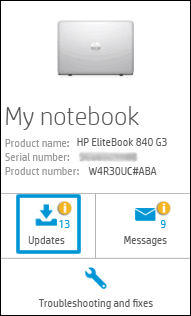
  1. Click My devices in the top menu, and then click Updates in the My PC or My notebook pane.

    Click Updates in the My notebook pane

  2. Click Check for updates and messages to scan for new updates.

     Updates list in HP Support Center

  3. Review the list of updates. Updates with a yellow information icon are recommended. Updates with a blue information icon are optional.

  4. Click the update name for a description, version number, and file size.

  5. Select the box next to any updates you want to install, and then click Download and install.

Also ensure Windows is up to date.


Select the Start  button, and then go to Settings  > Update & security  > Windows Update , and select Check for updates. If Windows Update says your device is up to date, you have all the updates that are currently available


I also suggest you run an audio Test to confirm the Hardware Functionality


- Hold the power button for at least five seconds to turn off the Notebook.
- Turn on the computer and immediately press Esc repeatedly, about once every second. 
- When the menu appears, press the F2 key.
- On the main menu, click Component Tests and Audio


Keep me posted how it goes


Thank you and have a wonderful day 😊


If the information I've provided was helpful, give us some reinforcement by clicking the "Solution Accepted" on this Post and it will also help other community members with similar issue.

KrazyToad
I Am An HP Employee

HP Recommended

Thanks for your suggestions. I did all of the things that you asked.  There were no new updates for my drivers or Windows 10. I had already updated the drivers for Realtek sound card multiple times. This problem seemed to begin after a Windows update but Windows is up to date and no new updates were available.  When I did the functionality tests, I was able to hear the sounds from the test. But when I try to play music, or a video, or use an application such as Zoom, none of the sound or microphone functions work. I am not able to test my audio or mic on Zoom.  All system checks say the hardware is operational. It is almost as if the laptop is sensing that some external device has been plugged in and the internal speaker and mictrophone are being bypassed, (even though this happens when there are no devices plugged in). I am able to use a headset with a microphone to Zoom or listen, but the internal devices should work when nothing else is being utlized. It is inconvenient to have to put headphones on every time I wish to hear something, and would like to be able to do business meetings without wearing a head set.  Any other suggestions?

HP Recommended

@SP-Ortho


Thank you for keeping me posted


At this point I suggest you perform a Reset. Link: https://support.hp.com/in-en/document/c04742289


Keep me posted 

KrazyToad
I Am An HP Employee

† The opinions expressed above are the personal opinions of the authors, not of HP. By using this site, you accept the <a href="https://www8.hp.com/us/en/terms-of-use.html" class="udrlinesmall">Terms of Use</a> and <a href="/t5/custom/page/page-id/hp.rulespage" class="udrlinesmall"> Rules of Participation</a>.