• ×
    Information
    Need Windows 11 help?
    Check documents on compatibility, FAQs, upgrade information and available fixes.
    Windows 11 Support Center.
  • post a message
  • ×
    Information
    Need Windows 11 help?
    Check documents on compatibility, FAQs, upgrade information and available fixes.
    Windows 11 Support Center.
  • post a message
Guidelines
Seize the moment! nominate yourself or a tech enthusiast you admire & join the HP Community Experts!
Check out our WINDOWS 11 Support Center info about: OPTIMIZATION, KNOWN ISSUES, FAQs, VIDEOS AND MORE.
HP Recommended
HP Spectre 360
Microsoft Windows 10 IOT

My Narrator stopped working. I have a disability. Please help.

1 REPLY 1
HP Recommended

@EKGYM

Thank you for posting on HP Support Community.


Don't worry as I'll be glad to help, I have a few troubleshooting steps we could try to fix the issue:  

Narrator requires headphones, built-in computer speakers, or external speakers. When turned on, Narrator opens when you sign in to Windows.

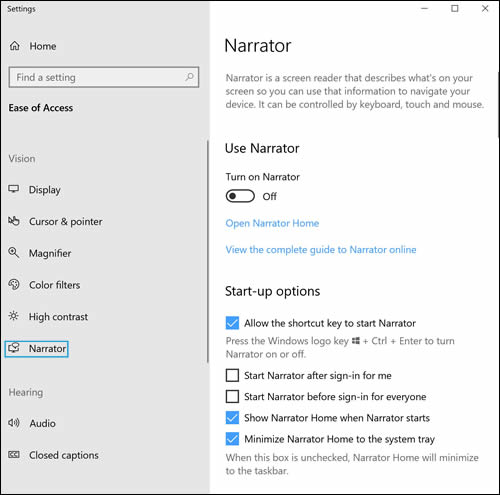
  1. In Windows, search for and open Ease of Access settings.

  2. Select Narrator, and then review the available features.

    Narrator settings and options:

    • Use Narrator: Reads content and describes on-screen activity aloud.

    • Start-up options: Choose when you want Narrator to start.

    • Personalize Narrator's voice: Select the voice you want Narrator use, as well as, voice speed, pitch, and volume.

    • Change what you hear when reading and interacting: Configure Narrator to control the level of detail Narrator provides for text, buttons, and controls.

    • Change what you hear when typing: Choose whether to hear words, punctuation, navigation and modifier keys as you type.

    • Choose keyboard settings: Select the keyboard layout and set the Narrator modifier key.

    • Use Narrator cursor: Choose how to interact with the Narrator cursor.

    • Use braille: Choose to download and install braille software.

    • Sync my settings: Set up Narrator so that your settings are applied for anyone who signs in to the computer.

    • Read faster with scan mode: Activate scan mode and use the up and down arrow keys to read content.

Hope this helps! Keep me posted for further assistance.
Please click “
Accept as Solution” if you feel my post solved your issue, it will help others find the solution.

ECHO_LAKE
I am an HP Employee

† The opinions expressed above are the personal opinions of the authors, not of HP. By using this site, you accept the <a href="https://www8.hp.com/us/en/terms-of-use.html" class="udrlinesmall">Terms of Use</a> and <a href="/t5/custom/page/page-id/hp.rulespage" class="udrlinesmall"> Rules of Participation</a>.