• ×
    Information
    Need Windows 11 help?
    Check documents on compatibility, FAQs, upgrade information and available fixes.
    Windows 11 Support Center.
  • post a message
  • ×
    Information
    Need Windows 11 help?
    Check documents on compatibility, FAQs, upgrade information and available fixes.
    Windows 11 Support Center.
  • post a message
Guidelines
Seize the moment! nominate yourself or a tech enthusiast you admire & join the HP Community Experts!
Check out our WINDOWS 11 Support Center info about: OPTIMIZATION, KNOWN ISSUES, FAQs, VIDEOS AND MORE.
HP Recommended
HP Pavilion Laptop 14-bf0xx

Hi. I have the HP Pavilion Laptop 14-bf0xx and suddenly my audio doesnt work, and the message "No audio device installed" comes up. Tried to search for errors, but nothing works. How do I install an audio device?

2 REPLIES 2
HP Recommended

@Robin2012 Welcome to HP Community!

Run automated tools and check driver status to enable the device in Windows 10 or 8.


Step 1: Run the sound problems troubleshooter

Automatically identify and fix audio errors with the Windows sound troubleshooting tool.

  1. Right-click the notification area speaker icon , and then select Troubleshoot sound problems.
  2. Select the device you want to troubleshoot, and then click Next to start the troubleshooter.

  3. If a recommended action displays, select Apply this fix, and then test for sound.

Step 2: Check device and driver status in Device Manager

An outdated audio driver can cause sound errors and issues. Use Device Manager to check if the audio device is disabled, and then install an available driver update.

  1. In Windows, search for and open Device Manager.

  2. Double-click Sound, video and game controllers.

  3. Right-click the audio device, and then select Update Driver.

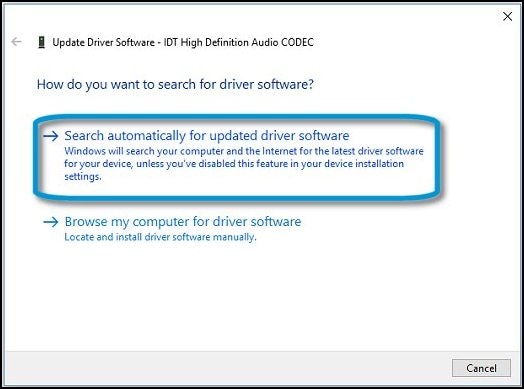
  4. Click Search automatically for updated driver software to check for and install a driver.

    Search automatically for updated driver software in Device Manager

    • If an updated driver installs, restart the computer if prompted, and then test for sound.

    • If an updated driver is not available, continue to the next step to reinstall the existing driver.

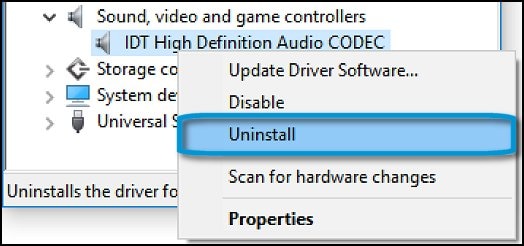
  5. Right-click the audio device again, and then select Uninstall to open the Uninstall Device window.

    Uninstall the audio driver

  6. Select Delete the driver software for this device, and then click Uninstall.

    Select Delete the driver software for this device

  7. In the top menu bar, click Action, and then select Scan for hardware changes to reinstall the device.

  8. Test for sound.

    • If there is no sound, right-click the Sound icon in the notification area, select Playback devices, and then reconnect your audio device if it is not listed. Once listed, click the device name, click the Sounds tab, select a sound, and then click Test.

    • If the device is not listed in Playback devices, restart the computer, and then check if the device displays in the list.

    • If the issue persists, continue to the next step.

FOR DETAILS & FURTHER INSTRUCTIONS, USE THIS LINK: CLICK HERE & SKIP TO STEP 3 ONWARD - Under "Enable the audio device in Windows 10 and 8"

(By the end of this article all the issues should be resolved)


Let me know how that pans out,

If you feel I was helpful, simply click on Accept as Solution to help the community grow,

That said, I will have someone follow-up on this to ensure you've been helped,

Just in case you don't get back to us within 24 - 48hrs, and have a good day, ahead.

Riddle_Decipher
I am an HP Employee


Learning is a journey, not a destination.
Let's keep asking questions and growing together.
HP Recommended
  • Try using Microsoft update catalog if it would work search for sound max audio driver compatible with ur os try installing it manually
  • And see if it would work
† The opinions expressed above are the personal opinions of the authors, not of HP. By using this site, you accept the <a href="https://www8.hp.com/us/en/terms-of-use.html" class="udrlinesmall">Terms of Use</a> and <a href="/t5/custom/page/page-id/hp.rulespage" class="udrlinesmall"> Rules of Participation</a>.

