
-
×InformationNeed Windows 11 help?Check documents on compatibility, FAQs, upgrade information and available fixes.
Windows 11 Support Center. -
-
×InformationNeed Windows 11 help?Check documents on compatibility, FAQs, upgrade information and available fixes.
Windows 11 Support Center. -
- HP Community
- Notebooks
- Notebook Audio
- Re: Sound is coming from both headphone and speaker when hea...

Create an account on the HP Community to personalize your profile and ask a question
Your account also allows you to connect with HP support faster, access a personal dashboard to manage all of your devices in one place, view warranty information, case status and more.
Check out our WINDOWS 11 Support Center info about: OPTIMIZATION, KNOWN ISSUES, FAQs, VIDEOS AND MORE.

It has been a while since anyone has replied. Simply ask a new question if you would like to start the discussion again.

06-04-2018 05:48 AM
 HP Recommended
Product: hp 15 bs145tu
Operating System: Microsoft Windows 10 (64-bit)
When I plug in the headphones, audio is coming from both headphones and speaker. Also headphone is not being shown in the audio devices section. I also made sure whether the drivers were up to date. Please provide any help regarding this issue.
Solved! Go to Solution.
1 ACCEPTED SOLUTION
Accepted Solutions


06-05-2018 09:55 AM
HP Recommended
Hi! @Yash197, Thank you for visiting the HP Forums! A great place where you can find solutions for your issues with help from the community!
I understand you have audio issues with your PC.
Don't worry I'll try to help you out.
Did you make any hardware or software changes on your PC?
Have you tried checking with different headphones?
Does your PC work with an external mouse?
As you mentioned the audio is playing both from headphones and laptop speakers at the same time.
Please try the steps recommended below.
Go to the Realtek HD audio manager
In the right upper corner, there is an option device advanced settings
Then under playback device tick the 2nd one which says (make internal and external output devices playback two different audio streams simultaneously). then under recording devices, tick the second one which says (separate all input jacks independently) And then click on ok and save the settings.
Right click on the speaker icon and click on Playback devices. Left click on the device you want to listen to and click 'Set Default'.
1. Go into Control Panel, then Sound.
2. Look for the Recording tab.
3. Select your microphone/headset as the default device, and press OK.
1. Press Win+X (Windows logo key and X key) at the same time.
2. Select Control Panel in the pop-up menu.
3. View by “Category” and click on Hardware & Sound.
4. Click on Sound.
5. Select Headphones and click Set default button at the bottom.
In some cases, there is no headphone option alone but Speakers/Headphone. If that’s your case, select that and click Set default button at the bottom.
6. Click OK button.
Also, uninstall the audio drivers from device manager and install the latest audio driver and BIOS from links below.
Update the audio driver using this link: https://hp.care/2Hmt9iy
Update the BIOS using this link: https://hp.care/2KxXRHn
If the issue still persists uninstall the audio driver from device manager and install the drivers using HP recovery manager.
Refer this article to know how to restore drivers using HP recovery manager. Link: https://hp.care/2neGmln
If the solution provided worked for you, please mark accepted solution for this post.
Let me know if this works!
Have a great day! 🙂
Please click “Accept as Solution” if you feel my post solved your issue, it will help others find the solution.
Click the “Kudos, Thumbs Up" on the bottom right to say “Thanks” for helping!
A4Apollo
I am an HP Employee
8 REPLIES 8
06-05-2018 09:55 AM
HP Recommended
Hi! @Yash197, Thank you for visiting the HP Forums! A great place where you can find solutions for your issues with help from the community!
I understand you have audio issues with your PC.
Don't worry I'll try to help you out.
Did you make any hardware or software changes on your PC?
Have you tried checking with different headphones?
Does your PC work with an external mouse?
As you mentioned the audio is playing both from headphones and laptop speakers at the same time.
Please try the steps recommended below.
Go to the Realtek HD audio manager
In the right upper corner, there is an option device advanced settings
Then under playback device tick the 2nd one which says (make internal and external output devices playback two different audio streams simultaneously). then under recording devices, tick the second one which says (separate all input jacks independently) And then click on ok and save the settings.
Right click on the speaker icon and click on Playback devices. Left click on the device you want to listen to and click 'Set Default'.
1. Go into Control Panel, then Sound.
2. Look for the Recording tab.
3. Select your microphone/headset as the default device, and press OK.
1. Press Win+X (Windows logo key and X key) at the same time.
2. Select Control Panel in the pop-up menu.
3. View by “Category” and click on Hardware & Sound.
4. Click on Sound.
5. Select Headphones and click Set default button at the bottom.
In some cases, there is no headphone option alone but Speakers/Headphone. If that’s your case, select that and click Set default button at the bottom.
6. Click OK button.
Also, uninstall the audio drivers from device manager and install the latest audio driver and BIOS from links below.
Update the audio driver using this link: https://hp.care/2Hmt9iy
Update the BIOS using this link: https://hp.care/2KxXRHn
If the issue still persists uninstall the audio driver from device manager and install the drivers using HP recovery manager.
Refer this article to know how to restore drivers using HP recovery manager. Link: https://hp.care/2neGmln
If the solution provided worked for you, please mark accepted solution for this post.
Let me know if this works!
Have a great day! 🙂
Please click “Accept as Solution” if you feel my post solved your issue, it will help others find the solution.
Click the “Kudos, Thumbs Up" on the bottom right to say “Thanks” for helping!
A4Apollo
I am an HP Employee
06-05-2018 01:19 PM
HP Recommended
Thanks, it really worked, the laptop is great, but i have one last issue, that is, the sound is very slow and i can hardly hear it even at 100%. I am wondering whether it is a hardware issue or the speakers and like this only. Please let me know. Sorry for bothering you.
06-05-2018 01:45 PM
HP Recommended
@Yash197, Thanks for your quick response and time.
I appriciate your efforts for writing back to us again.
As you mentioned the sound coming from the headphone and speaker simultaneously got solved.
I'm happy to know that your issue got resolved.
Also, as you mentioned the audio on your PC is very low.
Try the steps recommended below.
Click the Cortana button to open Windows 10’s search box.
Enter the keyword ‘troubleshooter’ in the search box.
Click Troubleshoot to open the Settings window as shown directly below.
Select the listed Playing Audio troubleshooter, and press the Run the troubleshooter button to open the window shown below.
Then the troubleshooter might detect and fix the audio issue. If the troubleshooter fixes something, you might also need to restart Windows for the changes to take effect.
Right-click the speaker system tray icon and select Playback devices.
Then right-click your default speakers and select Properties to open the window below.
Select the Loudness Equalization option.
Click the Apply and OK buttons to close the window.
Let me know if this helps!
Take Care! 🙂
A4Apollo
I am an HP Employee
06-07-2018 03:00 PM
HP Recommended
@Yash197, Thanks for writing back to us.
I appriciate your efforts for trying out the steps.
As you mentioned the issue still persists after trying out the steps.
Refer the image attached below to find loudness equalization on your PC.
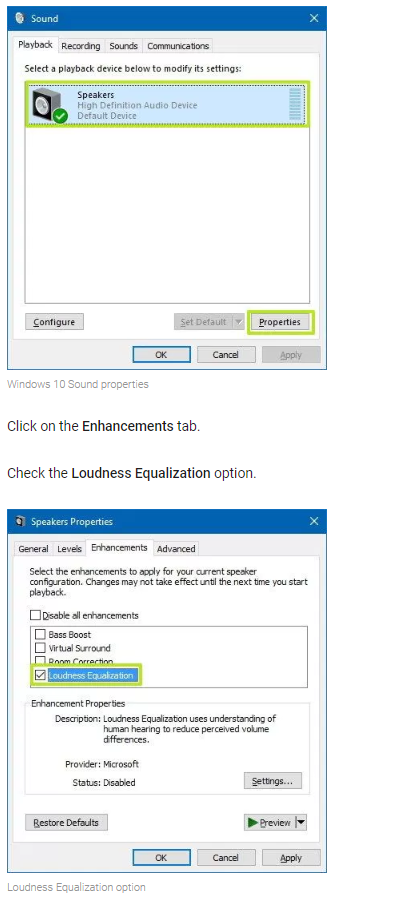
If the issue still persists after trying out the steps. Try uninstalling the audio drivers from device manager on your PC and install the drivers using recovery manager.
Refer this article to know how to restore drivers using HP recovery manager. Link: https://support.hp.com/in-en/document/c04762483
Please mark my post as accepted solution if you feel I have answered your query.
Let me know if this helps!
Take Care! 🙂
Please click “Accept as Solution” if you feel my post solved your issue, it will help others find the solution.
Click the “Kudos, Thumbs Up" on the bottom right to say “Thanks” for helping!
A4Apollo
I am an HP Employee

06-09-2018 09:17 AM
HP Recommended
Thank you for responding,
It's great to have you back 😉
It looks like you were interacting with @A4Apollo, but he is out for the day & I'll be glad to help you out,
I'm the Barachiel & I'm at your service.
I went through the post and I see that you;'ve performed most of the troubleshooting steps. Kudos to you on that. :
In this case, I would recommend you to try performing a complete system recovery which would take it back to the factory settings, but please take a back up of the data before you try this. 🙂
Follow this link https://support.hp.com/in-en/document/c04758961 for reference.
Let me know how that pans out
I hope you have a good day ahead,
And Feel free to ask any other queries as well,
Considering, this forum has some of the best people in the world available and ready to help. 😉
Barachiel
I am an HP Employee
06-18-2018 07:01 AM
HP Recommended
@Yash
I also bought BS145TU model recently and sound seems to be a bit low.
Output on Speakers of BS145TU are a bit low..and it same case with most of low end and mid range laptops.
Check if both speakers using sound options see if that is causing any issue.
Other option is to use bluetooth speakers..but unfortunately.. we have to live with it.
But using headphones sound is lot more better.

Be alert for scammers posting fake support phone numbers and/or email addresses on the community.
If you think you have received a fake HP Support message, please report it to us by clicking on "Flag Post".
† The opinions expressed above are the personal opinions of the authors, not of HP. By using this site, you accept the Terms of Use and Rules of Participation.


Didn't find what you were looking for?
Ask the community
† The opinions expressed above are the personal opinions of the authors, not of HP. By using this site, you accept the <a href="https://www8.hp.com/us/en/terms-of-use.html" class="udrlinesmall">Terms of Use</a> and <a href="/t5/custom/page/page-id/hp.rulespage" class="udrlinesmall"> Rules of Participation</a>.