
-
×InformationNeed Windows 11 help?Check documents on compatibility, FAQs, upgrade information and available fixes.
Windows 11 Support Center. -
-
×InformationNeed Windows 11 help?Check documents on compatibility, FAQs, upgrade information and available fixes.
Windows 11 Support Center. -

Create an account on the HP Community to personalize your profile and ask a question
Your account also allows you to connect with HP support faster, access a personal dashboard to manage all of your devices in one place, view warranty information, case status and more.
Check out our WINDOWS 11 Support Center info about: OPTIMIZATION, KNOWN ISSUES, FAQs, VIDEOS AND MORE.

It has been a while since anyone has replied. Simply ask a new question if you would like to start the discussion again.

08-15-2020 08:32 AM
 HP Recommended
Product: Пример: Павильон 65XX
Operating System: Microsoft Windows 10 (64-bit)
The sound stopped working during the game.Reinstalled the drivers just for Windows 10 x64 because Windows 10 2004.After installation, the program B&0 did not appear through which I natsrival speakers.How do I return the program?
10 REPLIES 10


08-18-2020 08:08 AM
HP Recommended
@GhJKbG, Welcome to HP Support Community!
Follow the steps to isolate and resolve the issue-
Step 1: Restart the computer
If there is no sound coming from the speakers or headphones on your computer, the issue might be caused by an application controlling that device and preventing other applications from using it. Before attempting the other troubleshooting steps in this document, restart your computer, and then test the audio to see if the problem is fixed.
If the audio problem persists, continue to the next step.
Step 2: Run the Audio Check in HP Support Assistant
Run the Audio Check in HP Support Assistant to make sure the audio device is functioning properly.
-
Go to HP Support Assistant to download and install the HP Support Assistant software, if it is not already installed on your computer.
-
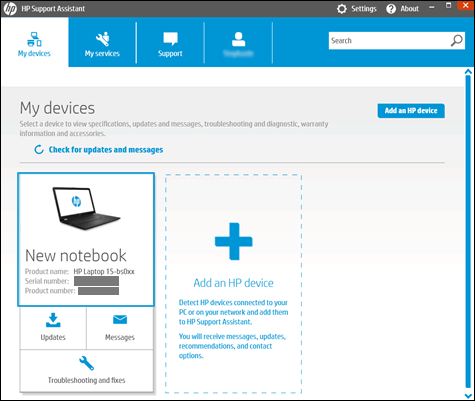
In Windows, search for and open HP Support Assistant.
-
On the My devices tab, click your computer.
-
Click the Troubleshooting and fixes tab, and then click Audio Check
 in the One click fixes section.
 -
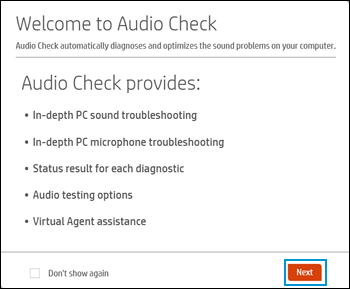
Click Next, and then wait for the audio test to complete.
-
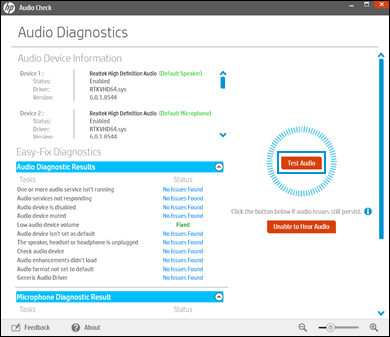
Review the test results on the audio and microphone diagnostic results display, and then click Test Audio.
-
If sound is not heard correctly, click Unable to Hear Audio and then follow the on-screen instructions.
Step 3: Use the troubleshooting tool in Windows
Run the audio troubleshooting tool in Windows to automatically fix common audio recording and audio playback problems with your computer.
-
In Windows, type find and fix audio into Search, or right-click the speaker icon
 on the taskbar and select Troubleshoot sound problems.
 -
Select Find and fix audio playback problems or Find and fix audio recording problems from the Search results.
-
Click Next.
-
Select the device you want to troubleshoot, and then click Next.
-
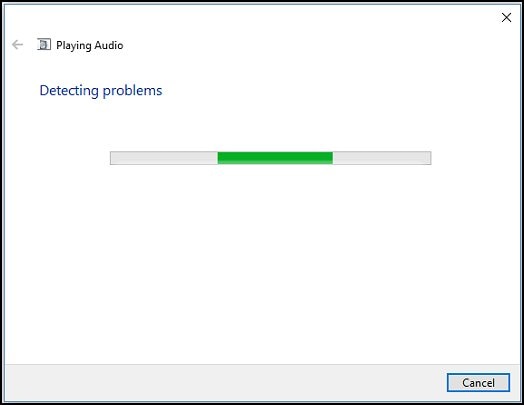
Wait while the troubleshooter detects problems and makes changes (or prompts you to make changes).
-
When the troubleshooter is done, the Troubleshooting has completed page displays, listing any problems found and what changes were made to the computer.
NOTE:
For detailed information about the troubleshooting, click View detailed information in the troubleshooter window.
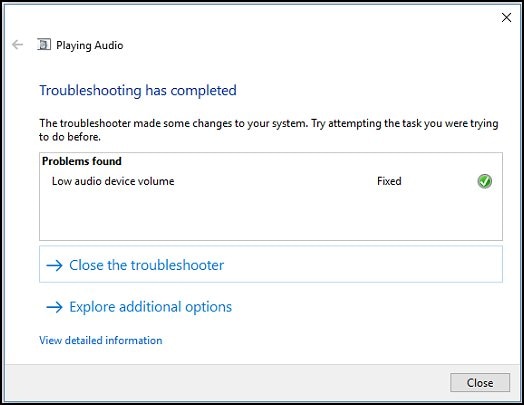
-
Click Close.
-
If a recommended action displays, select Apply this fix, or Skip this step to continue to search for other problems.
Test for sound. If the audio problem persists, continue to the next step.
Step 4: Test external speakers or headphones
If you are using external speakers, they might be faulty. Try using another set of speakers, or a pair of headphones, with your computer. If the second set of speakers or headphones produces sound without problems, the first set of speakers is faulty.
NOTE:If you use Bluetooth or wireless devices, make sure they are paired per the manufacturer's instructions.
If the same audio problems are present in both pairs of speakers or headphones, continue to the next step.
Step 5: Update the audio driver
Use Windows Update to update the latest audio drivers available for your computer. In Windows, search for and open Check for updates. Install any available updates.
To learn more about Windows Update, go to Updating Drivers and Software with Windows Update.
Test for sound.
Hope this helps! Keep me posted.
Please click “Accepted Solution” if you feel my post solved your issue, it will help others find the solution. Click the “Kudos/Thumbs Up" on the bottom right to say “Thanks” for helping!
TEJ1602
I am an HP Employee
08-18-2020 04:55 PM - edited 08-18-2020 05:01 PM
HP Recommended
That's a good collection of advice scattered elsewhere. But I did everything above. I also reinstalled and updated the BIOS and the graphics driver. I also did what Windows calls a system refresh. The sound is still dead in speakers and headphones. Windows says the speaker is my default device. But one test said it could not find my speaker.
The problem arose sometime soon after Windows installed Cumulative Update KB4566782 on 8/14/20. (I uninstalled it. Problem remains.) The problem occurred fairly soon after I used PCMover to transfer the contents of my C drive from my old computer. It doesn't have the problem.
The "May update" (Features update to WIindows 2004) installed in late July so I don't think it's the problem.
I have an Envy Laptop - 17t-cg000 CTO, Product # 8KG03AV, purchased in mid July.
Thanks in advance for your help.
08-20-2020 09:28 AM
HP Recommended
Let us try to rollback the audio drivers-
- Open Start.
- Search for Device Manager and click the top result to open the experience.
- Expand the category with the device that you want to roll back.
- Right-click the device, and select the Properties option.
- Click the Driver tab.
- Click the Roll Back Driver button.
Check the audio.
Hope this helps! Keep me posted.
Please click “Accepted Solution” if you feel my post solved your issue, it will help others find the solution. Click the “Kudos/Thumbs Up" on the bottom right to say “Thanks” for helping!
TEJ1602
I am an HP Employee
08-20-2020 03:34 PM
HP Recommended
In the Device Manager, under "Audio inputs and outputs" and also under "Sound, video and game controllers," the "rollback driver" button was gray for "Speaker (Realtek Audio)" so I could not select it
So I uninstalled both devices and restarted. There is still no sound.
08-21-2020 02:15 PM
HP Recommended
Have you attempted to update the BIOS, Video card & Audio drivers to resolve this issue?
If not, here's the link to download and install the above updates: Click here
While you respond to that, here's what you need to do:
Step 1: Right-click on the Start button in the taskbar area and then click Device Manager to open the same.
Step 2: In the Device Manager, expand Sound, video and game controllers.
Step 3: You should now see your audio driver name. Most likely you have Realtek High Definition Audio, Right-click on it and then click Uninstall device option.
Step 4: You will now get the following confirmation dialog. Select Delete the driver software for this device checkbox and then Yes button when you see the confirmation dialog to go ahead and uninstall the device driver.
Restart your PC once & it should auto-reinstall a working driver.
If the issue with the sound continues, The best way to resolve the issue is by using the HP Guided Troubleshooter:
CLICK HERE FOR STEP BY STEP GUIDE
(simply select your description of the issue from the bottom of the screen to gain access to the next set of steps that should resolve your concern).
Hope this helps! Keep me posted.
Please click “Accepted Solution” if you feel my post solved your issue, it will help others find the solution. Click the “Kudos/Thumbs Up" on the bottom right to say “Thanks” for helping!
TEJ1602
I am an HP Employee
08-22-2020 01:57 AM - edited 08-22-2020 01:58 AM
HP Recommended
I still have no sound. I updated the NVIDIA Geoforce MX330 display driver. I already had done everything else you suggested. Nothing worked. See boldface for my questions in this email.
I already uninstalled and updated the August 13 BIOS update. Do I need to do May 27 update before I do August? I just got the computer in July so I'm guessing that downloading the May updated isn't necessary.
I already re-installed all Realtek controllers, including the one in Sound, Video and Game Controllers. I reinstalled the Intel Display Audio controller. That section also has 2 Intel audio and one NVIDIA Virtual Audio Device controller. Do I need to uninstall and re-install those, too?
Under Display adapters, I updated the NVIDIA Geoforce MX330. In the same section, the Intel Ins Plus Graphics was already current.
Do I need to uninstall a driver before I get a new one? Windows simply offers to update the driver.
Is there another place to look for video and display drivers?
Several times, I already ran the HP Guided Troubleshooters for Windows and for Audio. The Virtual Agent also failed a few times.
Maybe the computer's sound hardware has broken? One troubleshooter said it could not find any speakers. I then tried to re-install them but got no evidence I had succeeded.
I know you probably have to go down your algorithm of solutions. But I've heard very little new. Would you refer this problem to a higher level of technical support?
Thanks for your continuing efforts.
08-25-2020 02:23 PM - edited 08-25-2020 02:28 PM
HP Recommended
I made the mistake of posting my reply early Saturday morning, 08/22, which is a great time to get something overlooked and/or buried by your workload.
So here's my reply again:
Even if you have no further help to give, tell me. That would be good information for me.
I still have no sound. I updated the NVIDIA Geoforce MX330 display driver. I already had done everything else you suggested. Nothing worked. See boldface for my questions in this email.
I already uninstalled and updated the August 13 BIOS update. Do I need to do May 27 update before I do August? I just got the computer in July so I'm guessing that downloading the May updated isn't necessary.
I already re-installed all Realtek controllers, including the one in Sound, Video and Game Controllers. I reinstalled the Intel Display Audio controller. That section also has 2 Intel audio and one NVIDIA Virtual Audio Device controller. Do I need to uninstall and re-install those, too?
Under Display adapters, I updated the NVIDIA Geoforce MX330. In the same section, the Intel Ins Plus Graphics was already current.
Do I need to uninstall a driver before I get a new one? Windows simply offers to update the driver.
Is there another place to look for video and display drivers?
Several times, I already ran the HP Guided Troubleshooters for Windows and for Audio. The Virtual Agent also failed a few times.
Maybe the computer's sound hardware has broken? One troubleshooter said it could not find any speakers. I then tried to re-install them but got no evidence I had succeeded.
I know you probably have to go down your algorithm of solutions. But I've heard very little new. Would you refer this problem to a higher level of technical support?
Thanks for your continuing efforts.
08-25-2020 03:06 PM
HP Recommended
Thanks for replying!
Run an extensive HW test to further isolate the issue-
1. Hold the power button for at least five seconds to turn off the computer.
2. Turn on the computer and immediately press Esc repeatedly, about once every second.
When the menu appears, press the F2 key.
3. On the HP PC Hardware Diagnostics (UEFI) main menu, click System Tests.
4. Click Extensive Test.
5. Click Run once, or Loop until error.
While the test is running, the time remaining and test result for each component are
shown on the screen.
6. If a component fails a test, write down the failure ID (24-digit code) so you have it
available when you contact HP Customer Support. The information is also available in
Test Logs on the main menu.
Keep me posted.
TEJ1602
I am an HP Employee

Be alert for scammers posting fake support phone numbers and/or email addresses on the community.
If you think you have received a fake HP Support message, please report it to us by clicking on "Flag Post".
† The opinions expressed above are the personal opinions of the authors, not of HP. By using this site, you accept the Terms of Use and Rules of Participation.


Didn't find what you were looking for?
Ask the community
† The opinions expressed above are the personal opinions of the authors, not of HP. By using this site, you accept the <a href="https://www8.hp.com/us/en/terms-of-use.html" class="udrlinesmall">Terms of Use</a> and <a href="/t5/custom/page/page-id/hp.rulespage" class="udrlinesmall"> Rules of Participation</a>.