
-
×InformationNeed Windows 11 help?Check documents on compatibility, FAQs, upgrade information and available fixes.
Windows 11 Support Center. -
-
×InformationNeed Windows 11 help?Check documents on compatibility, FAQs, upgrade information and available fixes.
Windows 11 Support Center. -
- HP Community
- Notebooks
- Notebook Audio
- Re: audio not functioning

Create an account on the HP Community to personalize your profile and ask a question
Your account also allows you to connect with HP support faster, access a personal dashboard to manage all of your devices in one place, view warranty information, case status and more.
Check out our WINDOWS 11 Support Center info about: OPTIMIZATION, KNOWN ISSUES, FAQs, VIDEOS AND MORE.

It has been a while since anyone has replied. Simply ask a new question if you would like to start the discussion again.

6 REPLIES 6


02-26-2019 11:02 AM
 HP Recommended
Welcome to HP Support Community
I suggest you download and run the HP Support Assistant from this Link: https://www8.hp.com/us/en/campaigns/hpsupportassistant/hpsupport.html?jumpid=va_r602_us/en/any/psg/p...
HPSA will automatically search for all the latest drivers for your Notebook
-
Click My devices in the top menu, and then click Updates in the My PC or My notebook pane.
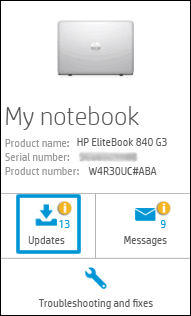
-
Click Check for updates and messages to scan for new updates.

-
Review the list of updates. Updates with a yellow information icon are recommended. Updates with a blue information icon are optional.
-
Click the update name for a description, version number, and file size.
-
Select the box next to any updates you want to install, and then click Download and install.
Also ensure Windows has all the latest updates
Keep me posted how it goes
Thank you and have a wonderful day 😊
If the information I've provided was helpful, give us some reinforcement by clicking the "Solution Accepted" on this Post and it will also help other community members with similar issue
KrazyToad
I Am An HP Employee
02-26-2019 01:06 PM
HP Recommended
still the problem persists.
hardware works fine,
driver also placed upto date
but both are not linking properly.
i'm seeing that under sound menu playback tab no audio devices are installed
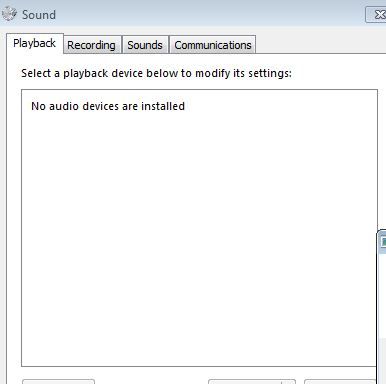
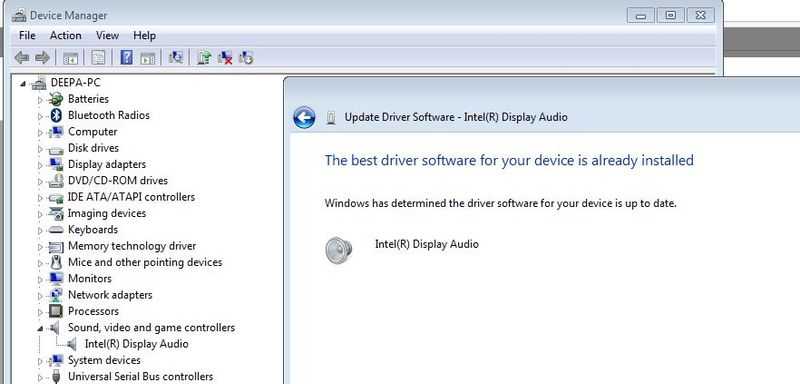
i dont know what to do
02-26-2019 06:14 PM
HP Recommended
Did you run the Audio Test from F2 diagnostic to confirm the Hardware Functionality?
- Hold the power button for at least five seconds to turn off the computer.
- Turn on the computer and immediately press Esc repeatedly, about once every second.
- When the menu appears, press the F2 key.
- On the main menu, click Component Tests and Audio
If the Test passes, please follow the instructions in this Link: https://support.hp.com/in-en/document/c04742289 to perform a Reset
Let me know how it goes 😊
If the information I've provided was helpful, give us some reinforcement by clicking the "Solution Accepted" on this Post and it will also help other community members with similar issue.
KrazyToad
I Am An HP Employee

02-26-2019 09:06 PM - edited 02-26-2019 09:12 PM
HP Recommended
Thanks for suggesting I run the F2 test on the audio functions. I did that and they passed.
I then went to the link you suggested to perform a reset, and I have to admit that one makes me nervous. It doesn't specify which version of Windows 10 will be reinstalled. It seemed like a very dangerous thing to do.
Can't HP just get an updated audio driver from the manufacturer? Because the only drivers I have seen on the HP site for my Realtek hardware are not for this new version of Windows 10 (1809.)
And if the reset does roll back to the previous version of Windows 10 so that the current Realtek drivers for Windows 10 - 1803 do work, then I would have to prevent windows 10 update from running until there was a new driver anyway. And it's not easy to get Windows 10 to stop updating.
02-26-2019 10:15 PM
HP Recommended
yes it passed the hardware test
but no improvement
the link you provided directs me to windows 10 resetting
but mine - windows 7 professional (64 bit)
should i've to go on
or if anyother solutions left kindly provide them.
(do i've to reinstall my os - if necessary kindly let me know)
thank you in advance
02-27-2019 10:37 AM
HP Recommended
Since you have Windows 7 you can perform the System Recovery back to Factory Settings.
Please follow the instructions in this Link: https://support.hp.com/in-en/document/c01867418
Thank you 😊
KrazyToad
I Am An HP Employee

Be alert for scammers posting fake support phone numbers and/or email addresses on the community.
If you think you have received a fake HP Support message, please report it to us by clicking on "Flag Post".
† The opinions expressed above are the personal opinions of the authors, not of HP. By using this site, you accept the Terms of Use and Rules of Participation.


Didn't find what you were looking for?
Ask the community
† The opinions expressed above are the personal opinions of the authors, not of HP. By using this site, you accept the <a href="https://www8.hp.com/us/en/terms-of-use.html" class="udrlinesmall">Terms of Use</a> and <a href="/t5/custom/page/page-id/hp.rulespage" class="udrlinesmall"> Rules of Participation</a>.