-
×InformationNeed Windows 11 help?Check documents on compatibility, FAQs, upgrade information and available fixes.
Windows 11 Support Center. -

-
×InformationNeed Windows 11 help?Check documents on compatibility, FAQs, upgrade information and available fixes.
Windows 11 Support Center. -
- HP Community
- Notebooks
- Notebook Audio
- headphones and microphone

Create an account on the HP Community to personalize your profile and ask a question
04-23-2020 11:26 AM
Whenever I plug in my headphones, the sound still plays on the laptop speakers. If I restart my computer, it fixes the problem; however, if I unplug my headphones later on and then plug them back in, the problem comes back. And today, I was on a Zoom call and my headphones were plugged in and my mic didn't work, so I unplugged my headphones and my laptop mic didn't work. I plugged in my headphones again and the sound only came out of the speakers. I troubleshooted everything and nothing worked.
Solved! Go to Solution.
Accepted Solutions
04-27-2020 04:11 PM
Welcome to HP support community.
Check if the Headphones are enabled as a playback device.
To do this, please see the steps below:
-
Click the Start Pearl and then type Sound in the Start Search Box.
-
Select Change Sound Card Settings in the Start Menu Options.
-
Next, under the Playback Tab, right click and select Show Hidden Devices and Show Disconnected Devices if available.
-
Select Headphones and enable.
Update the Bios, chipset and audio driver using HP Support Assistant.
Download and run the HP Support Assistant from this Link: Click here
HPSA will automatically search for all the latest drivers for your Notebook
-
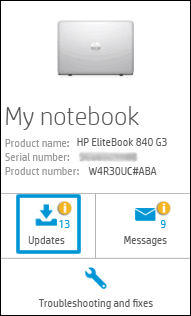
Click My devices in the top menu, and then click Updates in the My PC or My notebook pane.

-
Click Check for updates and messages to scan for new updates.

-
Review the list of updates. Updates with a yellow information icon are recommended. Updates with a blue information icon are optional.
-
Click the update name for a description, version number, and file size.
-
Select the box next to any updates you want to install, and then click Download and install.
I hope that helps.
To thank me for my efforts to help you, please mark my post as an accepted solution so that it benefits several others.
Cheers.
Sandytechy20
I am an HP Employee
04-27-2020 04:11 PM
Welcome to HP support community.
Check if the Headphones are enabled as a playback device.
To do this, please see the steps below:
-
Click the Start Pearl and then type Sound in the Start Search Box.
-
Select Change Sound Card Settings in the Start Menu Options.
-
Next, under the Playback Tab, right click and select Show Hidden Devices and Show Disconnected Devices if available.
-
Select Headphones and enable.
Update the Bios, chipset and audio driver using HP Support Assistant.
Download and run the HP Support Assistant from this Link: Click here
HPSA will automatically search for all the latest drivers for your Notebook
-
Click My devices in the top menu, and then click Updates in the My PC or My notebook pane.

-
Click Check for updates and messages to scan for new updates.

-
Review the list of updates. Updates with a yellow information icon are recommended. Updates with a blue information icon are optional.
-
Click the update name for a description, version number, and file size.
-
Select the box next to any updates you want to install, and then click Download and install.
I hope that helps.
To thank me for my efforts to help you, please mark my post as an accepted solution so that it benefits several others.
Cheers.
Sandytechy20
I am an HP Employee