• ×
    Information
    Need Windows 11 help?
    Check documents on compatibility, FAQs, upgrade information and available fixes.
    Windows 11 Support Center.
  • post a message
  • ×
    Information
    Need Windows 11 help?
    Check documents on compatibility, FAQs, upgrade information and available fixes.
    Windows 11 Support Center.
  • post a message
Guidelines
Seize the moment! nominate yourself or a tech enthusiast you admire & join the HP Community Experts!
HP Recommended
ENVY 17t-n000
Microsoft Windows 10 (64-bit)

How can I printout the BIOS settings on my laptop? I changed the boot order to boot from a USB drive and failed to record the original settings.

3 REPLIES 3
HP Recommended

Hi @Ghazzer


Welcome to the HP Support Community. 


BIOS settings cannot be printed out, that said, there's nothing to worry about, if you don't have the info saved before you changed it, you can simply go back to the defaults.


  1. Backup and save important information on your computer, and then turn off the computer.

  2. Turn on the computer, and then click F10, until the BIOS opens.

  3. Under the Main tab, use the up and down arrow keys to select Restore Defaults.

    Figure : Restore Defaults

    Image: Restore Defaults
  4. Select Yes.

    Figure : Load Defaults

    Image: Load Defaults
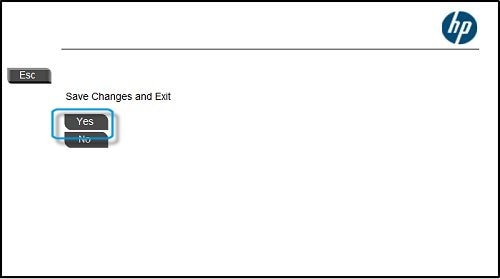
  5. Under the Main tab, use the up and down arrow keys to select Save Changes and Exit.

    Figure : Save Changes and Exit

    Image: Save Changes and Exit
  6. When prompted, click Yes to save changes and exit.

    Figure : Click Yes

    Image: Click Yes

Refer to Restoring Defaults in BIOS


Hope this helps! Keep me posted. 


Please click “Accept as Solution” if you feel my post solved your issue, it will help others find the solution.

Click the “Kudos, Thumbs Up" on the bottom right to say “Thanks” for helping

HP Recommended

Does Hewlett Packard have a data base containing listings of BIOS settings for each Model?


I have read that BIOS settings are listed in the service manual (ie ENVY 17-n100 Maintenance & Service Guide.pdf) for each model, but that is NOT true in this case.

HP Recommended

it's not saved in the service manual, as mentioned before, restoring to defaults is the only way out of this!

† The opinions expressed above are the personal opinions of the authors, not of HP. By using this site, you accept the <a href="https://www8.hp.com/us/en/terms-of-use.html" class="udrlinesmall">Terms of Use</a> and <a href="/t5/custom/page/page-id/hp.rulespage" class="udrlinesmall"> Rules of Participation</a>.