• ×
    Information
    Need Windows 11 help?
    Check documents on compatibility, FAQs, upgrade information and available fixes.
    Windows 11 Support Center.
  • post a message
  • ×
    Information
    Need Windows 11 help?
    Check documents on compatibility, FAQs, upgrade information and available fixes.
    Windows 11 Support Center.
  • post a message
Guidelines
Seize the moment! nominate yourself or a tech enthusiast you admire & join the HP Community Experts!
HP Recommended
HP Stream - 11-ah117wm
Microsoft Windows 10 (64-bit)

I updated my laptop (HP Stream Laptop) while updating the computer to finish its update in sleep mode. After this was finished the laptop was stuck in sleep mode. I hard reset the computer and it launched fine. After further observations looking through the logs on the update it had finished and it flagged that it went to sleep. The same problem happened again when it automatically went into sleep mode, and once again, the computer didn't wake up from sleep. I pressed the power but and I got no response. I can tell that the computer posted because the processing light on the side was on and the computer was responding to everything else. I tried with the charger in and out. The computer will wake up from sleep if I have an HDMI connection and my keyboard and mouse connected. Although my wireless mouse doesn't.

1 REPLY 1
HP Recommended

Hi @HDProduction010


Welcome to the HP Support Community. I'd be happy to assist you with the sleep mode issue.


Let's try these steps -


Step 1 Hard Reset -

1) Shut down the computer, then disconnect the power cord from the rear of the computer.
2) Press and hold down the power button for at least 10 seconds, then release it. The power light indicator might turn on briefly then go out.
3) Reconnect the power cord, then turn on the computer to confirm if the issue is resolved.


Step 2 Enable the keyboard to wake the computer -

1) In Windows, search for and open the Device Manager.

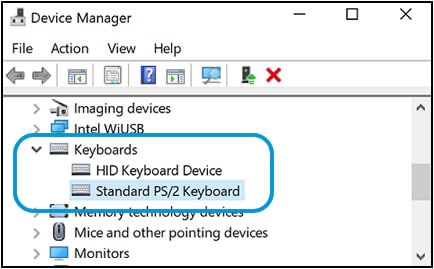
2) Click the arrow next to Keyboards, and then double-click the name of your keyboard.


Keyboards selection in the Device Manager window


3) Click the Power management tab.

4) Select the box next to Allow this device to wake the computer. Click ok.


Step 3 Windows Updates troubleshooter -

Click on this link to run Windows Updates troubleshooter.


Step 4 Windows Updates -

1) In the search box, type and open Windows Updates.

2) Check for updates.

3) If the updates are available, click on install and restart the computer.


Step 5 HP Support Assistant Updates -

1) In the search box, type and open HP Support Assistant.

2) Check for updates.

3) If the updates are available, click on install and restart the computer.


Step 6 Troubleshoot using the Windows Power troubleshooter -

1) In Windows, search for and open the Control Panel.

2) In the Control Panel Search field, type troubleshooting.

3) Click Troubleshooting.

4) In the System and Security area, click Improve power usage.

5) Click Next to run the troubleshooting tool.


Step 7 System Restore -

1) Shutdown the computer.

2) Turn the computer back on again and repeatedly tap on the ESC until a Startup menu appears.

3) Press F11 once for System Recovery.

4) Choose the Keyboard Layout.

5) Click on Troubleshoot.

6) Go to Recovery Manager and click on System Restore.

7) Choose a Restore point or a Restore date when the computer was working fine. Click on OK to initialize the System Restore.


Hope this helps! Keep me posted. 


Please click “Accept as Solution” if you feel my post solved your issue, it will help others find the solution.

Click the “Kudos, Thumbs Up" on the bottom right to say “Thanks” for helping!


Have a great day! 

Asmita
I am an HP Employee

† The opinions expressed above are the personal opinions of the authors, not of HP. By using this site, you accept the <a href="https://www8.hp.com/us/en/terms-of-use.html" class="udrlinesmall">Terms of Use</a> and <a href="/t5/custom/page/page-id/hp.rulespage" class="udrlinesmall"> Rules of Participation</a>.