
-
×InformationNeed Windows 11 help?Check documents on compatibility, FAQs, upgrade information and available fixes.
Windows 11 Support Center. -
-
×InformationNeed Windows 11 help?Check documents on compatibility, FAQs, upgrade information and available fixes.
Windows 11 Support Center. -
- HP Community
- Notebooks
- Notebook Boot and Lockup
- Computer is locked when starting

Create an account on the HP Community to personalize your profile and ask a question
Your account also allows you to connect with HP support faster, access a personal dashboard to manage all of your devices in one place, view warranty information, case status and more.

It has been a while since anyone has replied. Simply ask a new question if you would like to start the discussion again.

06-24-2018 08:56 AM - edited 06-24-2018 08:59 AM
 HP Recommended
Product: HP Pavilion 15-p085no
Operating System: Microsoft Windows 10 (64-bit)
When i updated the grafiks amd Radeon the screen went blank and nothing happens! Please help!
Solved! Go to Solution.
1 ACCEPTED SOLUTION
Accepted Solutions


06-25-2018 02:22 PM
HP Recommended
Welcome to the HP Forums 🙂
I would like to take a moment and thank you for using this forum, it is a great place to find answers.
As I understand, your computer is locked and the screen is blank,
No worries, as I'll be glad to help you, that said, I'll need a few more details to dissect your concern & provide an accurate solution:
Have you tried connecting the notebook to an external monitor?
Have you performed system restore?
Let's try these steps to resolve the issue:
System Restore:
Click here to see this video in full screen on YouTube.
-
Turn off the computer and wait at least 5 seconds with the computer in a full off state.
-
Turn on the computer and repeatedly press the F11 key, about once every second, until you see the Windows loading screen.
-
If a language selection screen opens, select the language you want to use to continue.
-
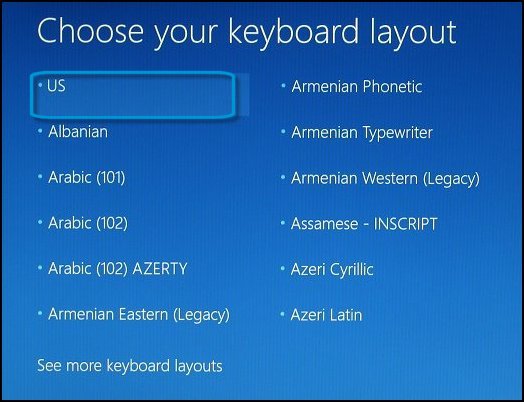
On the Choose your keyboard layout screen, select the keyboard layout that matches your keyboard type.
-
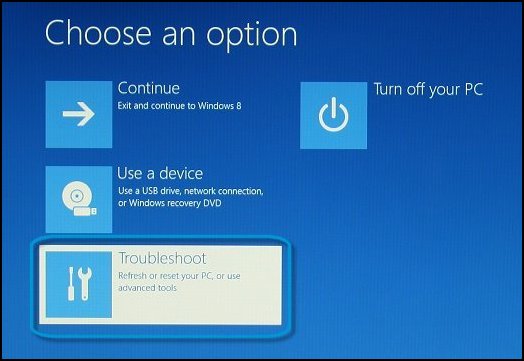
On the Choose an option screen, click Troubleshoot.
-
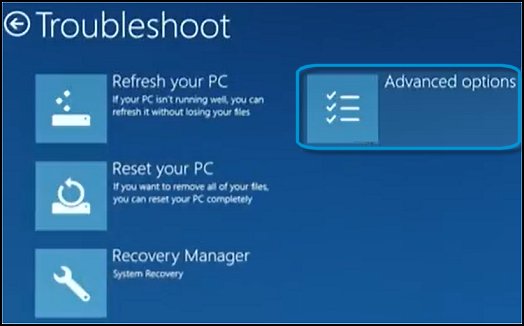
On the Troubleshoot screen, click Advanced Options.
-
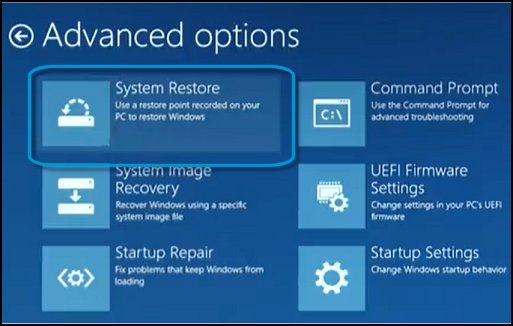
On the Advanced options screen, click System Restore.
-
Click Windows 8, click Windows 8.1, or click Windows 10 as the target operating system.
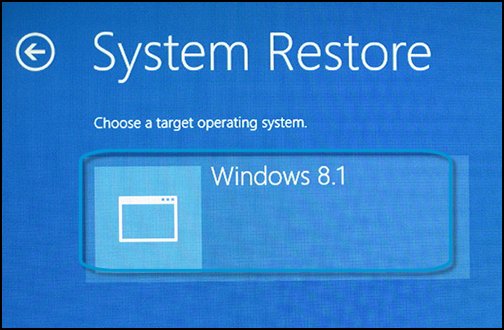
The System Restore window opens.
-
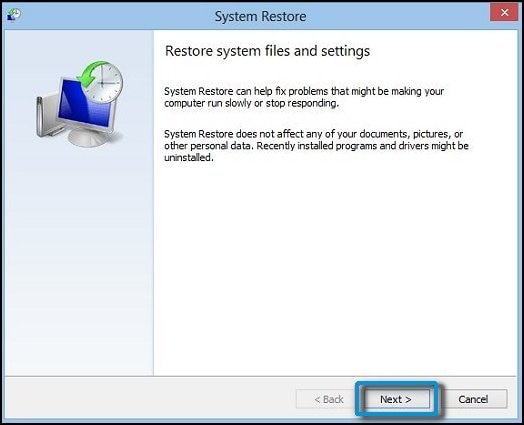
Click Next.
-
Click the Restore Point that you want to use, and then click Next.
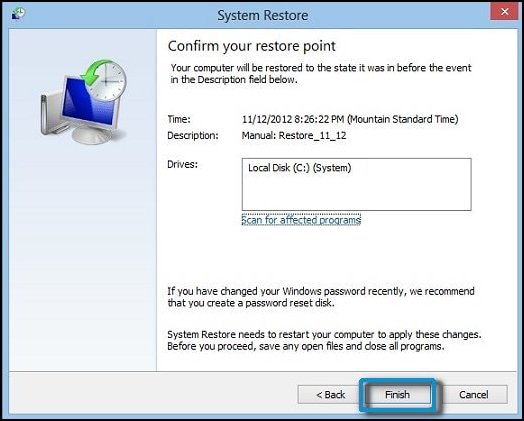
The Confirm Restore Point window opens.
-
Click Finish to restore your computer to a previous point.
-
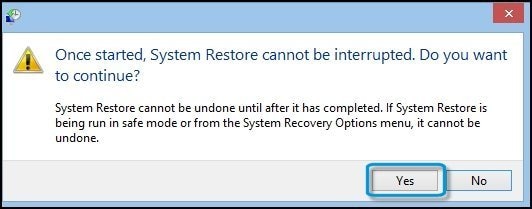
Do not interrupt System Restore when it starts. Doing so can corrupt your hard drive and create more problems. Click Yes in the warning that appears.
-
System Restore returns the computer configuration to a previous point in time and restarts.
For more information, click here
Let me know how this goes,
Have a great day 🙂
Cheers 🙂
3 REPLIES 3
06-25-2018 02:22 PM
HP Recommended
Welcome to the HP Forums 🙂
I would like to take a moment and thank you for using this forum, it is a great place to find answers.
As I understand, your computer is locked and the screen is blank,
No worries, as I'll be glad to help you, that said, I'll need a few more details to dissect your concern & provide an accurate solution:
Have you tried connecting the notebook to an external monitor?
Have you performed system restore?
Let's try these steps to resolve the issue:
System Restore:
Click here to see this video in full screen on YouTube.
-
Turn off the computer and wait at least 5 seconds with the computer in a full off state.
-
Turn on the computer and repeatedly press the F11 key, about once every second, until you see the Windows loading screen.
-
If a language selection screen opens, select the language you want to use to continue.
-
On the Choose your keyboard layout screen, select the keyboard layout that matches your keyboard type.
-
On the Choose an option screen, click Troubleshoot.
-
On the Troubleshoot screen, click Advanced Options.
-
On the Advanced options screen, click System Restore.
-
Click Windows 8, click Windows 8.1, or click Windows 10 as the target operating system.
The System Restore window opens.
-
Click Next.
-
Click the Restore Point that you want to use, and then click Next.
The Confirm Restore Point window opens.
-
Click Finish to restore your computer to a previous point.
-
Do not interrupt System Restore when it starts. Doing so can corrupt your hard drive and create more problems. Click Yes in the warning that appears.
-
System Restore returns the computer configuration to a previous point in time and restarts.
For more information, click here
Let me know how this goes,
Have a great day 🙂
Cheers 🙂

06-27-2018 07:20 AM
HP Recommended
I read this response. It is great to hear from you. Thanks for the update. I am glad that things went well. As @Flower_Bud is out for the day, I am responding on her behalf. As the issue has been resolved, Please mark @Flower_Bud's post as an accepted solution as it will benefit several others with the same issue.
Also, give her post a kudos for her efforts to help.
Thanks and have a blessed day ahead. 🙂
DavidSMP
I am an HP Employee

Be alert for scammers posting fake support phone numbers and/or email addresses on the community.
If you think you have received a fake HP Support message, please report it to us by clicking on "Flag Post".
† The opinions expressed above are the personal opinions of the authors, not of HP. By using this site, you accept the Terms of Use and Rules of Participation.


Didn't find what you were looking for?
Ask the community
† The opinions expressed above are the personal opinions of the authors, not of HP. By using this site, you accept the <a href="https://www8.hp.com/us/en/terms-of-use.html" class="udrlinesmall">Terms of Use</a> and <a href="/t5/custom/page/page-id/hp.rulespage" class="udrlinesmall"> Rules of Participation</a>.