• ×
    Information
    Need Windows 11 help?
    Check documents on compatibility, FAQs, upgrade information and available fixes.
    Windows 11 Support Center.
  • post a message
  • ×
    Information
    Need Windows 11 help?
    Check documents on compatibility, FAQs, upgrade information and available fixes.
    Windows 11 Support Center.
  • post a message
Guidelines
Do you need help resolving ACPI Errors ACPI\VEN_BOOT&DEV_0000 and ACPI\VEN_PRP&DEV_0001 on HP Chromebook G2? Click here for the troubleshooting steps.
HP Recommended
Spectre x360 13-ae0xx
Microsoft Windows 10 (64-bit)
My Spectre is not shutting down. It shows the shutting down screen you can still hear the laptop and it still drains battery. I just got it a few weeks ago
3 REPLIES 3
HP Recommended

@theshrav


Let me take a moment to thank you for posting on the HP Support Forums. 


I understand that you have an HP Spectre x360 13-ae0xx series laptop. I read that the laptop shows that it is shutting doe snot never shuts down and remains on. I'll be glad to assist you with this case.


To assist you better, I would like to know the following information:

  • When was the last time the laptop could shutdown correctly?
  • Did any software changes or updates happen on the laptop?
  • Please let me know the exact laptop model no. This link will help you to find the model no: http://hp.care/2bygf7l


Meanwhile, let us fix any corrupted files in Windows. Corrupt Windows system files can slow down the computer and cause other problems. System File Checker (SFC) is a utility in Windows that scans for corrupted system files. If SFC finds a problem, it tries to replace the problem files from a cached version on your computer.

If System File Checker cannot replace the corrupt files, use the Deployment Image Service and Management Tool (DISM). DISM checks the corrupted files, then downloads and replaces the files through Windows Update.
 

Use the following instructions to run System File Checker.

  • In Windows, search for Command Prompt. In the search results, right-click Command Prompt, select Run as administrator, then click Yes.

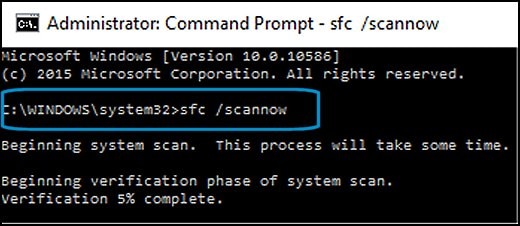
  • In Command Prompt, type sfc /scannow. Make sure to include the space between sfc and the forward slash /.


Figure : Running System File Checker

Running System File Checker


  • Press Enter, then wait while System File Checker scans for corrupted files.

    When the scan completes, the results display on the screen.

    • If the file checker found and replaced any corrupted files, restart the computer, then check the performance.

    • If the file checker did not find any corrupted files or found corrupted files but could not replace them, then go to the next step.

  • If System File Checker finds corrupted files but cannot replace them, use the Deployment Image Servicing and Management (DISM) tool. DISM checks the corrupted files, then downloads and replaces the files using Windows Update.

    In Windows, open a web browser.

NOTE: You need to be connected to the Internet to use DISM.

  • In Windows, search for Command Prompt. In the search results, right-click Command Prompt, select Run as administrator, then click Yes.

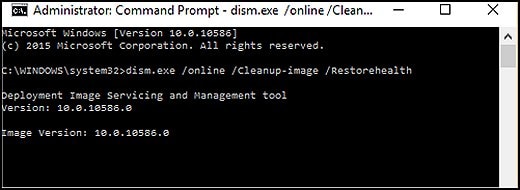
  • In Command Prompt, type dism.exe /Online /Cleanup-image /Restorehealth. Make sure to include the space before each forward slash / in the command line.

    Press Enter, then wait while DISM works. This might take several minutes.

Figure : Running DISM

Running DISM


  • If DISM finds corrupted files, it replaces them using Windows Update. If this occurs, after DISM is finished, restart your computer and see if the performance has improved.


If the issue persists then please check if the version 9 or 10 of the Intel Management Engine Interface (MEI) Driver is available at the HP website for your laptop model: www.hp.com/drivers


I sincerely hope this fixes the issue. Let me know how it goes. All the best! 🙂

HP Recommended
Thank you but I just returned it because I have heard this issue happen before and would not like to cause any damage to it as this was a factory error.
HP Recommended

@theshrav


You're welcome. I truly appreciate your patience.


However, it was a pleasure to share this platform with you. 


Take care! 


† The opinions expressed above are the personal opinions of the authors, not of HP. By using this site, you accept the <a href="https://www8.hp.com/us/en/terms-of-use.html" class="udrlinesmall">Terms of Use</a> and <a href="/t5/custom/page/page-id/hp.rulespage" class="udrlinesmall"> Rules of Participation</a>.