-
×InformationNeed Windows 11 help?Check documents on compatibility, FAQs, upgrade information and available fixes.
Windows 11 Support Center. -

-
×InformationNeed Windows 11 help?Check documents on compatibility, FAQs, upgrade information and available fixes.
Windows 11 Support Center. -
- HP Community
- Notebooks
- Notebook Boot and Lockup
- Hard Drive 3F0 error - Hp Spectre x360 15" (2017 model)

Create an account on the HP Community to personalize your profile and ask a question
08-18-2019
06:24 PM
- last edited on
08-19-2019
10:06 AM
by
Cheron-Z
I am having the problem, and my laptop is barely more than 1 year old (just outside of warranty, go figure). I have run both the quick and extensive hard drive diagnostic tests (which show no issues), and I also restored BIOS default settings. Thanks!
08-20-2019 06:53 PM - edited 08-20-2019 06:54 PM
@kl632 Welcome to HP Community!
You may want to click here to identify the cause of the error message and resolve it accordingly, also, since the hardware tests have passed, try the below steps:
Ensure Legacy Support, under Boot Options, is DISABLED.
NOTE: If legacy boot support is enabled, you will NOT be able to see the Intel Optane entry as described in Procedure 3.
- Start or restart the computer.
- Press F10 repeatedly during start up to enter the BIOS configuration utility.
- Check Legacy Support and disable if it is enabled:
System Configuration > Boot Options > Legacy Support
or
Boot Options > legacy Support - If Legacy Support is DISABLED, skip to Procedure 3, Step 3.
If Legacy Support is ENABLED, change it to DISABLED, save the changes and exit, then go to Procedure 3.
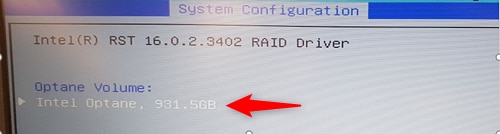
Procedure 1. Determine if Optane memory is installed and working normally.
- Start or restart the computer.
- Press F10 repeatedly during startup to enter the BIOS setup utility.
- Look for the Intel(R) Rapid Storage Technology option; navigate to:
System Configuration > UEFI HII Configuration > Intel(R) Rapid Storage Technology
If Intel Optane is not listed, the computer does not have Optane memory or Optane memory is malfunctioning and cannot be detected. Contact HP Customer Support for further assistance.
If Intel Optane is listed, the computer has Intel Optane memory installed and working normally. Continue with procedure 4.
Procedure 2: Perform F11 Recovery, or restore the system using HP recovery media.
- Restart the computer and press F11.
If you cannot access F11 recovery, perform a System recovery using HP supplied recovery media. Refer to the following link for more information.
Let me know how that pans out,
If you feel I was helpful, simply click on Accept as Solution to help the community grow,
That said, I will have someone follow-up on this to ensure you've been helped,
Just in case you don't get back to us within 24 - 48hrs, and have a good day, ahead.
Riddle_Decipher
I am an HP Employee
Learning is a journey, not a destination.
Let's keep asking questions and growing together.