-
×InformationNeed Windows 11 help?Check documents on compatibility, FAQs, upgrade information and available fixes.
Windows 11 Support Center. -

-
×InformationNeed Windows 11 help?Check documents on compatibility, FAQs, upgrade information and available fixes.
Windows 11 Support Center. -
- HP Community
- Notebooks
- Notebook Boot and Lockup
- Hard disk error

Create an account on the HP Community to personalize your profile and ask a question
08-07-2020 08:47 AM
My laptop is not starting and it shows hard disk error and if I am running a quick hard disk component test then it says " No hard drive installed. Please check that the power and data cables are connected properly."
08-10-2020 08:10 AM
Hi @Mehal1,
I'd like to help.
Run the Hard Drive Test in the HP PC Hardware Diagnostics using the steps in this section. There are six hard drive tests. If you think there is a problem with the hard drive, first try the Quick Test (2 to 3 minutes). If the Quick Test does not find a problem, run the Extensive Test (2 hours or more) which also has a Loop Until Error option.
-
Hold the power button for at least five seconds to turn off the computer.
-
Turn on the computer and immediately press Esc repeatedly, about once every second. When the menu appears, press the F2 key.
Figure : System Diagnostics

-
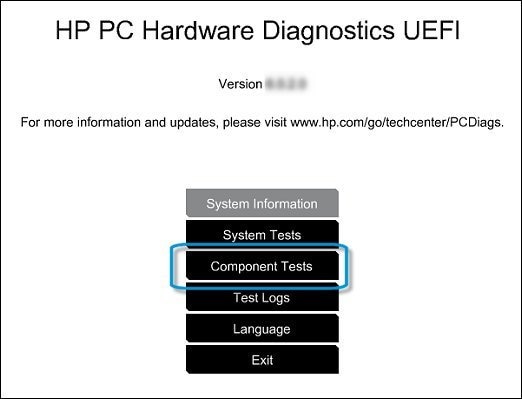
The HP PC Hardware Diagnostics opens. On the main menu, click Component Tests.
Figure : Selecting Component Tests from the main menu

-
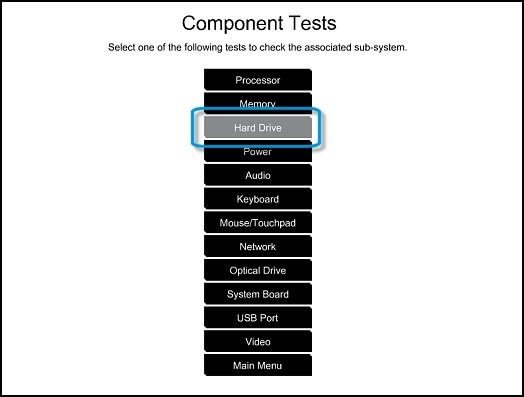
In the Component Tests menu, click Hard Drive.
Figure : Selecting Hard Drive from the Component Tests menu

-
In the Hard Drive Tests menu, click Quick Test.
Figure : Selecting the Hard Drive Quick Test

-
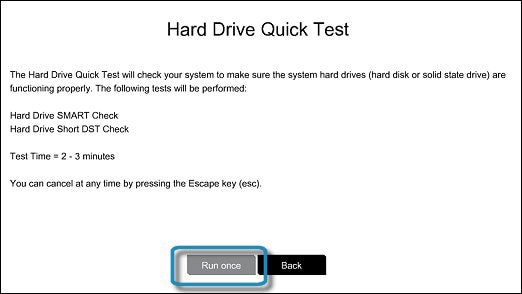
Click Run Once.
Figure : Running the Hard Drive Quick Test

-
The Hard Drive Quick Test begins. If the computer has more than one hard drive, select the drive you want to test. To test all the hard drives, select Test All Hard Drives.
When the test is complete, the results are displayed on the screen. Test results are also available in the Test Logs on the main menu
If the hard drive fails one of the tests, write down the failure ID (24-digit code) so you have it available when you contact HP Customer Support. The information is also available in Test Logs on the main menu.
Hope this helps! Keep me posted.
And, Welcome to the HP Support Community.
Please click “Accept as Solution” if you feel my post solved your issue, it will help others find the solution.
Click the “Kudos, Thumbs Up" on the bottom right to say “Thanks” for helping