-
×InformationNeed Windows 11 help?Check documents on compatibility, FAQs, upgrade information and available fixes.
Windows 11 Support Center. -

-
×InformationNeed Windows 11 help?Check documents on compatibility, FAQs, upgrade information and available fixes.
Windows 11 Support Center. -
- HP Community
- Notebooks
- Notebook Boot and Lockup
- Re: Hp Spectre not shutting down

Create an account on the HP Community to personalize your profile and ask a question
07-11-2020 08:25 PM
Hi,
My Hp spectre won't turn off. If I select 'shut down' from the window or press the power button for sleep mode, it turns off/go to sleep for second but automatically turns on. Even when I close down the screen, it switches on from sleep mode by itself. I have to forcibly shut it down using the power button every time. Any solution for this?
I have tried resetting the computer to old BIOS already.
07-14-2020 03:06 PM
@shubh0408 Welcome to HP Community!
I understand that the Hp Spectre not shutting down.
To assist you better, I would like to know the following information:
- When was the last time the laptop could shutdown correctly?
- Did any software changes or updates happen on the laptop?
- Please let me know the exact laptop model no. This link will help you to find the model no: http://hp.care/2bygf7l
Meanwhile, let us fix any corrupted files in Windows. Corrupt Windows system files can slow down the computer and cause other problems. System File Checker (SFC) is a utility in Windows that scans for corrupted system files. If SFC finds a problem, it tries to replace the problem files from a cached version on your computer.
If System File Checker cannot replace the corrupt files, use the Deployment Image Service and Management Tool (DISM). DISM checks the corrupted files, then downloads and replaces the files through Windows Update.
Use the following instructions to run System File Checker.
-
In Windows, search for Command Prompt. In the search results, right-click Command Prompt, select Run as administrator, then click Yes.
-
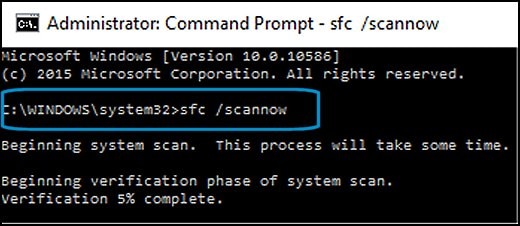
In Command Prompt, type sfc /scannow. Make sure to include the space between sfc and the forward slash /.
Figure : Running System File Checker

-
Press Enter, then wait while System File Checker scans for corrupted files.
When the scan completes, the results display on the screen.
-
If the file checker found and replaced any corrupted files, restart the computer, then check the performance.
-
If the file checker did not find any corrupted files or found corrupted files but could not replace them, then go to the next step.
-
-
If System File Checker finds corrupted files but cannot replace them, use the Deployment Image Servicing and Management (DISM) tool. DISM checks the corrupted files, then downloads and replaces the files using Windows Update.
In Windows, open a web browser.
NOTE: You need to be connected to the Internet to use DISM.
-
In Windows, search for Command Prompt. In the search results, right-click Command Prompt, select Run as administrator, then click Yes.
-
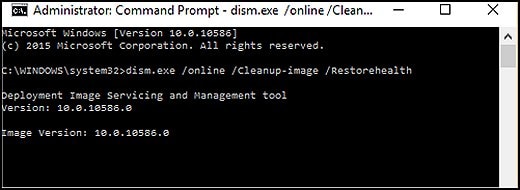
In Command Prompt, type dism.exe /Online /Cleanup-image /Restorehealth. Make sure to include the space before each forward slash / in the command line.
Press Enter, then wait while DISM works. This might take several minutes.
Figure : Running DISM

- If DISM finds corrupted files, it replaces them using Windows Update. If this occurs, after DISM is finished, restart your computer and see if the performance has improved.
If the issue persists then please check if the version 9 or 10 of the Intel Management Engine Interface (MEI) Driver is available at the HP website for your laptop model: www.hp.com/drivers
Keep us posted,
If you would like to thank us for our efforts to help you,
Give us a virtual high-five by clicking the 'Thumbs Up' icon below, followed by clicking on the "Accept as solution" on this post,
Have a great day!
07-14-2020 04:13 PM
I've been struggling so much with this too. I found this recently from Djelectron