• ×
    Information
    Need Windows 11 help?
    Check documents on compatibility, FAQs, upgrade information and available fixes.
    Windows 11 Support Center.
  • post a message
  • ×
    Information
    Need Windows 11 help?
    Check documents on compatibility, FAQs, upgrade information and available fixes.
    Windows 11 Support Center.
  • post a message
Guidelines
Seize the moment! nominate yourself or a tech enthusiast you admire & join the HP Community Experts!
HP Recommended
Example: Pavilion 14
Microsoft Windows 10 (64-bit)

When the laptop puts itself to sleeping mode, it doesn't re-open. I have to push the power button to force close it and open it. But when I do that, it starts working but there is nothing on the screen. I have to push the button until it starts showing something on it. I run all the component tests and it said laptops battery is not functioning properly. 


I can't change the battery right now due to the quarantine circumstances but it's annoying to try to open my laptop several times until it works. 


Is there any other way that I can fix this issue?


Note; Its battery is non-removable, I can't remove it. 

1 REPLY 1
HP Recommended

@Can96

Thank you for posting on HP Support Community.


Don't worry as I'll be glad to help, I have a few troubleshooting steps we could try to fix the issue:  

Step 1: Restart the computer

Restarting your computer erases all information in the computer memory, which might restore functionality.

If the issue persists after restarting the computer, continue to the next step.

Step 2: Enable the keyboard to wake the computer

Enabling your keyboard to wake your computer from sleep mode might resolve the issue.

  1. In Windows, search for and open the Device Manager.

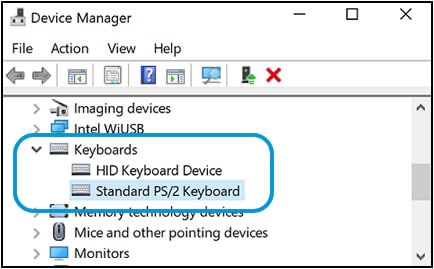
  2. Click the arrow next to Keyboards, and then double-click the name of your keyboard.

    Keyboards selection in the Device Manager window

  3. Click the Power management tab.

    If the Power Management tab is not available, click the Change Settings button. The same Keyboard Properties window opens with the Power Management tab available.

    If you are prompted for an Administrator password or confirmation, type the password or provide confirmation.

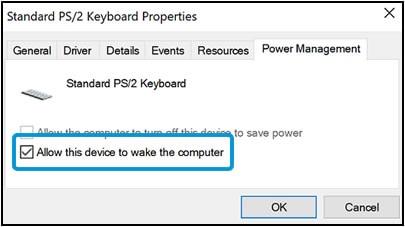
  4. Select the box next to Allow this device to wake the computer.

    Allow this device to wake the computer selection in the Power Management tab

  5. Click OK.

If the issue persists after setting the keyboard to wake the computer from sleep mode, continue to the next step.

Step 3: Check for Windows updates

Having the most current software and drivers installed on your computer might resolve the issue. Choose your operating system below for steps to check for updates using Windows Update.


Hope this helps! Keep me posted for further assistance.
Please click “
Accept as Solution” if you feel my post solved your issue, it will help others find the solution.

ECHO_LAKE
I am an HP Employee

† The opinions expressed above are the personal opinions of the authors, not of HP. By using this site, you accept the <a href="https://www8.hp.com/us/en/terms-of-use.html" class="udrlinesmall">Terms of Use</a> and <a href="/t5/custom/page/page-id/hp.rulespage" class="udrlinesmall"> Rules of Participation</a>.