
-
×InformationNeed Windows 11 help?Check documents on compatibility, FAQs, upgrade information and available fixes.
Windows 11 Support Center. -
-
×InformationNeed Windows 11 help?Check documents on compatibility, FAQs, upgrade information and available fixes.
Windows 11 Support Center. -
- HP Community
- Notebooks
- Notebook Boot and Lockup
- My dv6 not booting after a bios uptade

Create an account on the HP Community to personalize your profile and ask a question
Your account also allows you to connect with HP support faster, access a personal dashboard to manage all of your devices in one place, view warranty information, case status and more.

It has been a while since anyone has replied. Simply ask a new question if you would like to start the discussion again.

5 REPLIES 5


07-17-2023 02:30 PM
 HP Recommended
Hi @Ibrahim_al_assa,
Welcome to the HP Support Community
I understand you are facing an issue with your dv6 not booting after a bios update HP Product. Not to worry I will help you to get a resolution to resolve the issue.
To assist better:
- May I have the exact model name of the product? Refer to this document for steps to find the product details. Do not share any of your personal information such as serial, phone number, email ID, etc.
Hope this helps! Keep me posted.
Please click “Accepted Solution” if you feel my post solved your issue, it will help others find the solution. Click the “Kudos/Thumbs Up" on the bottom right to say “Thanks” for helping!
A_Gayathri
HP Support Community Administrator.
07-21-2023 08:02 AM - edited 07-21-2023 08:07 AM
HP Recommended
Okay, When I want to see the model name of the dv6 it shows up in the bios that it's a dv6 notebook PC, but I actually tried to put my serial number in the HP official website and it tells me that my Notebook is out of support. But I also tried to see the back of the notebook and there was just the windows installed on it and the activation key. plus there is a number under the parcode it's 584042-001 I don't know if that will help.
07-21-2023 04:37 PM
HP Recommended
@Ibrahim_al_assa,
Thank you for your reply, not to worry I'll guide you
please follow the steps You can find the product details.
At the bottom of the notebook,
On the box that the notebook shipped in
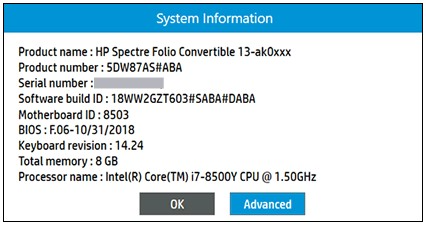
Find a product and serial numbers with the HP System Information app
Open the HP System Information app to view computer information, including the product and serial number.
- Search Windows for and open HP System Information, or press Fn + esc to open the System Information window.
NOTE:
The keyboard press method does not work when using a docking station with an external keyboard.
- Locate the product name, product number, and serial number in the window.
A_Gayathri
HP Support Community Administrator.
07-22-2023 01:17 PM
HP Recommended
Hi @Ibrahim_al_assa,
Thank you for your reply
I understand you are facing an issue with your HP Pavilion dv6-6050se Entertainment Notebook PC, unit is not booting The screen is not turning on Not to worry I will help you to get a resolution to resolve the issue.
May I know
Do you see an HP Logo when you try to turn on the unit and then the screen goes blank or blue screen, If Blue screen Have observed any error message?
Or the unit is not turning On at all
Do You see a light glowing on the power button and next to the charging Port?
May I know the Operation system version?
Please try the following Troubleshoots steps.
1. Turn off the Unit.
2. Disconnect the AC adapter.
3. Remove any discs from the disc drive.
4. Remove memory cards from the card reader slot.
5. Disconnect all nonessential peripheral devices, such as printers, scanners, external hard drives, and USB flash drives.
6. Disconnect the AC adapter press and hold the power button for approximately 15 seconds.
7. Reconnect the AC adapter, and then turn on the computer.
Step 2
Turn off the unit and please press and hold the Windows key + letter B key and the power button together for 30 seconds after 30 seconds, 1st release the power button but keep holding the Windows key and B key for ten more seconds and then release these two keys If done correctly, you will see the display flashing once. Please attempt it thrice as this step and Restart the unit
Step3
The unit has to be turned off, Press Win+ V while holding these two keys then Press the Power button, continue to hold all three keys for 30 seconds and then release the Power button first and then release these two keys Please attempt it thrice and then you may get a Pop-Up CMOS Check and it will restart the unit
Even if you don't get a Pop-up restart the unit manually after 3 attempts.
After the above troubleshooting steps if the unit turns on please follow the below
click here and follow the troubleshooting steps HP PCs - Computer does not boot or start
Please update Windows and HP support assistances updates
And update Bios and other drivers please click on the link. to update the drivers.
follow this link to run the test hardware test
I hope this helps! Keep me posted.
Please click “Accepted Solution” if you feel my post solved your issue, it will help others find the solution. Click the “Kudos/Thumbs Up" on the bottom right to say “Thanks” for helping!
A_Gayathri
HP Support Community Administrator.

Be alert for scammers posting fake support phone numbers and/or email addresses on the community.
If you think you have received a fake HP Support message, please report it to us by clicking on "Flag Post".
† The opinions expressed above are the personal opinions of the authors, not of HP. By using this site, you accept the Terms of Use and Rules of Participation.


Didn't find what you were looking for?
Ask the community
† The opinions expressed above are the personal opinions of the authors, not of HP. By using this site, you accept the <a href="https://www8.hp.com/us/en/terms-of-use.html" class="udrlinesmall">Terms of Use</a> and <a href="/t5/custom/page/page-id/hp.rulespage" class="udrlinesmall"> Rules of Participation</a>.