• ×
    Information
    Need Windows 11 help?
    Check documents on compatibility, FAQs, upgrade information and available fixes.
    Windows 11 Support Center.
  • post a message
  • ×
    Information
    Need Windows 11 help?
    Check documents on compatibility, FAQs, upgrade information and available fixes.
    Windows 11 Support Center.
  • post a message
Guidelines
Seize the moment! nominate yourself or a tech enthusiast you admire & join the HP Community Experts!
HP Recommended
HP Notebook - 14-ck0518sa
Microsoft Windows 10 (64-bit)

I have a HP Notebook - 14-ck0518sa and last night I saw the HP assistant alert showing that it needed some updates, so I ran them all.  At the final screen it said the laptop needed to restart and the screen would flicker a few times etc.  I clicked on continue and it shut down.  

The power light came back on and the fan started whirring, and the screen did flicker slightly before it then all turned off again.  A few moments later, the light was back on, so was the fan, the screen flickered and then it turned off again..... and so on.  

I have no idea how long it was supposed to do this for but the laptop will not boot up at all.  I have tried pressing the power button for 15 seconds and it makes no difference.   It does the same thing whether it's plugged in or not.    The underside of the laptop does feel quite warm even though it's essentially been turned off since last night. 


Can anyone help please?   Is this a hardware fault?  It doesn't look as if the battery can be removed.  

The only other change I made the to it yesterday was installing AVG antivirus software and removing AVAST.  


The laptop is still in warranty but I wanted to check if there was a quick fix or if I need to send it back to HP?  

Thank you. 

3 REPLIES 3
HP Recommended


@JudithHitchens


Welcome to HP Community


I suggest we attempt a BIOS Recovery and that might help


  1. Turn off the Notebook, and then connect the power cord.

  2. Press and hold the Windows key  and the B key at the same time, and then press and hold the power button for 2 to 3 seconds.
  3. Release the Power button but continue pressing the Windows and B keys. You might hear a series of beeps.

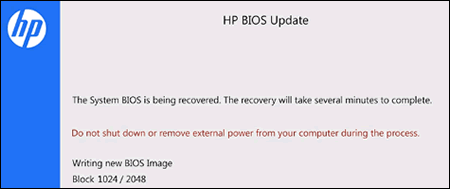
    The HP BIOS Update screen displays and the recovery begins automatically. Follow any on-screen prompts to continue the startup to complete the recovery.

    HP BIOS Update recovery in progress

    • If the HP BIOS Update screen does not display, repeat the previous steps but press the Windows key and the V key. If the screen still does not display, your computer might not support the feature or there is a hard drive issue. 

    • If the Power light turns off, the Power button was held too long. Repeat the previous steps, making sure to hold the button for only 2 to 3 seconds.

    • If a BIOS recovery message repeatedly displays, continue to the next step to install an updated BIOS version.

    • If a message that the computer improperly shut down or a boot problem is detected displays, follow the on-screen instructions to resolve the error.

    • If Windows starts, update to the latest BIOS version from https://support.hp.com/in-en/drivers

You can refer to this Link: https://support.hp.com/in-en/document/c02693833


Keep me posted how it goes 😊


If the information I've provided was helpful, give us some reinforcement by clicking the "Solution Accepted" on this Post and it will also help other community members with similar issue. 😉


KrazyToad
I Am An HP Employee

HP Recommended

I’ve tried this but nothing happens at all. 

The power light comes on and off but there is nothing on the screen at all. A slight flicker but nothing else. 

Is it likely to be a hardware problem instead do you think? 


Thanks 

HP Recommended

@JudithHitchens


This definitely seems to be a Hardware issue. I suggest you contact HP Support for Service Options


Click on this link - https://support.hp.com/us-en/contact-hp?openCLC=true and select your Country to get the Contact details for HP Support


Thank you

KrazyToad
I Am An HP Employee

† The opinions expressed above are the personal opinions of the authors, not of HP. By using this site, you accept the <a href="https://www8.hp.com/us/en/terms-of-use.html" class="udrlinesmall">Terms of Use</a> and <a href="/t5/custom/page/page-id/hp.rulespage" class="udrlinesmall"> Rules of Participation</a>.


