-
×InformationNeed Windows 11 help?Check documents on compatibility, FAQs, upgrade information and available fixes.
Windows 11 Support Center. -

-
×InformationNeed Windows 11 help?Check documents on compatibility, FAQs, upgrade information and available fixes.
Windows 11 Support Center. -
- HP Community
- Notebooks
- Notebook Boot and Lockup
- Re: HP Spectre won't shut down/sleep properly

Create an account on the HP Community to personalize your profile and ask a question
09-27-2019 01:04 PM
Same Problem as MSG77, kinda. On battery, the X360 goes to sleep perfectly. On the power cord, it will not go to sleep. Not! Nobody seems to know why, or what is the reason, or provide a process to rectify this seemingly simple problem. I've seen windows in the research for this that I didn't know exist. Dozens.
Adjunct problem - cannot find how to get the keyboard to wake up the X360. Between Control Panel and Device Manager, again looked at NUMEROUS pages. Right clicked things looking for Power Management tabs. Nope. None.
Adjunct / Adjunct problem - went to MANY mouse pages, unchecked the "allow this device to wake up the computer", only to come back later in the day and some of them have been rechecked. #$%^&*(
Nice laptop but NOTHING is worth this many problems!!! Now, will this actually get an answer and how will I know if it's answered??
09-30-2019 02:00 PM - edited 09-30-2019 02:04 PM
@mramay Welcome to HP Community!
I recommend you update the Chipset, BIOS and Graphics card drivers using this link: Click here to find and install the latest updates,
Once done, I suggest you create a power plan
In order to create a new custom power plan, you can use the following steps on Windows 10:
- Open Settings.
- Click on System.
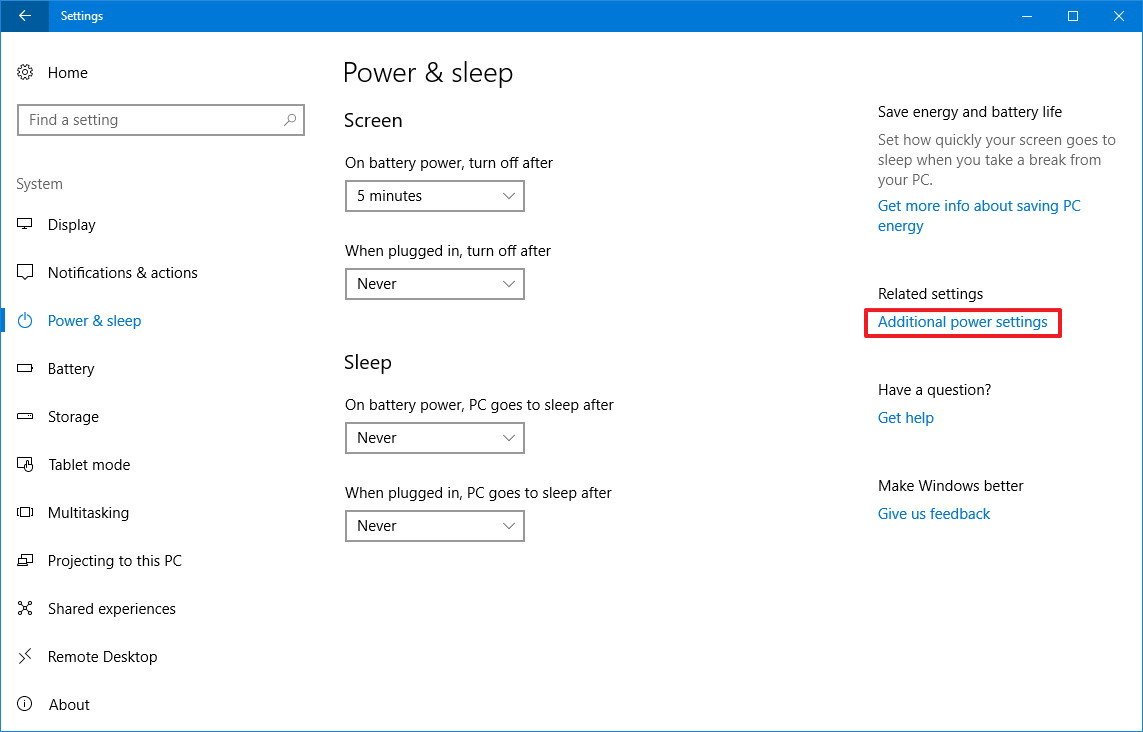
- Click on Power & sleep.
Click the Additional power settings link.
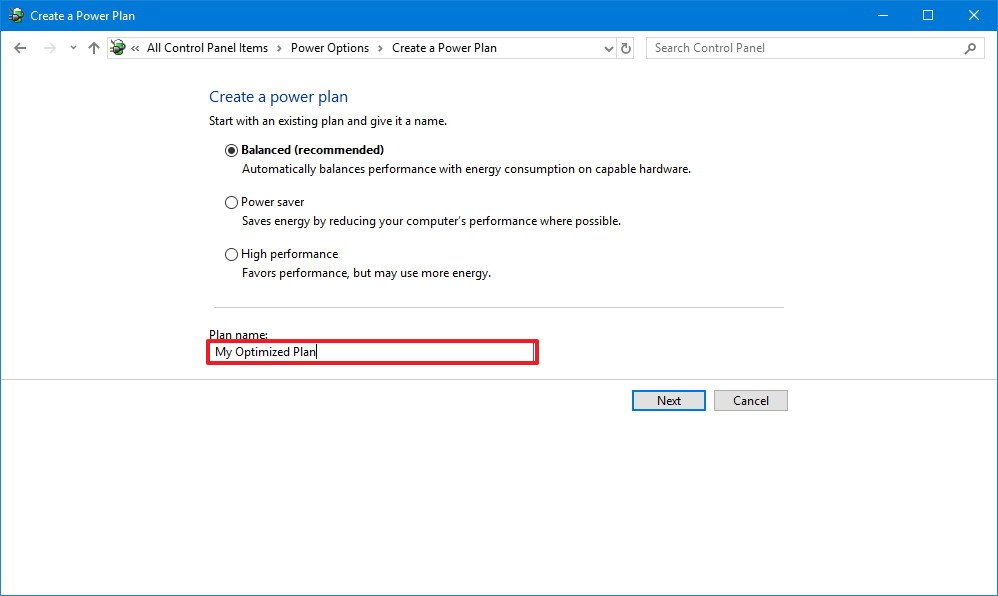
On the left pane, click the Create a power plan button.
- Select a power plan with the settings you want to start.
- Under "Plan name," type a descriptive name for the new power scheme.
Click the Next button.
- Using the drop-down menus, select when your computer should turn off the display and when it should go to sleep.
Click the Create button.
Once you've completed the steps, your new custom plan will be applied to your device.
Keep us posted,
If you would like to thank us for our efforts to help you,
Give us a virtual high-five by clicking the 'Thumbs Up' icon below, followed by clicking on the "Accept as solution" on this post,
Have a great day!
Riddle_Decipher
I am an HP Employee
Learning is a journey, not a destination.
Let's keep asking questions and growing together.