• ×
    Information
    Need Windows 11 help?
    Check documents on compatibility, FAQs, upgrade information and available fixes.
    Windows 11 Support Center.
  • post a message
  • ×
    Information
    Need Windows 11 help?
    Check documents on compatibility, FAQs, upgrade information and available fixes.
    Windows 11 Support Center.
  • post a message
Guidelines
Join the HP Community Solve‑a‑thon | Help Others & Share Your Solutions | Live on Zoom | 2:30 PM to 2:30 AM IST | Every Wednesday Click here to know more
HP Recommended
Microsoft Windows 10 (64-bit)

Hi, my brand new HP laptop won’t let me login.  I have rebooted several times.  When (finally) the screen saver displays there is no option to login.  If I click anywhere on the screen, it will go black, and after a minute returns. Nothing will trigger the login screen, neither the space bar, nor any key, nor the mouse. 

1 REPLY 1
HP Recommended

@G_Meems


Welcome to HP support community.


Provide the product details or the complete computer model number?


Meanwhile:

 Boot into safe mode using these steps:

Turn on your computer and repeatedly press the esc key until the Startup Menu opens. Begin a System Recovery by pressing F11.

  1. If prompted, select your keyboard layout, then from the Choose an option screen, click Troubleshoot.

    Troubleshoot selected in the Advanced options window

  2. Click Advanced options.

  3. Click Startup Settings. If the Startup Settings option does not display, follow the steps in the section Entering Safe Mode without access to Startup Settings.

    Startup Settings selected in the Advanced options window

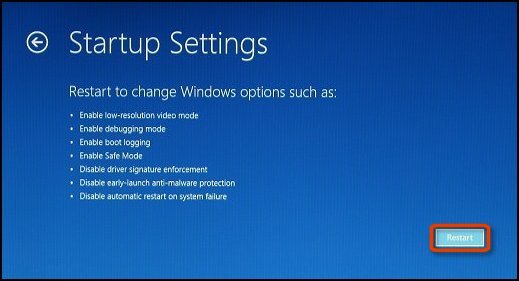
  4. Click Restart.

     Startup Settings screen with Restart button selected

    The computer restarts, and another Startup Settings screen opens showing a list of different startup options.

  5. Choose the Safe Mode option you want from the Startup Settings menu:

    • Press the F4 key for Enable Safe Mode. Safe Mode starts Windows with a minimal set of drivers and services.

    • Press the F5 key for Enable Safe Mode with Networking. Safe Mode with Networking starts Windows in Safe Mode and allows access to the Internet and your network.

    • Press the F6 key for Enable Safe Mode with Command Prompt. Safe Mode with Command Prompt starts Windows in Safe Mode with a Command Prompt window.

Then try the steps mentioned in this HP document to fix this issue:- Click here


Let me know how it goes.

To thank me for my efforts to help you, please mark my post as an accepted solution so that it benefits several others.

Cheers.

Sandytechy20
I am an HP Employee

† The opinions expressed above are the personal opinions of the authors, not of HP. By using this site, you accept the <a href="https://www8.hp.com/us/en/terms-of-use.html" class="udrlinesmall">Terms of Use</a> and <a href="/t5/custom/page/page-id/hp.rulespage" class="udrlinesmall"> Rules of Participation</a>.