• ×
    Information
    Need Windows 11 help?
    Check documents on compatibility, FAQs, upgrade information and available fixes.
    Windows 11 Support Center.
  • post a message
  • ×
    Information
    Need Windows 11 help?
    Check documents on compatibility, FAQs, upgrade information and available fixes.
    Windows 11 Support Center.
  • post a message
Guidelines
Join the HP Community Solve‑a‑thon | Help Others & Share Your Solutions | Live on Zoom | 2:30 PM to 2:30 AM IST | Every Wednesday Click here to know more
HP Recommended
HP Envy x360 Convertible 15m-bp1xx
Microsoft Windows 10 (64-bit)

I'm using my laptop as a desktop, with a peripherical display, keyboard and mouse, and I'd like to wake it up without opening the lid, by movin the mouse or hiting a key.

I checked the energy saving settings to avoid stand-by on lid closing.

I understand I should change the BIOS settings, enabling the "Wake on USB while lid closed" choice, but I don't know how. Is it possible? 

Thanks in advance.

3 REPLIES 3
HP Recommended

@ExeMoreno, Welcome to HP Support Community!


Follow the steps below-

  1. In Windows, search for and open Manage your account.

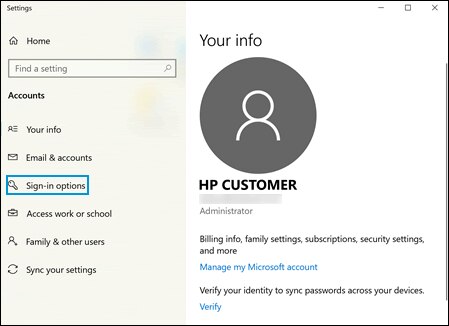
  2. On the Accounts window, select Sign-in options.

    Selecting Sign-in options in the Settings window.

  3. In the Require sign-in area, select Never from the If you've been away, when should Windows require you to sign in again? drop-down menu.

I hope that answers your concern adequately. Let me know!


Please click “Accepted Solution” if you feel my post solved your issue, it will help others find the solution. Click the “Kudos/Thumbs Up" on the bottom right to say “Thanks” for helping!

TEJ1602
I am an HP Employee

HP Recommended

Thank you for your answer TEJ1602.

I realized that the laptop wakes pressing the on/off button (without opening the lid), but only when it's charging (whichever the Require sign-in option is set).

Any recomendation?

HP Recommended

@ExeMoreno


Use the device manager, power management tab for mouse, allow this device to wakeup

Ensure there's a checkmark, apply, ok and restart to check if it works.


Hope this helps! Keep me posted. 


Please click “Accepted Solution” if you feel my post solved your issue, it will help others find the solution. Click the “Kudos/Thumbs Up" on the bottom right to say “Thanks” for helping!


TEJ1602
I am an HP Employee

† The opinions expressed above are the personal opinions of the authors, not of HP. By using this site, you accept the <a href="https://www8.hp.com/us/en/terms-of-use.html" class="udrlinesmall">Terms of Use</a> and <a href="/t5/custom/page/page-id/hp.rulespage" class="udrlinesmall"> Rules of Participation</a>.
-->