-
×InformationNeed Windows 11 help?Check documents on compatibility, FAQs, upgrade information and available fixes.
Windows 11 Support Center. -

-
×InformationNeed Windows 11 help?Check documents on compatibility, FAQs, upgrade information and available fixes.
Windows 11 Support Center. -
- HP Community
- Notebooks
- Notebook Boot and Lockup
- Re: Windows not booting from disc

Create an account on the HP Community to personalize your profile and ask a question
10-14-2019 03:44 AM - edited 10-14-2019 03:44 AM
Hi I have installed windows 7 on my laptop which has windows 8 pre-installed in it and it installed perfectly fine but after that when I turned the laptop off by pressing the power button because it was laggy I got the error code 0x00000e9 and when I try to boot from the disc it display windows logo then a black screen please help
10-14-2019 09:26 AM
In my experience, when a PC is "laggy", that often means the drive is failing. And while your PC is probably less than three years old, it would not be impossible for a drive that new to be failing, nonetheless.
If your PC is new enough to support UEFI, you can use these steps to test the hard drive: http://support.hp.com/us-en/document/c00439024
If not, to check the drive you have to follow these steps:
1) Press Esc key repeatedly, several times a second, while rebooting the laptop. Do NOT hold the key down, just press it over and over.
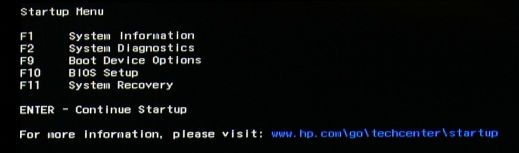
2) Eventually, you will see an HP Startup Menu -- that will look similar to the image below ...
3) press the Function key for testing the hard drive (usually F2) and let it run.
Please report back the test results.
I am a volunteer and I do not work for, nor represent, HP
10-14-2019 09:59 AM
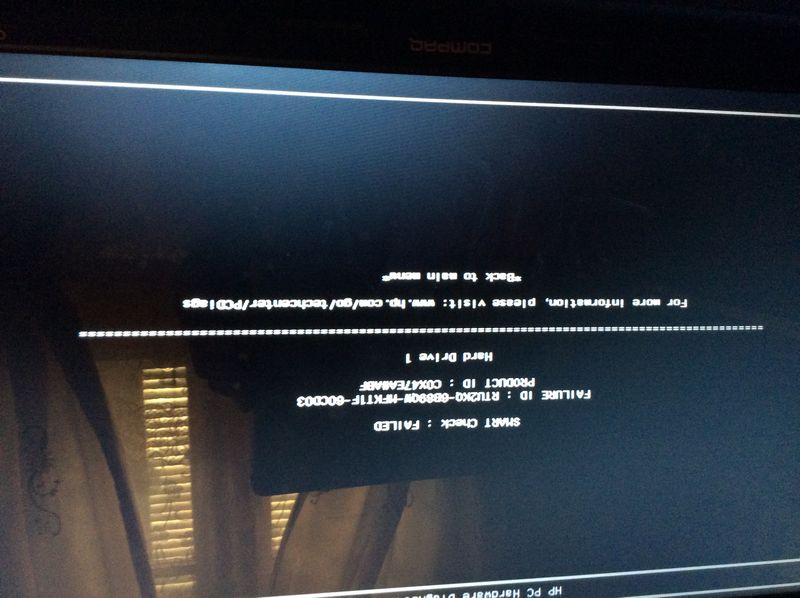
Thanks for your reply I have performed the steps you suggested and it says smart check failed knowing that when I turn my laptop on it says there’s boot problems press enter to continue or press F2 to check the system
10-14-2019 12:12 PM
Sorry, I don't have access to the current HP error codes, but if memory serves me correctly, coupled with the information in your screen shot, that error message means that your primary storage drive (i.e., hard drive) is in imminent danger of failing. While it could last for several more days, it could also fail immediately! The more you use the drive, the less likely you'll be able to recover anything on it.
So, there are four issues to address here:
1) Data Recovery
2) Drive replacement
3) Recovery Media
4) System restoration
---------- Data Recovery ----------
Your best bet for recovering data now is to do the following:
1) Remove the hard drive from the PC
2) Purchase a USB-to-Hard Driver adapter kit
3) Download and install this utility on a working PC: http://www.majorgeeks.com/news/story/recover_data_in_3_steps_with_minitool_power_data_recovery_free_...
4) Connect the old drive to the working PC
5) Run the data recovery utility to see what can be retrieved from the old drive.
If that tools does not find what you need, an alternative is Recuva: http://www.piriform.com/recuva
And, if that does not work well, the best tool out there is this one, but only the trial version is free: http://www.file-recovery.com/
---------- Drive Replacement ----------
The drive will need to be replaced. When you remove it, you will see that it is a 2 1/5 inch laptop SATA drive.
You can replace this with any similar laptop drive of the same capacity or larger.
If the PC is still under the original one-year HP warranty, or if you have purchased an Extended Warranty and that coverage is still in place, you should be able to get the drive replaced by HP at no charge. To explore that option, you would have to contact HP Customer Support.
If you live in the US or Canada, contact information is on this page: http://www8.hp.com/us/en/contact-hp/phone-assist.html#section1
If you live elsewhere, contact information is on this page: http://www8.hp.com/us/en/contact-hp/ww-contact-us.html
NOTE: After you get through, stay on the line until you are finally able to talk to some one -- it can take a while!
If you have trouble finding a phone number, then try: If you have trouble finding a phone number, then try: 1 (650) 857-1501. Tech Support's number is 1 (800) 474-6836.
---------- Recovery Media ----------
Once you have the replacement drive, you will need to use something known as HP Recovery Media to restore your PC to working condition. This is a set of DVDs and a CD, or USB stick, that will erase the hard drive (removing all data, settings, and applications, reinstall the original OS, drivers, and some HP Utilities. In some cases, you may be able to order a USB stick instead of disks. You have to order these from HP; they can not be downloaded.
You can look online for Recovery Media starting with the linked paged: http://support.hp.com/us-en/drivers
Once there, input your Product name or number. On your Software and Drivers Download page, select your Operating System and and Version. Click "Update". If HP Recovery Media is available for your machine, down near the bottom of the page, you will see an entry for Order Recovery Media-CD/DVD/USB. Click the "+" symbol to expand that entry and click on Order Media for details.
Or, if you prefer, you can do the same by contacting HP Customer Service (see contact info above)
If HP no longer provides Recovery Media for your model, another site you can check is: http://www.computersurgeons.com/
---------- System Restoration ----------
While you are waiting for the media to arrive, read through this: http://support.hp.com/us-en/document/c00006110
Good Luck
I am a volunteer and I do not work for, nor represent, HP