-
×InformationNeed Windows 11 help?Check documents on compatibility, FAQs, upgrade information and available fixes.
Windows 11 Support Center. -

-
×InformationNeed Windows 11 help?Check documents on compatibility, FAQs, upgrade information and available fixes.
Windows 11 Support Center. -
- HP Community
- Notebooks
- Notebook Boot and Lockup
- "Boot device not found"

Create an account on the HP Community to personalize your profile and ask a question
08-02-2020 01:35 AM
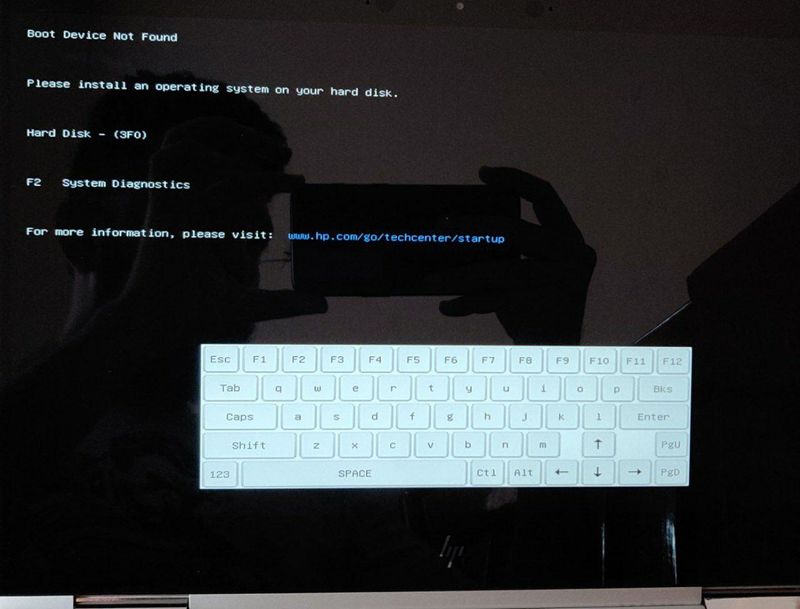
I get this screen on my boot sometimes. When I restart the login is normal. I ran the diagnostics on the harddisk and it is all normal. I am worried about this error. I only pops out sometimes and not all the time. Why is this and what do I do?
08-04-2020 08:50 AM
Welcome to the HP Support Community.
Perform a hard reset on a computer with a sealed or non-removable battery: https://support.hp.com/in-en/document/c01443463
NOTE: Do not attempt to remove a sealed battery. Doing so can void your warranty.
1. Turn off the computer.
2. Remove the computer from any port replicator or docking station.
3. Disconnect all external connected peripheral devices.
4. Unplug the AC adapter from the computer.
5. For most notebook PCs, press and hold the Power button for 15 seconds to reset.
If this method does not work for your notebook PC, see the User Guide for your specific model for the proper button combination. Go to HP Support, enter your model number in the search bar and click the search icon. On the product support page, click User Guides.
6. Plug the AC adapter back into the notebook computer.
7. Press the Power button to turn on the computer.
8. If a startup menu opens, use the arrow keys to select Start Windows Normally, then press the Enter key.
9. Reconnect each of the peripheral devices.
10. Run Windows Update and HP Support Assistant to update all device drivers. See Updating Drivers and Software with Windows Update (Windows 10, 8, 7) and Using HP Support Assistant (Windows) for more information.
If the issue persists, please perform the remaining steps from this document: https://support.hp.com/in-en/document/c01443463
Let me know if this helps.
If the information I've provided was helpful, give us some reinforcement by clicking the "Accept as solution" button, that'll help us and others see that we've got the answers!
Thanks!
Have a great day!
I am an HP Employee