• ×
    Information
    Need Windows 11 help?
    Check documents on compatibility, FAQs, upgrade information and available fixes.
    Windows 11 Support Center.
  • post a message
  • ×
    Information
    Need Windows 11 help?
    Check documents on compatibility, FAQs, upgrade information and available fixes.
    Windows 11 Support Center.
  • post a message
Guidelines
Join the HP Community Solve‑a‑thon | Help Others & Share Your Solutions | Live on Zoom | 2:30 PM to 2:30 AM IST | Every Wednesday Click here to know more
Check out our WINDOWS 11 Support Center info about: OPTIMIZATION, KNOWN ISSUES, FAQs, VIDEOS AND MORE.
HP Recommended
HP 15s-eq1000 Laptop PC (8WQ33AV)
Microsoft Windows 11

Battery Percentage Issue or Bug, stuck percentage Windows 11

1 REPLY 1
HP Recommended

@Brie062621 


Welcome to the HP Support Community


I understand you are facing an issue with your HP 15s-Eq1000 Laptop PC. Not to worry I will help you to get a resolution to resolve the issue.

We must perform few troubleshooting steps, lets start with testing the battery.


Test the battery before Windows starts using HP PC Hardware Diagnostics UEFI

HP recommends fully charging the battery before performing a battery test before Windows starts.


  1. Disconnect the AC adapter.
  2. Press and hold the Power button for at least five seconds to turn off the computer.
  3. Turn on the computer and immediately press esc repeatedly, about once every second. When the startup menu appears, press f2. The HP PC Hardware Diagnostics menu is displayed.
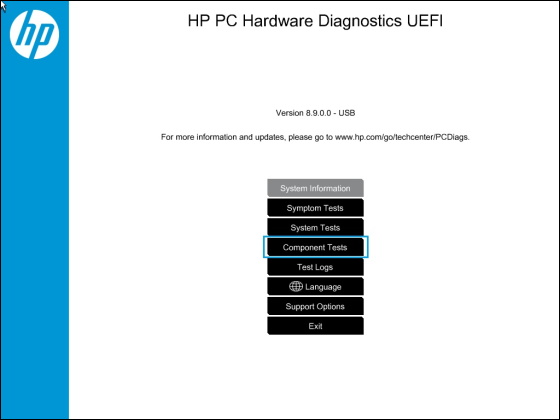
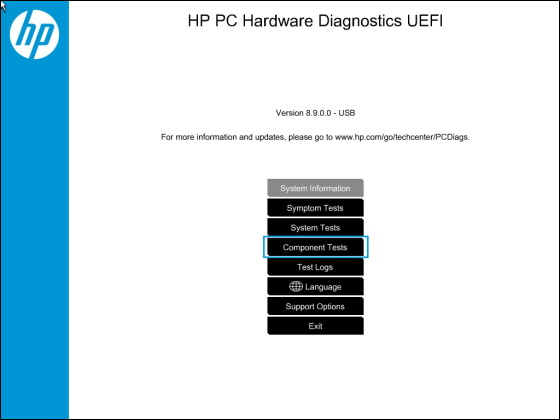
  4. Click Component Tests in the main menu.

Selecting Component Tests

  1. In the list of Component Tests, click Power.
  2. In the list of Power Tests, click Battery.
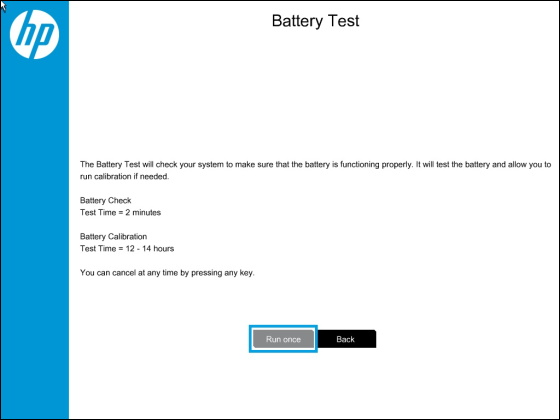
  3. On the Battery Test page, click Run once. The Battery Test begins.

The Battery Test takes about two minutes. The Battery Calibration, if needed, requires 12 to 14 hours. You can cancel at any time by pressing the esc key.


Battery Test screen with Run once selected

  1. Wait while the battery check completes.
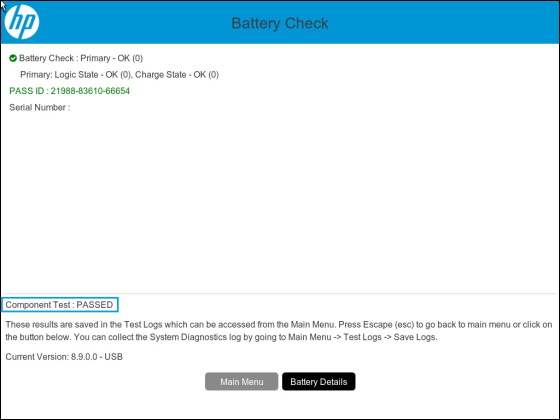
  2. When the testing is done, review the first line on the Battery Check page that displays the status or condition of the battery.
    • If your battery passed, click Main Menu or click Battery Details for more information.

Example of a passed Battery Check

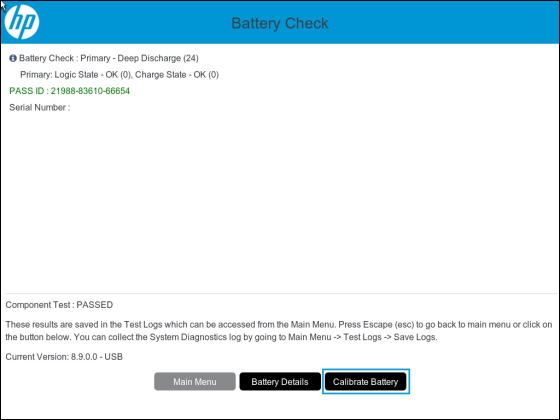
  • If the battery passes and needs to be calibrated, click Calibrate Battery.

Passed battery check and need to calibrate

  1. If your battery failed, continue with these steps.
  2. If your battery failed then write down the battery status and Failure ID. Keep the battery status and Failure ID so you have them available if you need to contact me again.


You may also try Calibrating the battery manually, please find the steps below.


     Discharge the battery

Discharge the battery using HP PC Hardware Diagnostics UEFI.

NOTE: 

If the computer battery is already drained and the computer cannot turn on when you begin this procedure, wait a minimum of 5.5 hours and then go to Recharge the battery.

  1. Disconnect the AC adapter.
  2. Press and hold the Power button for at least five seconds to turn off the computer.
  3. Turn on the computer and immediately press the f2 key repeatedly, about once every second, until the HP PC Hardware Diagnostics UEFI menu is displayed.
  4. Click Component Tests in the main menu.

NOTE: 

The purpose is to drain or discharge the battery, not get the results of the test. The battery discharges and the computer turns off before the test results are displayed.

Selecting Component Tests in HP PC Hardware Diagnostic UEFI

  1. In the list of Component Tests, click Battery.
  2. On the Battery Test page, click Run once. The Battery Test begins. After the battery passes the test, click Calibrate Battery.
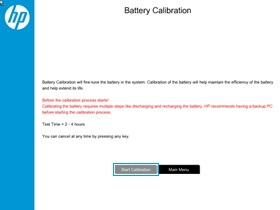
  3. On the Battery Calibration page, click Start Calibration.

NOTE: 

To run battery calibration, the Battery Health Manager setting in BIOS must be Let HP manage my battery charging. If your Battery Health Manager setting is different, click Continue to change the setting when prompted.

If your AC adapter is still connected, disconnect the AC adapter, and then click Continue to continue the process when prompted.

Selecting Start Calibration

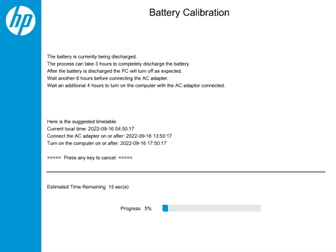
  1. HP PC Hardware Diagnostics discharges the battery and displays an estimated time to completion. After the calibration process is complete, reconnect the AC adapter and turn on the computer at the times displayed on-screen.

NOTE: 

The recommended times to reconnect the AC adapter and turn on the computer are usually about 6 hours after the calibration process is completed.

Battery Calibration screen

  1. Then, recharge the battery.

Recharge the battery

Recharge the battery fully to finish recalibrating the battery.

NOTE: 

If you run HP Battery Check before the battery charges fully, you might get a false battery failure result.

  1. Plug in the AC adapter to charge the battery.
  2. Charge the battery to a full charge, 99% to 100%. This takes approximately 4 hours.

NOTE: 

If you are using a business notebook, make sure that you are using the Let HP manage my battery charging setting in Battery Health Manager. You must use this setting to fully charge the notebook. For more information, see Use Battery Health Manager (HP Business Notebook PCs with Windows only).

NOTE: 

The battery continues to charge whether the computer is on or off.

  1. Check the battery charge. Turn on the computer and start Windows normally. On the desktop, hover the pointer over the battery icon in the system tray to view the battery charge percentage. Make sure that the battery charge percentage is 99% or 100%.

NOTE: 

If you plug in your AC adapter and immediately run the HP Battery Check, you might get a false failure showing the battery is bad. If the battery is in a low-charge state (that is, less than 3%), you might also get a false reading.


  1. Wait two hours before using the notebook.


Please perform these steps and Feel free to reply to your public post for any further assistance.


Thank you for being a Valuable Member of our HP Family.

Please click “Accept as Solution” if you feel my post solved your issue, it will help others find the solution.


Regards,

Raj2111
I am an HP Employee

† The opinions expressed above are the personal opinions of the authors, not of HP. By using this site, you accept the <a href="https://www8.hp.com/us/en/terms-of-use.html" class="udrlinesmall">Terms of Use</a> and <a href="/t5/custom/page/page-id/hp.rulespage" class="udrlinesmall"> Rules of Participation</a>.