• ×
    Information
    Need Windows 11 help?
    Check documents on compatibility, FAQs, upgrade information and available fixes.
    Windows 11 Support Center.
  • post a message
  • ×
    Information
    Need Windows 11 help?
    Check documents on compatibility, FAQs, upgrade information and available fixes.
    Windows 11 Support Center.
  • post a message
Guidelines
Join the HP Community Solve‑a‑thon | Help Others & Share Your Solutions | Live on Zoom | 2:30 PM to 2:30 AM IST | Every Wednesday Click here to know more
Check out our WINDOWS 11 Support Center info about: OPTIMIZATION, KNOWN ISSUES, FAQs, VIDEOS AND MORE.
HP Recommended
HP Notebook - 15-da0636nd
Microsoft Windows 10 (64-bit)

I'm trying to connect my notebook via bluetooth to my JBLcharge 3, but do not succeed in that. Another notebook (of a colleague) has no problem in finding my JBL; what do I have to do to change in my settings to realize the connection??


1 REPLY 1
HP Recommended

@Kelleke
Welcome to HP Forums,  

This is a great place to get support, find answers and tips,
Thank you for posting your query, I'll be more than glad to help you out 🙂


I see that you're experiencing Bluetooth connectivity issue 
Don't worry as I'll be glad to help, however, to provide an accurate resolution, I need a few more details:

  • What is the product number of your device? Use this link to find it: http://support.hp.com/us-en/document/c03754824 (Ensure you do not share any of your personal information such as serial, phone number, email ID, etc...).
  • Have you tried with another Bluetooth device? 
  • When was the last time it worked fine?

While you respond to that, I recommend you to perform the following steps to isolate the issue and arrive at a fix:

  1. Make sure the device you want to connect to is discoverable and within range of your computer.

    For example, if the device is a headset, make sure it is on and set to Bluetooth. If the device is an Apple iOS or Android mobile device, go to the Settings menu and make sure Bluetooth is enabled and discoverable.

  2. In Windows, search for and open Bluetooth and other devices settings.

    NOTE: If Bluetooth & other devices does not return in the search, your computer might not support Bluetooth.
  3. On the Bluetooth & other devices tab, toggle the Bluetooth setting to On.

    Turning on the Bluetooth toggle

  4. Click Add Bluetooth or other device to start searching for the device.

    Turning on the Bluetooth toggle

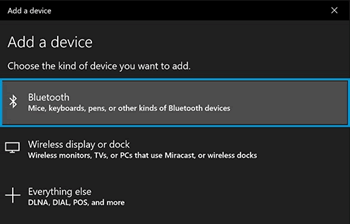
  5. Click Bluetooth as the kind of device you want to add.

    Turning on the Bluetooth toggle

  6. Select the Bluetooth device you want to add from the list.

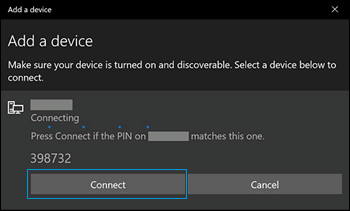
  7. If prompted, enter the PIN, and then click Connect. If a PIN does not display, enter 0000, a commonly used default PIN for many Bluetooth devices.

    Turning on the Bluetooth toggle

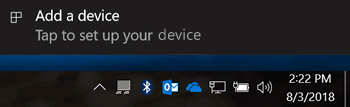
  8. Immediately check for an authorization message on the device you are connecting to and confirm the message or allow access.

    Example of a Bluetooth message when attempting to connect to a Windows 10 computer.

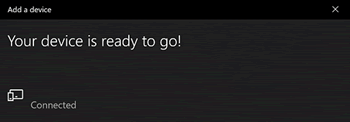
  9. Follow the on-screen instructions on the computer and the device to complete the pairing process. A confirmation message displays when the devices are paired.

    NOTE: If an authentication error displays, too much time has lapsed. Move the devices closer, and then try to pair them again.

    Turning on the Bluetooth toggle

Hope this helps! Keep me posted for further assistance.

If I have helped you resolve the issue, feel free to give me a virtual high-five by clicking the 'Thumbs Up' icon below,

Followed by clicking on "Accept as solution" from the drop-down menu on the upper right corner,

Thank you for posting in the HP Support Forum.  Have a great day!

ECHO_LAKE
I am an HP Employee

† The opinions expressed above are the personal opinions of the authors, not of HP. By using this site, you accept the <a href="https://www8.hp.com/us/en/terms-of-use.html" class="udrlinesmall">Terms of Use</a> and <a href="/t5/custom/page/page-id/hp.rulespage" class="udrlinesmall"> Rules of Participation</a>.
-->