• ×
    Information
    Need Windows 11 help?
    Check documents on compatibility, FAQs, upgrade information and available fixes.
    Windows 11 Support Center.
  • post a message
  • ×
    Information
    Need Windows 11 help?
    Check documents on compatibility, FAQs, upgrade information and available fixes.
    Windows 11 Support Center.
  • post a message
Guidelines
Join the HP Community Solve‑a‑thon | Help Others & Share Your Solutions | Live on Zoom | 2:30 PM to 2:30 AM IST | Every Wednesday Click here to know more
Check out our WINDOWS 11 Support Center info about: OPTIMIZATION, KNOWN ISSUES, FAQs, VIDEOS AND MORE.
HP Recommended
HP Laptop 15-bw0xx
Microsoft Windows 10 (64-bit)

I bought this HP Laptop brand new, and it randomly shuts down occasionally. It doesn't matter if it's plugged in or not. Also, it doesn't feel warm or anything. There is never a warning message - unless it is somehow occuring when I am not looking.

(I really hate that Toshiba is going business only; I never had issues with them.) 

1 REPLY 1
HP Recommended

@dolphinparadise


Let me take a moment to thank you for posting on the HP Support Forums. 

MKazi is at your service. 


I understand that you have an HP Laptop 15-bw0xx and it shuts down randomly. I read that there is no error message and the laptop does not overheat either. Not to worry, I'll be glad to assist you with this case.


Did any hardware changes or updates happen on the laptop recently?

Does the laptop restart while playing games or no matter what is running it shuts down.

Do you have to manually restart the laptop or it restarts by itself?


While you respond to that. I recommend you to perform the following steps to isolate the issue and arrive at a fix: 

  • Power off the laptop.
  • Remove the battery out. If the battery is integrated and does not have a latch to release it then leave the battery inside the laptop.
  • Disconnected AC adapter from the laptop.
  • Press and hold the power button for 15 seconds.
  • Reconnect the battery and plug the AC adapter.
  • Power ON the laptop.

Let us disable the automatic restart option too in Windows. This can help too:

  1. In Windows, search for and open View advanced system settings.

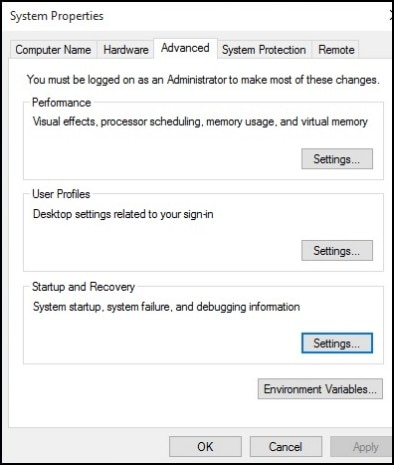
  2. Click Settings in the Startup and Recovery section.

    Figure : System Properties window

    System Properties window
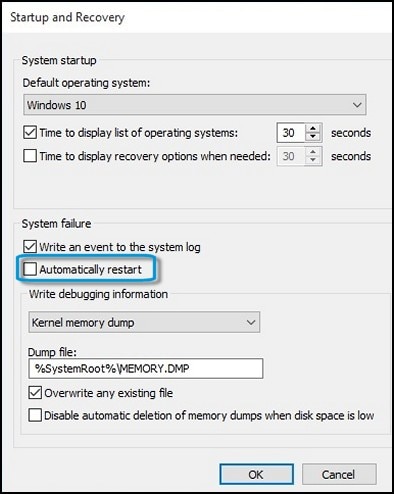
  3. Remove the check mark next to Automatically restart under System Failure, then click OK.

    Figure : Automatically restart check box

    Location of the Automatically restart check box
  4. Restart the computer.

       NOTE: The computer no longer restarts automatically when a problem occurs. Instead, a blue screen appears with more useful information. You can now search for a resolution using the information in the error.


Also, download and run the HP Support Assistant tool. This tool will scan your laptop and install the required updates:

  • Click here to download and install the HP Support Assistant.
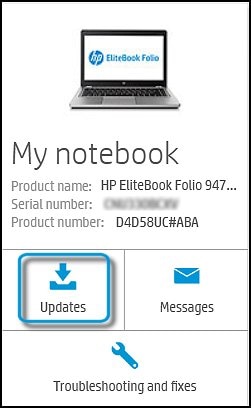
  • Click My devices on the top of the HP Support Assistant window, and then click Updates in the window for your device.

    Figure : Updates in the My PC box

    The Updates window opens.

  • If HP Support Assistant detects updates, a list of updates displays in the Updates available window.

    Figure : Updates window

     Updates window
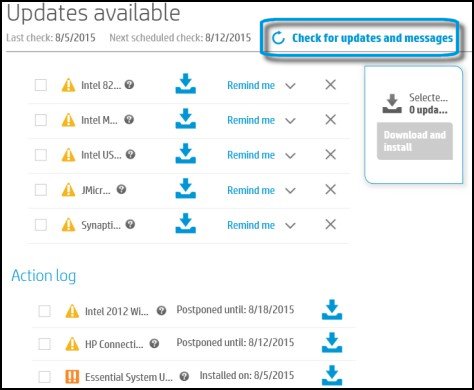
  • To check for recent updates, click Check for updates and messages.

    HP Support Assistant connects to the HP servers and performs the following actions:

    • Downloads messages and updates

    • Gathers configuration information

    • Analyzes your computer system

    • Prepares an action list

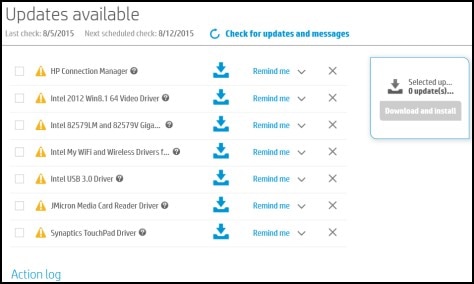
    If HP Support Assistant finds updates, they display in the Updates available window.

    Figure : Updates available window

    Updates available window
    • To postpone or delete a current update, use the following steps.

      1. Next to the message you want to postpone, click Remind me.

      2. Select Tomorrow, One week, or One month, depending on when you want to be reminded.

    • To delete an update, click  next to the update.

    • To install the update now, click the Install now icon () next to the update.

    • To review completed and postponed actions, scroll down to the Action log section.

Restart the laptop once after performing the above steps. In case the laptop continues to shutdown by itself then let us run a hardware test on the laptop by following the below steps:

  • Shutdown the laptop.
  • Turn on the laptop and immediately press Esc repeatedly, about once every second. When the menu appears, press the F2 key.

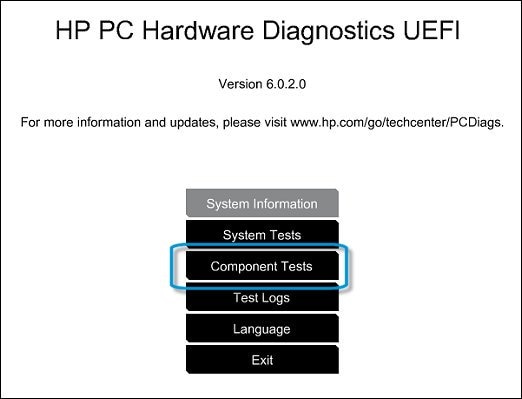
  • On the main menu, click Component Tests.

Figure : Selecting Component Tests from the main menu

Selecting Component Tests from the main menu

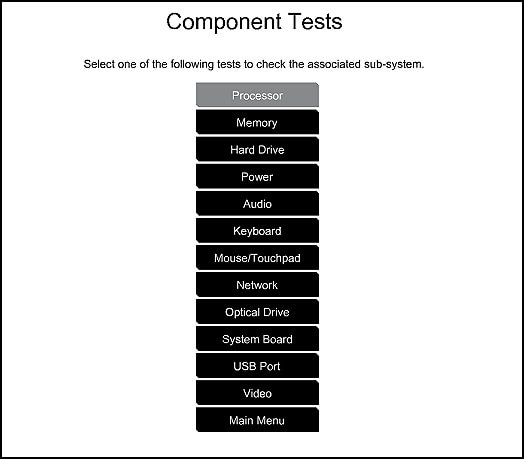
  • The Component Tests menu displays. Your Component Tests menu might be different, depending on the components installed on your computer.

Figure : Sample list of Component Tests

Sample List of the Component tests

  • One by one please run the following tests on the laptop:
    Processor Test
    Memory Tests
    Hard Drive/Storage Tests
    System Board Test

If any of the above tests fail then you may have to contact our HP phone support team to check the available service options. 
 

1) Click on this link - www.hp.com/contacthp/

2) Click on "Continue as guest".

3) Enter the serial of your device. You can refer to this Link: hp.care/2bygf7l for help in locating your Serial Number.

4) Select the country from the drop-down.

5) Click on "Show Options".

6) Fill the web-form. A case number and phone number will now populate for you.


I sincerely hope this fixes the issue. Keep me posted for further assistance.


All the best! 🙂

† The opinions expressed above are the personal opinions of the authors, not of HP. By using this site, you accept the <a href="https://www8.hp.com/us/en/terms-of-use.html" class="udrlinesmall">Terms of Use</a> and <a href="/t5/custom/page/page-id/hp.rulespage" class="udrlinesmall"> Rules of Participation</a>.