• ×
    Information
    Need Windows 11 help?
    Check documents on compatibility, FAQs, upgrade information and available fixes.
    Windows 11 Support Center.
  • post a message
  • ×
    Information
    Need Windows 11 help?
    Check documents on compatibility, FAQs, upgrade information and available fixes.
    Windows 11 Support Center.
  • post a message
Guidelines
Seize the moment! nominate yourself or a tech enthusiast you admire & join the HP Community Experts!
Check out our WINDOWS 11 Support Center info about: OPTIMIZATION, KNOWN ISSUES, FAQs, VIDEOS AND MORE.
HP Recommended
HPENVY
Microsoft Windows 10 (64-bit)

Upgrade of BIOS can't now log back in as PIN and facial Recognition disabled. Wants a password that was not set up ever!

3 REPLIES 3
HP Recommended

@Oileanach


Many HP computers have an HP BIOS Restore tool that might be able to recover the BIOS from an earlier version and restore basic functionality. This tool might or might not work in the event of BIOS corruption depending on many factors, but is worth trying in the event the updated BIOS is casing problems


  1. Turn off the computer, and then connect the power cord.

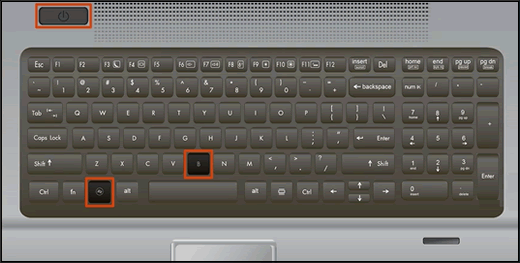
  2. Press and hold the Windows key and the B key at the same time, and then press and hold the Power button for 2 to 3 seconds.

    Keyboard highlighting the key presses for BIOS recovery

  3. Release the Power button but continue pressing the Windows and B keys. You might hear a series of beeps.

    • If the HP BIOS Update screen does not display, repeat the previous steps but press the Windows key and the V key.

Keep me posted how it goes 😊


If the information I've provided was helpful, give us some reinforcement by clicking the "Solution Accepted" on this Post and it will also help other community members with similar issue.

KrazyToad
I Am An HP Employee

HP Recommended

Hi. Thanks for the info but it didn't work unfortunately. Oileanach. 

HP Recommended

@Oileanach I suggest you go through the steps to attempt a bios recovery using the USB drive, since the steps advised earlier didn't work:

Use a second working computer with an active internet connection to create a BIOS recovery USB flash drive.

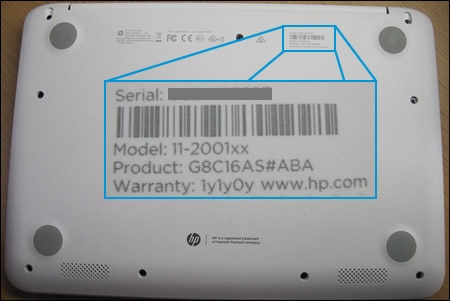
  1. Get the product number for the original notebook that requires a BIOS recovery. This number is typically found on a label on the bottom of the notebook or on the box it shipped in. Go to How Do I Find My Model Number or Product Number? for additional options.

    NOTE: 

    The general or series name near the keyboard or on the frame around the display is not specific enough for identifying correct download files.

    Notebook computer label enlarged to show product information

  2. Insert a blank USB flash drive into an available port on the second computer.

  3. Go to the HP Customer Support - Software and Driver Downloads page.

  4. Navigate to the product page for your computer.

  5. Select BIOS, and then review the details of the latest available version or the specific version recommended for the recovery. Confirm it is the correct BIOS update before proceeding.

       CAUTION: 

    Read the Details section to confirm that it applies to the computer. Installing the wrong BIOS could cause the computer to stop working.

  6. Click Download, and then click Run.

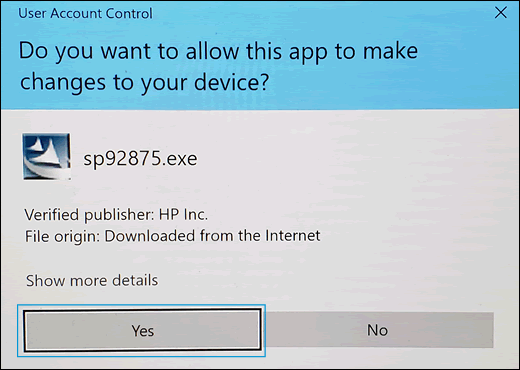
  7. Click Yes on the User Account Control screen.

    Clicking Yes to allow the update to install

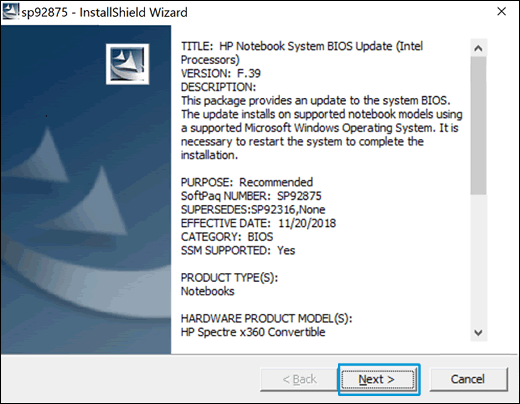
  8. On the InstallShield Wizard window, click Next.

    Clicking Next in the InstallShield Wizard

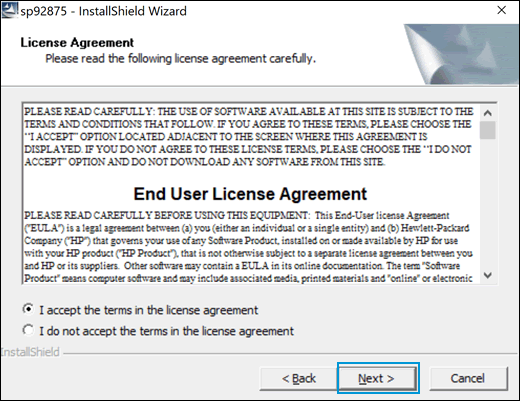
  9. Select I accept the terms in the license agreement, and then click Next.

    Agreeing to End User License Agreement

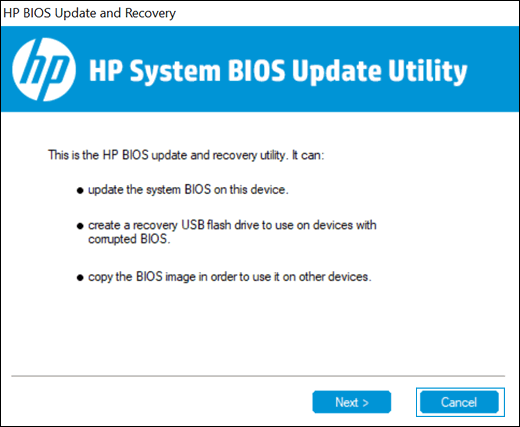
  10. In the HP BIOS Update and Recovery window, click Next.

    Clicking Next in HP BIOS Update and Recovery

  11. Select Create Recovery USB flash drive, and then click Next.

    Create Recovery USB flash drive in HP System BIOS Update Utility

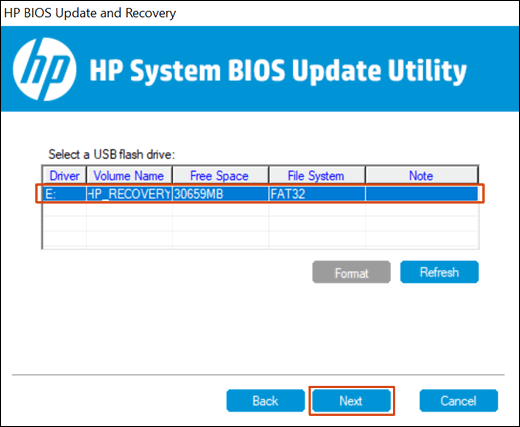
  12. Select your USB flash drive, and then click Next.

    Selecting the USB flash drive

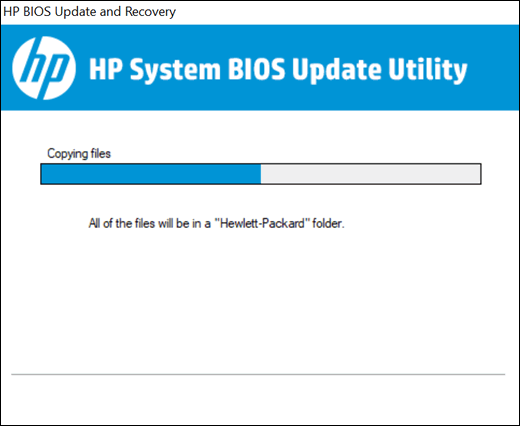
  13. Wait while the BIOS files copy to the USB flash drive.

    Copying BIOS files to the USB flash drive

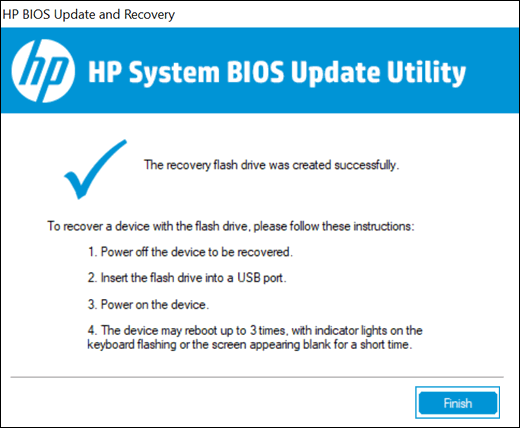
  14. When The recovery flash drive was created successfully displays, click Finish.

    Clicking Finish

  15. If necessary, click Cancel to close the update utility.

    Clicking Cancel to close the update utility

  16. Remove the flash drive from the computer.

FOR DETAILS & FURTHER INSTRUCTIONS, USE THIS LINK: CLICK HERE & SKIP TO THE STEPS UNDER - Install the BIOS recovery file

(By the end of this article all the issues should be resolved)


If you wish to thank me for my efforts, you could click on "Accept as solution" on my post as the solution should help others too.

Riddle_Decipher
I am an HP Employee


Learning is a journey, not a destination.
Let's keep asking questions and growing together.
† The opinions expressed above are the personal opinions of the authors, not of HP. By using this site, you accept the <a href="https://www8.hp.com/us/en/terms-of-use.html" class="udrlinesmall">Terms of Use</a> and <a href="/t5/custom/page/page-id/hp.rulespage" class="udrlinesmall"> Rules of Participation</a>.