• ×
    Information
    Need Windows 11 help?
    Check documents on compatibility, FAQs, upgrade information and available fixes.
    Windows 11 Support Center.
  • post a message
  • ×
    Information
    Need Windows 11 help?
    Check documents on compatibility, FAQs, upgrade information and available fixes.
    Windows 11 Support Center.
  • post a message
Guidelines
Join the HP Community Solve‑a‑thon | Help Others & Share Your Solutions | Live on Zoom | 2:30 PM to 2:30 AM IST | Every Wednesday Click here to know more
Check out our WINDOWS 11 Support Center info about: OPTIMIZATION, KNOWN ISSUES, FAQs, VIDEOS AND MORE.
HP Recommended
Envy 6 sleekbook
Microsoft Windows 7 (64-bit)

I followed steps to reset my notebook to factory settings. After it has completed there is a black screen with the message cannot find operating system. I have tried resetting and booting back put but the same message returns.

If someone can help or walk me through steps how to get my notebook up and running this would be appreciated.

1 REPLY 1
HP Recommended

Hello @Rpw93


Welcome to the HP Support Community.


The recovery does not complete correctly for some reason. Basically you have 2 options to restore the device to factory default settings (reimage the PC) :


-1- use HP original recovery media (official method, costs around 27-30$, slightly easier to perform/use)

or

-2- perform clean installation of Windows 7 (unofficial method, may be free of chrage, slightly more difficult to perform for an end user)


Here are details:


-1-

If you decide to use original HP media, you may need to give me details about your product such as product number (p/n)  and full model  >> http://support.hp.com/us-en/document/c00033108


-2-


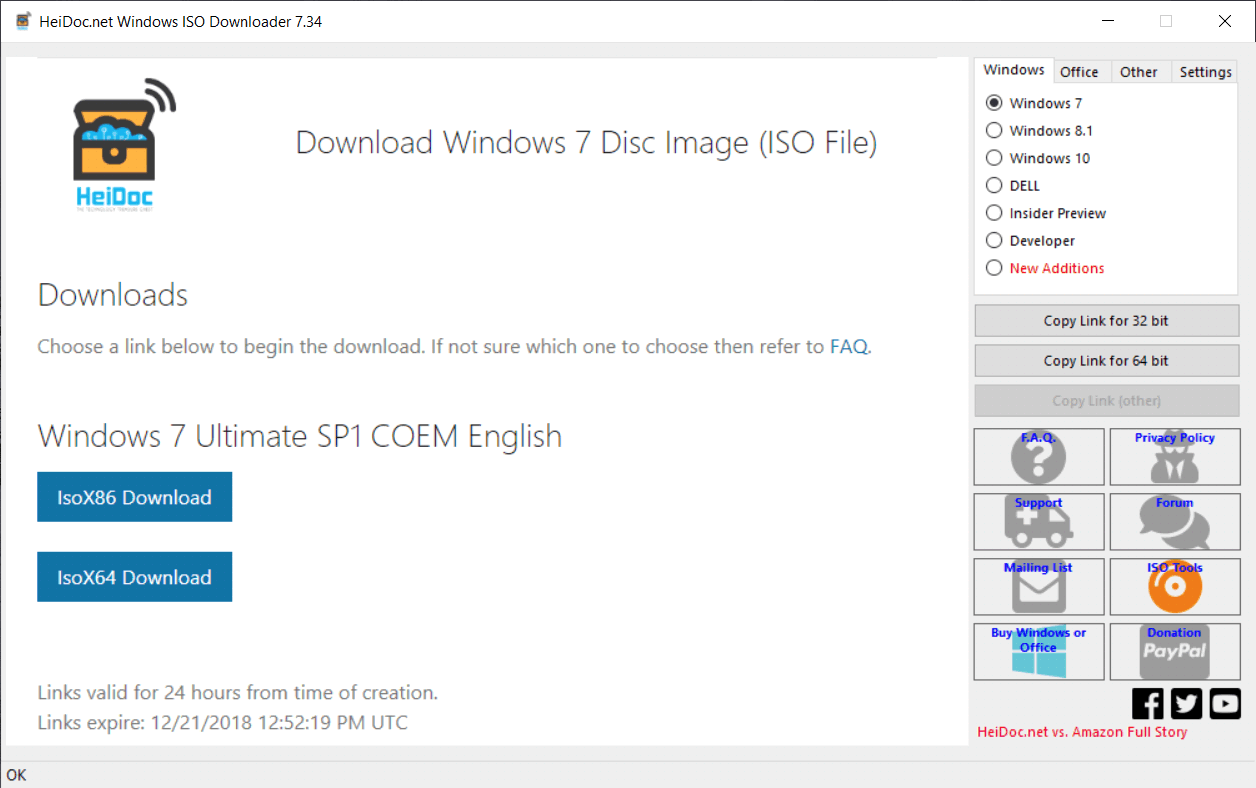
If you do not want to pay the small sum, there is one additional way (unofficial way). You can use this free utility

>> https://www.heidoc.net/php/Windows%20ISO%20Downloader.exe

>> https://www.heidoc.net/joomla/technology-science/microsoft/67-microsoft-windows-and-office-iso-downl...


The tool will download ISO images from Microsoft and has lots of options for many Windows versions including OEM. If you use it, be careful to select the correct Windows ISO for the OEM/COEM, x64 edition, Home Premium or  Pro ,   etc... based on the COA sticker info


original.png


Ensure stable and fast Internet connection, downloads are not small. When download completes, you will need to write or "burn" the ISO image and boot from a bootable media. You need to use either 1 empty/blank USB pendrive (4 GB capacity or more)  OR  an empty/blank DVD disc (4.7 GB capacity)


** How to create bootable ISO on USB device >> http://www.ubuntu.com/download/desktop/create-a-usb-stick-on-windows

or

** How to write ISO to DVD >> http://www.ubuntu.com/download/desktop/burn-a-dvd-on-windows

 instructions are for Ubuntu, but you need to use the ISO image of Windows 7


When ready with the USB drive or with the DVD:


Please, shutdown the computer using the power button.

Insert the Windows USB thumdrive prepared previously

Power on the PC.

As soon as you press the power-on button, start hitting the Esc button repeatedly (like tap-tap-tap).

This should open a HP Startup Menu


Choose F9 to open Boot options. Select the USB thumb drive or the DVD as a boot option.


- Follow the on-screen instructions to install Windows 7. Perform clean installation/custom installation (not repair).

Delete all existing partitions and install Windows on Disc 0 Unallocated space

 4.PNG

- After successful Windows installation, install drivers taken from HP web site


- Make sure Windows is Activated by going to Start > Control Panel > System


Let me know if this helps. Provide your feedback/update and let me know if you face difficulties

Your FEEDBACK is important. Use the interactive buttons below and let me know if the post helps ;
*** HP employee *** I express personal opinion only *** Joined the Community in 2013
† The opinions expressed above are the personal opinions of the authors, not of HP. By using this site, you accept the <a href="https://www8.hp.com/us/en/terms-of-use.html" class="udrlinesmall">Terms of Use</a> and <a href="/t5/custom/page/page-id/hp.rulespage" class="udrlinesmall"> Rules of Participation</a>.