• ×
    Information
    Need Windows 11 help?
    Check documents on compatibility, FAQs, upgrade information and available fixes.
    Windows 11 Support Center.
  • post a message
  • ×
    Information
    Need Windows 11 help?
    Check documents on compatibility, FAQs, upgrade information and available fixes.
    Windows 11 Support Center.
  • post a message
Guidelines
Join the HP Community Solve‑a‑thon | Help Others & Share Your Solutions | Live on Zoom | 2:30 PM to 2:30 AM IST | Every Wednesday Click here to know more
Check out our WINDOWS 11 Support Center info about: OPTIMIZATION, KNOWN ISSUES, FAQs, VIDEOS AND MORE.
HP Recommended
14-df0023cl
Microsoft Windows 10 (64-bit)

Hi All, I'm trying to create a bios recovery thumb drive on a secondary computer. I'm attempting to run the software installer for my laptop found here:


https://ftp.hp.com/pub/softpaq/sp95001-95500/sp95066.exe


When the software is run, it unarchives itself and then crashes. I cannot get into the installer far enough to actually create the USB thumb drive.  Any one have an idea on how to get this to work, thanks!

3 REPLIES 3
HP Recommended

@willco077
Thank you for posting on HP Support Community.


Install a BIOS recovery file from the HP website using a USB flash drive. To complete this step, you need a second working computer with an active Internet connection.

  1. Obtain the product number for the original notebook that requires a BIOS recovery. This number is typically found on a label on the bottom of the notebook or on the box it shipped in. Go to How Do I Find My Model Number or Product Number? for additional options.

    NOTE: The general family name near the keyboard or on the frame around the display is not specific enough for identifying correct download files.

    Notebook computer label with the product number highlighted

  2. Insert a blank USB flash drive into an available port on the second computer.

  3. Go to HP Software & Driver Downloads and enter the product number of the original computer.

    NOTE: If you upgraded the original computer to a new Windows version, in the Selected operating system pane, click Change, select the original operating system that came with your computer, and then click Change.
  4. Click BIOS, and then review the details of the latest available version or the specific version recommended for the recovery. Confirm it is the correct BIOS update before proceeding.

  5. Click Download, and then click Run.

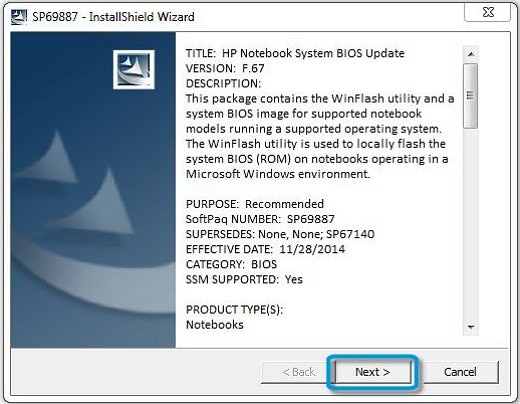
  6. In the InstallShield Wizard window, click Next.

    InstallShield Wizard

  7. Select I accept the terms in the license agreement, and then click Next.

  8. Choose to remove or keep the files after the recovery, and then click Next to open the HP BIOS Update and Recovery window.

  9. Select Create Recovery USB flash drive, and then click Next.

    Create Recovery USB flash drive in HP System BIOS Update Utility

  10. Select your USB flash drive, and then click Next to copy the BIOS file to the drive.

  11. When 'The recovery flash drive was created successfully' displays, click Finish.

  12. Remove the flash drive from the computer.

Hope this helps! Keep me posted for further assistance.
Please click “
Accept as Solution” if you feel my post solved your issue, it will help others find the solution.

ECHO_LAKE
I am an HP Employee

HP Recommended

This is what I'm trying to do and the installer is crashing. See my first post. 

HP Recommended

@willco077
I appreciate your efforts to try and resolve the issue. I would request you to contact our Support and our Support Engineers should be able to sort this out. HP Support can be reached by clicking on the following link: www.hp.com/contacthp/

Please feel free to contact us here anytime you need any further assistance. Please click “Accept as Solution” if you feel my post solved your issue, it will help others find the solution.

ECHO_LAKE
I am an HP Employee

† The opinions expressed above are the personal opinions of the authors, not of HP. By using this site, you accept the <a href="https://www8.hp.com/us/en/terms-of-use.html" class="udrlinesmall">Terms of Use</a> and <a href="/t5/custom/page/page-id/hp.rulespage" class="udrlinesmall"> Rules of Participation</a>.