-
×InformationNeed Windows 11 help?Check documents on compatibility, FAQs, upgrade information and available fixes.
Windows 11 Support Center. -

-
×InformationNeed Windows 11 help?Check documents on compatibility, FAQs, upgrade information and available fixes.
Windows 11 Support Center. -
- HP Community
- Notebooks
- Notebook Operating System and Recovery
- Re: Disk 100% - help needed

Create an account on the HP Community to personalize your profile and ask a question
11-14-2020 10:07 AM
Hi, I've had my laptop for 3 years and this year I’ve noticed it is very slow. It can take a while to open Chrome or other applications. When I open task manager I’ve noticed the disk column is always
at 100%.
Has anyone had a similar problem and knows how to resolve this? Any help will be greatly appreciated!
11-14-2020 12:06 PM
The disk utilization at 100% is a routine side-effect of Windows Updates, which get downloaded and installed automatically each and every week. But once that is done, the utilization should drop of dramatically.
This slowness issue is often due to a failing drive. So, let's check that first, because if it is failing, it would need to be replaced and there is no point then in doing anything else until we confirm that.
If your PC is new enough to support UEFI, you can use these steps to test the hard drive: http://support.hp.com/us-en/document/c00439024
If not, to check the drive you have to follow these steps:
1) Press Esc key repeatedly, several times a second, while rebooting the laptop. Do NOT hold the key down, just press it over and over.
2) Eventually, you will see an HP Startup Menu
3) Press the Function key for testing the hard drive (usually F2) and let it run.
I am a volunteer and I do not work for, nor represent, HP
11-16-2020 11:45 AM - edited 11-16-2020 11:46 AM
Hi @WAWood , many thanks for your response.
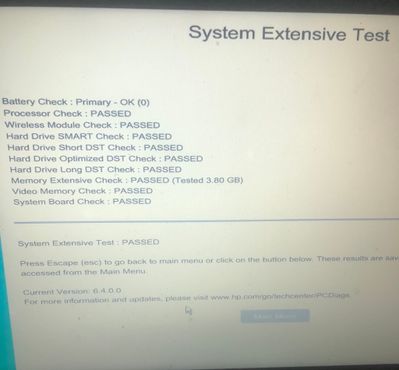
I did the disc check as you suggested and it passed all the checks, so the drive must be fine? (see image below).
I also turned off automatic windows updates a few days ago and that hasn’t altered the disc %.
Is there anything I can try next?
thanks for your help.
11-16-2020 11:55 AM
OK, good.
Open Task Manager again, the performance tab, and look a the various disk entries on the left and click on each of them -- to see which one is reporting 100%.
I am a volunteer and I do not work for, nor represent, HP