
-
×InformationNeed Windows 11 help?Check documents on compatibility, FAQs, upgrade information and available fixes.
Windows 11 Support Center. -
-
×InformationNeed Windows 11 help?Check documents on compatibility, FAQs, upgrade information and available fixes.
Windows 11 Support Center. -
- HP Community
- Notebooks
- Notebook Operating System and Recovery
- Re: HP Support Assistant Shows Updates For Other Machines

Create an account on the HP Community to personalize your profile and ask a question
Your account also allows you to connect with HP support faster, access a personal dashboard to manage all of your devices in one place, view warranty information, case status and more.
Check out our WINDOWS 11 Support Center info about: OPTIMIZATION, KNOWN ISSUES, FAQs, VIDEOS AND MORE.

It has been a while since anyone has replied. Simply ask a new question if you would like to start the discussion again.

04-25-2020 02:53 PM - edited 04-28-2020 11:17 AM
 HP Recommended
Product: Envy
Operating System: Microsoft Windows 10 (64-bit)
HP Support Assistant is showing driver and other updates that are not visible in HP Support Assistant on the machines that need them.
I have three HP Laptops - call then Laptop A, Laptop B, and Laptop C. One is still in warranty (just a couple of months old), one is barely a year out of warranty (mod 2019), and the third has been out of warranty since 2016.
When logged into HPSA on all three:
Laptop A:
- No Updates for Laptop A (this laptop)
- 4 Updates available for Laptop B
- 2 Updates available for Laptop C
Laptop B:
- 11 Updates available for Laptop A
- No Updates available for Laptop B (this laptop)
- 2 Updates available for Laptop C
Laptop C:
- 11 Updates available for Laptop A
- 4 Updates available for Laptop B
- No Updates available for Laptop C (this laptop)
HPSA tells me I need to log into HPSA on the specific device to install the updates, but since they don't show up as available there is no way to install them. Multiple "Check for Updates" always returns no updates on all three. I can see what the updates should be when on the other machines. It's as it HPSA doesn't work for the specific machine it happens to be running on, but works fine for all the others.
This is frustrating. I can't install them, and I can't get rid of the nags to install them. I'd prefer to install them since many look like valid, necessary updates.
Thanks.
This image is from what would be Laptop C. It's telling me to log into Laptop A to install (Phoo's Main Laptop), yet that laptop has zero updates when logged into it.
Second image is from Laptop A (Phoo's Main Laptop), showing no updates available,

6 REPLIES 6


04-29-2020 06:22 AM
HP Recommended
@KellyCraven, Welcome to HP Support Community!
uninstall HP Support Assistant, and then install the latest version from the HP Support Assistant website:
-
Uninstall the HP Support Assistant using the following steps:
-
In Windows, search for and open change or remove a program.
-
On the Programs and Features window, select HP Support Assistant, then click the Uninstall button.
Figure : Uninstall HP Support Assistant

NOTE:
If HP Support Assistant is not listed or does not uninstall correctly, install the latest HP Support Assistant version without uninstalling the old version. After HP Support Assistant is installed and working, repeat the uninstall steps.
-
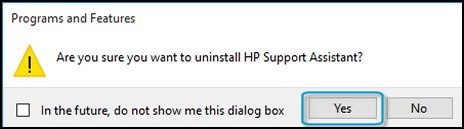
Click Yes on the Programs and Features screen to confirm you want to uninstall HP Support Assistant.
Figure : Uninstall confirmation
-
Restart the computer to complete the process.
-
-
When the uninstall process is complete, open a web browser, and go to the HP Support Assistant website.
Follow these steps to download HP Support Assistant:
-
Click Download HP Support Assistant.
Figure : HP Support Assistant website

-
When the download box displays at the bottom of the screen, click Save.
-
When the download completes, click Run, and then follow the on-screen instructions.
This might take a few minutes to complete.
-
When the installation completes, select Yes, then click Finish to restart the system.
When the system restarts, the HP Support Assistant
 icon displays on the task bar.
 -
Click the HP Support Assistant
icon to open the application.
If HP Support Assistant is working correctly, you are done.
-
Hope this helps! Keep me posted.
Please click “Accepted Solution” if you feel my post solved your issue, it will help others find the solution. Click the “Kudos/Thumbs Up" on the bottom right to say “Thanks” for helping!
TEJ1602
I am an HP Employee
04-29-2020 12:22 PM
HP Recommended
Updated, via removal, DL, and install on all machines. Unfortunately, no change. Only one of the machines needed an HPSA update. The other two were already up to date, but I uninstalled and reinstalled, with reboots anyway.
When uninstalling, should I uninstall everything, including removal of all settings, etc? The uninstall process say to not do that if I'm planning on reinstalling later. so I kept the personal info on all.
Should I have it uninstalled on all three machines at the same time, in case there is some cross pollination during the process? I assume not.
If I click the update log, then I CAN see potential updates, or software checked for update/install. There are a good number of these, and it looks like they match what's being shown as needed, when viewed on the other machines in HPSA. All of these have already been installed, or skipped for some unknown reason, as shown in the log.
What this tells me is that the issue is not on the machines, but in the way HPSA and the underlying database on the HP servers is handling info about the current state of my three machines. In other words, it may show available updates for my class of machines, but it's not retaining the current state of what's already been installed. To be sure, this must be retained in my account and specifics about each machine, or it becomes useless and confusing to HP customers.
Why should I be alerted to the availability of updates on the the other machines when those machines already have them or they don't apply to those machines? This seems to be the problem or a potential to be the problem, if there are no updates as is shown on those machines directly.
05-03-2020 06:03 PM
HP Recommended
Nope. No change, yet.
I've uninstalled on all machines, removing account info and settings, and reinstalled, redoing everything on two. Third machine doesn't yet have HPSA yet. (this is why I haven't updated this thread yet)
Well, "a change" was that three of the updates for one machine (that hadn't showed up on THAT machine) sort of showed when I cancelled during "checking for updates" because it had been sitting at the part of the update process for 20 minutes. It seemed stuck, so cancelled it. After cancelling, three updates were there. I did try to update one of them, the graphic driver. After that one update the other two were gone.
No updates show on this machine, currently, but still shows as needing 11 when popping up HPSA on the other.
I'd say fully reinstalling HPSA does nothing to fix the problem.

Be alert for scammers posting fake support phone numbers and/or email addresses on the community.
If you think you have received a fake HP Support message, please report it to us by clicking on "Flag Post".
† The opinions expressed above are the personal opinions of the authors, not of HP. By using this site, you accept the Terms of Use and Rules of Participation.


Didn't find what you were looking for?
Ask the community
† The opinions expressed above are the personal opinions of the authors, not of HP. By using this site, you accept the <a href="https://www8.hp.com/us/en/terms-of-use.html" class="udrlinesmall">Terms of Use</a> and <a href="/t5/custom/page/page-id/hp.rulespage" class="udrlinesmall"> Rules of Participation</a>.