
-
×InformationNeed Windows 11 help?Check documents on compatibility, FAQs, upgrade information and available fixes.
Windows 11 Support Center. -
-
×InformationNeed Windows 11 help?Check documents on compatibility, FAQs, upgrade information and available fixes.
Windows 11 Support Center. -
- HP Community
- Notebooks
- Notebook Operating System and Recovery
- Re: Hard Drive 1 - Primary HDD Bay* failed

Create an account on the HP Community to personalize your profile and ask a question
Your account also allows you to connect with HP support faster, access a personal dashboard to manage all of your devices in one place, view warranty information, case status and more.
Check out our WINDOWS 11 Support Center info about: OPTIMIZATION, KNOWN ISSUES, FAQs, VIDEOS AND MORE.

It has been a while since anyone has replied. Simply ask a new question if you would like to start the discussion again.

06-18-2022 11:41 AM - edited 06-18-2022 11:48 AM
 HP Recommended
Product: HP Notebook - 15g-dr0006tx
Operating System: Microsoft Windows 10 (64-bit)
I'm getting this error
FAILED ID : 0GBTMQ-9J3B59-XD7XGJ-60QU03
PRODUCT ID: 4ZD61PA
Hard Drive 1 - Primary HDD Bay*
Only hard drive short DST check failed, while hard drive smart check passed...
My Windows also kept restarting every few minutes and system couldn't find windows to boot.
What should I do?
Solved! Go to Solution.
1 ACCEPTED SOLUTION
Accepted Solutions


06-18-2022 12:40 PM - edited 06-18-2022 12:42 PM
HP Recommended
You're very welcome.
The easiest thing to do would be to replace the 2.5" drive with a 2.5" SATA SSD.
You use the same mounting hardware and drive connector the existing drive is using after you remove it.
Your notebook came with a 1 TB mechanical hard drive.
If you weren't using anywhere near that amount of drive space (say 25%), perhaps you can get by with a 500 GB SSD.
1 TB:
Yes, the second option would be for you to remove the hard drive and instead of replacing it with a ssd, you should go for a NVMe ssd.
What I don't know is if the mounting screw for the M.2 SSD is present or not.
You may have to take your notebook apart and check before buying a NVMe SSD.
A NVMe SSD would be about 3 times faster than a SATA SSD for comparison.
The removal and replacement procedures are in the service manual, and I have linked you to a few service videos below at the bottom of my reply.
A suggested 500 GB and 1 TB NVMe SSD are below.
To reinstall the operating system, you should be able to use the HP cloud recovery tool on another PC running W7 64 bit or newer to create a bootable USB recovery drive that will reinstall W10, the drivers and the software that originally came with your notebook.
Here is an info link for how to use that utility. You will need a 32 GB USB flash drive to create the recovery media with.
HP Consumer PCs - Using the HP Cloud Recovery Tool (Windows 10, 7) | HP® Customer Support
Service videos:
https://www.youtube.com/watch?v=tJXddvEkOr0
https://www.youtube.com/watch?v=dM_i0Mhxszc
https://www.youtube.com/watch?v=ZvdNswHTjmY

Learn how to remove and replace the solid state drive for HP Notebook - 15-da0000, HP Notebook - 15-db0000, HP 250 and 255 G7 Notebook PC For other helpful videos go to http://hp.com/supportvideos or http://youtube.com/hpsupport. More support options for your HP device are available at ...

Learn how to remove and replace the battery for HP Notebook - 15-da0000, HP Notebook - 15-db0000, HP 250 and 255 G7 Notebook PC For other helpful videos go to http://hp.com/supportvideos or http://youtube.com/hpsupport. More support options for your HP device are available at ...
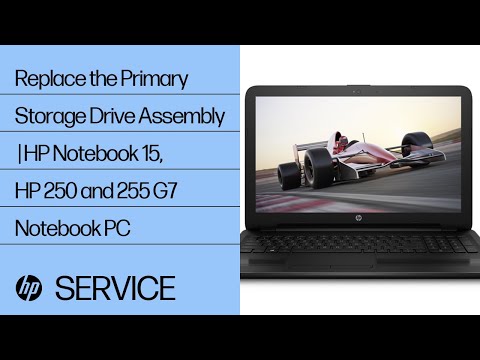
Learn how to remove and replace the primary storage drive assembly for HP Notebook - 15-da0000, HP Notebook - 15-db0000, HP 250 and 255 G7 Notebook PC For other helpful videos go to http://hp.com/supportvideos or http://youtube.com/hpsupport. More support options for your HP device are available ...

Learn how to remove and replace the base enclosure for HP Notebook - 15-da0000, HP Notebook - 15-db0000, HP 250 and 255 G7 Notebook PC For other helpful videos go to http://hp.com/supportvideos or http://youtube.com/hpsupport. More support options for your HP device are available at ...

Stay in the moment and create beyond your expectations with the WD Blue SN570 NVMe SSD. This powerful internal drive delivers up to 5X the speed of our best SATA SSDs so you can let your imagination flow and worry less about PC lag or load times. Purpose-built for endurance, the WD Blue SN570 SSD...
5 REPLIES 5
06-18-2022 12:13 PM
HP Recommended
Hi:
You will need to install a new hard drive and reinstall the operating system.
Below is the link to the service manual where you can find the hard drive removal and replacement procedure.
HP 15 Laptop PC Maintenance and Service Guide
You may want to consider replacing the 2.5" mechanical hard drive with a better performing 2.5" SATA solid state drive (SSD).
Your notebook also has a M.2 slot that supports NVMe M.2 SSD's, so instead of replacing the 2.5" drive, you can remove it and install a much faster M.2 NVMe SSD.
06-18-2022 12:26 PM
HP Recommended
Thankyou for the reply!
I have a few queries,
So I better replace my hard drive by new SSD? Can you recommend me any good ones?
"Your notebook also has a M.2 slot that supports NVMe M.2 SSD's, so instead of replacing the 2.5" drive, you can remove it and install a much faster M.2 NVMe SSD."
I don't understand what this means, does that mean I should remove the hard drive and instead of replacing it with a ssd, I should go for a NVMe ssd?
I'm not a tech savy, I hope you can guide me!
06-18-2022 12:40 PM - edited 06-18-2022 12:42 PM
HP Recommended
You're very welcome.
The easiest thing to do would be to replace the 2.5" drive with a 2.5" SATA SSD.
You use the same mounting hardware and drive connector the existing drive is using after you remove it.
Your notebook came with a 1 TB mechanical hard drive.
If you weren't using anywhere near that amount of drive space (say 25%), perhaps you can get by with a 500 GB SSD.
1 TB:
Yes, the second option would be for you to remove the hard drive and instead of replacing it with a ssd, you should go for a NVMe ssd.
What I don't know is if the mounting screw for the M.2 SSD is present or not.
You may have to take your notebook apart and check before buying a NVMe SSD.
A NVMe SSD would be about 3 times faster than a SATA SSD for comparison.
The removal and replacement procedures are in the service manual, and I have linked you to a few service videos below at the bottom of my reply.
A suggested 500 GB and 1 TB NVMe SSD are below.
To reinstall the operating system, you should be able to use the HP cloud recovery tool on another PC running W7 64 bit or newer to create a bootable USB recovery drive that will reinstall W10, the drivers and the software that originally came with your notebook.
Here is an info link for how to use that utility. You will need a 32 GB USB flash drive to create the recovery media with.
HP Consumer PCs - Using the HP Cloud Recovery Tool (Windows 10, 7) | HP® Customer Support
Service videos:
https://www.youtube.com/watch?v=tJXddvEkOr0
https://www.youtube.com/watch?v=dM_i0Mhxszc
https://www.youtube.com/watch?v=ZvdNswHTjmY
Learn how to remove and replace the solid state drive for HP Notebook - 15-da0000, HP Notebook - 15-db0000, HP 250 and 255 G7 Notebook PC For other helpful videos go to http://hp.com/supportvideos or http://youtube.com/hpsupport. More support options for your HP device are available at ...
Learn how to remove and replace the battery for HP Notebook - 15-da0000, HP Notebook - 15-db0000, HP 250 and 255 G7 Notebook PC For other helpful videos go to http://hp.com/supportvideos or http://youtube.com/hpsupport. More support options for your HP device are available at ...
Learn how to remove and replace the primary storage drive assembly for HP Notebook - 15-da0000, HP Notebook - 15-db0000, HP 250 and 255 G7 Notebook PC For other helpful videos go to http://hp.com/supportvideos or http://youtube.com/hpsupport. More support options for your HP device are available ...
Learn how to remove and replace the base enclosure for HP Notebook - 15-da0000, HP Notebook - 15-db0000, HP 250 and 255 G7 Notebook PC For other helpful videos go to http://hp.com/supportvideos or http://youtube.com/hpsupport. More support options for your HP device are available at ...
Stay in the moment and create beyond your expectations with the WD Blue SN570 NVMe SSD. This powerful internal drive delivers up to 5X the speed of our best SATA SSDs so you can let your imagination flow and worry less about PC lag or load times. Purpose-built for endurance, the WD Blue SN570 SSD...

Be alert for scammers posting fake support phone numbers and/or email addresses on the community.
If you think you have received a fake HP Support message, please report it to us by clicking on "Flag Post".
† The opinions expressed above are the personal opinions of the authors, not of HP. By using this site, you accept the Terms of Use and Rules of Participation.


Didn't find what you were looking for?
Ask the community
† The opinions expressed above are the personal opinions of the authors, not of HP. By using this site, you accept the <a href="https://www8.hp.com/us/en/terms-of-use.html" class="udrlinesmall">Terms of Use</a> and <a href="/t5/custom/page/page-id/hp.rulespage" class="udrlinesmall"> Rules of Participation</a>.