
-
×InformationNeed Windows 11 help?Check documents on compatibility, FAQs, upgrade information and available fixes.
Windows 11 Support Center. -
-
×InformationNeed Windows 11 help?Check documents on compatibility, FAQs, upgrade information and available fixes.
Windows 11 Support Center. -
- HP Community
- Notebooks
- Notebook Operating System and Recovery
- Having difficulties factory resetting my HP Stream Notebook ...

Create an account on the HP Community to personalize your profile and ask a question
Your account also allows you to connect with HP support faster, access a personal dashboard to manage all of your devices in one place, view warranty information, case status and more.
Check out our WINDOWS 11 Support Center info about: OPTIMIZATION, KNOWN ISSUES, FAQs, VIDEOS AND MORE.

It has been a while since anyone has replied. Simply ask a new question if you would like to start the discussion again.

03-27-2018 10:17 PM
 HP Recommended
Product: HP Stream Notebook - 11-r010nr (ENERGY STAR)
Operating System: Microsoft Windows 10 (64-bit)
Since the Notebook only has 28GB, I have not downloaded anything other than google chrome and I have no space left for any of the updates. I am now trying to do a factory reset by turning on the laptop then pressing esc esc esc then pressing f11 for system recovery but there is an error showing up,
"Recovery
Your PC/Device needs to be repaired
A required device isn't connected or can't be accessed.
Error code: 0xc0000225
..."
but if I do it from
window --> settings --> update & security --> recovery--> remove everything,
it could not find the recovery environment.
and then I go to "Creat a recovery drive" in control penal after I put in my USB drive about free of 15GB space.
However, it says "We can't creat a recovery drive on this PC
Some required files are missing. To troubleshoot problems when your PC can't start, use your Windows installation disc or media. "
I can't put any CD in the notebook nor did it come with it.
Please help. I only intend to watch youtube videos or simple use microsoft word on this but I can't do neither because the drive is so full.
4 REPLIES 4


03-27-2018 10:34 PM
HP Recommended
Hello @SimonSai
Thank you for posting in the HP Support forum.
You need to perform Windows reinstallation / clean installation
Due to the limited space this is the best approach now. You can delete any recovery partitions and parts and start from scratch. Should some sort of recovery is needed again, you can use the built-in Windows functions or perform clean installation again.
- You can directly download Windows 10 ISO from MS site or download >> Media creation tool from Microsoft site, create installation DVD or installation USB and proceed with clean installation/reinstallation.
Download:
>> https://www.microsoft.com/en-us/software-download/windows10ISO
Make sure you select the proper version (64 bit / Home or Pro)
Media Creation tool will always provide you with the latest Windows version/build - now 1709 Fall Creators Update.
- When download completes, you will need to write the ISO image and boot from a bootable media. You will need a blank USB pendrive (min 4 GB capacity). Use the Media Creation tool.
When ready with the USB drive or with the DVD:
Please, shutdown the computer using the power button.
Insert the Windows USB thumdrive prepared previously
Power on the PC.
As soon as you press the power-on button, immediately start hitting the Esc button repeatedly (like tap-tap-tap).
This should open a HP Startup Menu
Choose F9 to open Boot options. Select the USB thumb drive as a boot option.
- Follow the on-screen instructions to install Windows 10. Perform clean installation/custom installation (not repair).
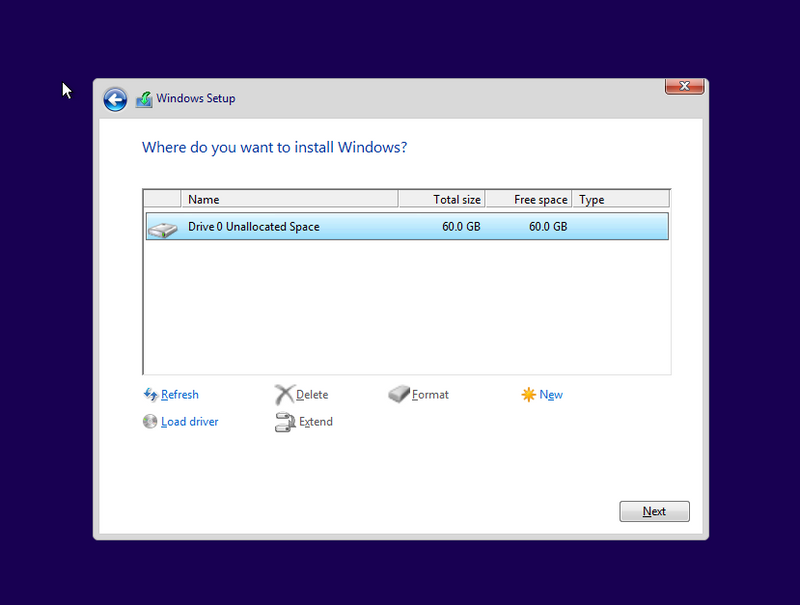
Delete all existing partitions and install Windows on Disc 0 Unallocated space
- After successful Windows installation, install drivers via Windows Update/Device Manager >> http://support.hp.com/us-en/document/c03330139
- Make sure Windows is Activated by going to Start > Settings > Update & Security > Windows Activation
- You may wish to stop some of the Windows Telemetry by using free tools such as Spybot AntiBeacon or DWS Lite
Hope this helps. Let me know how it goes
Your FEEDBACK is important. Use the interactive buttons below and let me know if the post helps ;
*** HP employee *** I express personal opinion only *** Joined the Community in 2013
*** HP employee *** I express personal opinion only *** Joined the Community in 2013

Step-by-step instructions to do a clean installation of the Windows 10 April 2018 Update (version 1803), and learn the steps to configure the out-of-box experience (OOBE). ** Important: Windows 10 version 1803 (April 2018 Update) is expected to release in April 2018. If you use the Media Creation


03-29-2018 10:19 PM
HP Recommended
Hi ,
Thank you for coming back.
No, you don't need to use diskpart. Just follow the steps above and the partitions will be deleted withing the graphical interface.
If you have no free space, you have to use a PC different from a Stream to prepare the Windows installation drive.
Once you boot from the Windows installation pendrive, you will see such screens (similar), where you can delete the partitions.



Your FEEDBACK is important. Use the interactive buttons below and let me know if the post helps ;
*** HP employee *** I express personal opinion only *** Joined the Community in 2013
*** HP employee *** I express personal opinion only *** Joined the Community in 2013
03-29-2018 10:24 PM
HP Recommended
There is one additional option.
In case you are unable to create the Windows installation media using Media Creation tool , you may purchase HP Recovery drive from this reputable supplier (for North America) > http://www.computersurgeons.com/p-27861-windows-10-home-1b-recovery-kit-855381-002-for-hp-stream-not...
The kit includes a USB drive with Windows 10 on it. You can boot from it and it will perform HP Recovery to restore your device to factory default condition (reinstall Windows, drivers, preinstalled apps).
If you happen to choose this route, here are detailed instructions how to use this USB stick after you receive it >> http://hp.dezide.com/ts/start.jsp?guide=HPSystemRecovery.net§ion=ccweb&sfs=tdoc&lc=en&language=e...
Hope this helps. Let me know if you face difficulties.
Your FEEDBACK is important. Use the interactive buttons below and let me know if the post helps ;
*** HP employee *** I express personal opinion only *** Joined the Community in 2013
*** HP employee *** I express personal opinion only *** Joined the Community in 2013

Be alert for scammers posting fake support phone numbers and/or email addresses on the community.
If you think you have received a fake HP Support message, please report it to us by clicking on "Flag Post".
† The opinions expressed above are the personal opinions of the authors, not of HP. By using this site, you accept the Terms of Use and Rules of Participation.


Didn't find what you were looking for?
Ask the community
† The opinions expressed above are the personal opinions of the authors, not of HP. By using this site, you accept the <a href="https://www8.hp.com/us/en/terms-of-use.html" class="udrlinesmall">Terms of Use</a> and <a href="/t5/custom/page/page-id/hp.rulespage" class="udrlinesmall"> Rules of Participation</a>.