• ×
    Information
    Need Windows 11 help?
    Check documents on compatibility, FAQs, upgrade information and available fixes.
    Windows 11 Support Center.
  • post a message
  • ×
    Information
    Need Windows 11 help?
    Check documents on compatibility, FAQs, upgrade information and available fixes.
    Windows 11 Support Center.
  • post a message
Guidelines
Seize the moment! nominate yourself or a tech enthusiast you admire & join the HP Community Experts!
Check out our WINDOWS 11 Support Center info about: OPTIMIZATION, KNOWN ISSUES, FAQs, VIDEOS AND MORE.
HP Recommended
HP Spectre X360
Microsoft Windows 10 (64-bit)

When ever I am on my Computer, I always expierience mouse lag from the mouse, no matter if I use the TrackPad,  or multiple differenet mouses. This has been going on for a while.

I have checked my performance, some things I can notice, like my CPU is going up alot.

Please can you help me?


Thank you,


Lewis Lau

3 REPLIES 3
HP Recommended

@Lewis2004


Welcome to HP Support Forums. 🙂

I came across your post and would like to assist. 


I understand that you have an HP Spectre x360 series laptop. I read that the mouse pointer lags when using the touchpad or an external mouse. Also the CPU utilization is high. Not to worry, I'll be glad to assist you with this case.


I would like to know the following information to assist you better:

  • What is your exact laptop model number?
  • Did any software changes or updates take place on your laptop?

While you respond to that. I recommend you to perform the following steps to isolate the issue and arrive at a fix: 

  • Open the device manager.
  • Expand "Mice and other pointing devices".
  • Right click on the drivers listed in there (touchpad and mouse drivers) and select uninstall.
  • Close the device manager and restart the laptop.

Once the laptop has restarted, please download and runt the HP Support Assistant tool. This tool will install the required drivers for your laptop:

  1. Click here to download and install the HP Support Assistant.

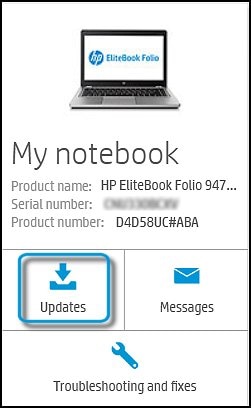
  2. Click My devices on the top of the HP Support Assistant window, and then click Updates in the window for your device.

    Figure : Updates in the My PC box

    The Updates window opens.

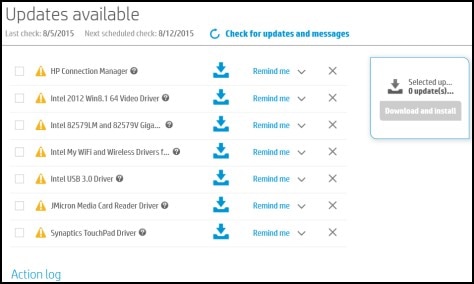
  3. If HP Support Assistant detects updates, a list of updates displays in the Updates available window.

    Figure : Updates window

     Updates window
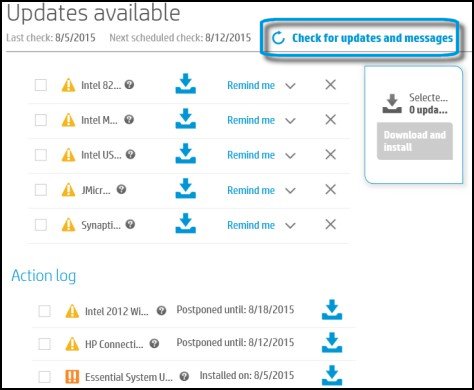
  4. To check for recent updates, click Check for updates and messages.

    HP Support Assistant connects to the HP servers and performs the following actions:

    • Downloads messages and updates

    • Gathers configuration information

    • Analyzes your computer system

    • Prepares an action list

    If HP Support Assistant finds updates, they display in the Updates available window.

    Figure : Updates available window

    Updates available window
    • To postpone or delete a current update, use the following steps.

      1. Next to the message you want to postpone, click Remind me.

      2. Select Tomorrow, One week, or One month, depending on when you want to be reminded.

    • To delete an update, click  next to the update.

    • To install the update now, click the Install now icon () next to the update.

    • To review completed and postponed actions, scroll down to the Action log section.


You may restart the laptop after the HP Support Assistant finishes installing the required drivers.


I sincerely hope this fixes the issue. Keep me posted for further assistance.


All the best! 🙂

HP Recommended

Hello, Thank you, but can we continue this coversation privatley as all my computer details are going to be exposed, Thanks again,


Lewis Lau

HP Recommended

@Lewis2004


It looks like you were interacting with MKazi, but he is out for the day & I'll be glad to help you out. I'm KrazyToad & I'm at your service. 


We can continue this conversation in private if you wish.


I have sent you a Private Message, please reply directly to that message


Please check your private message icon in the upper right corner of your HP Forums profile.


Next to your profile Name, you should see a little blue envelope, please click on it


Thanks 🙂


KrazyToad
I Am An HP Employee

† The opinions expressed above are the personal opinions of the authors, not of HP. By using this site, you accept the <a href="https://www8.hp.com/us/en/terms-of-use.html" class="udrlinesmall">Terms of Use</a> and <a href="/t5/custom/page/page-id/hp.rulespage" class="udrlinesmall"> Rules of Participation</a>.