• ×
    Information
    Need Windows 11 help?
    Check documents on compatibility, FAQs, upgrade information and available fixes.
    Windows 11 Support Center.
  • post a message
  • ×
    Information
    Need Windows 11 help?
    Check documents on compatibility, FAQs, upgrade information and available fixes.
    Windows 11 Support Center.
  • post a message
Guidelines
Join the HP Community Solve‑a‑thon | Help Others & Share Your Solutions | Live on Zoom | 2:30 PM to 2:30 AM IST | Every Wednesday Click here to know more
Check out our WINDOWS 11 Support Center info about: OPTIMIZATION, KNOWN ISSUES, FAQs, VIDEOS AND MORE.
HP Recommended
HP Laptop 15-bs0xx
Microsoft Windows 10 (64-bit)

My Laptop has been using 100% disk all the time even with out many process running. I reinstalled the OS Multiple times with no improvement


My System configuration is below. Please help


Manoj84_0-1589076525576.pngManoj84_1-1589076563762.png


1 REPLY 1
HP Recommended

Hello @Manoj84 


Welcome !


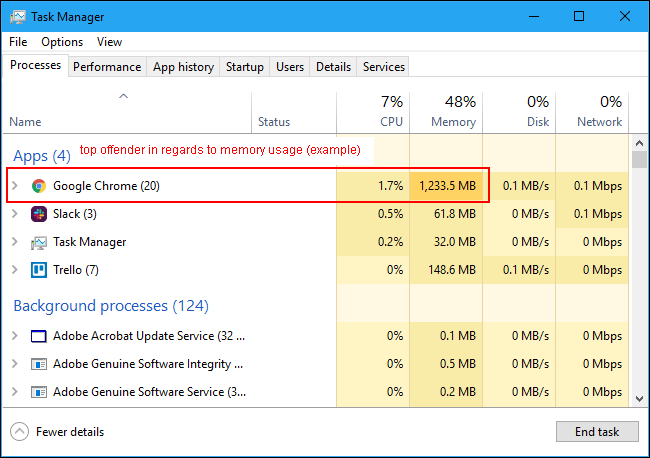
I would recommend that you start and explore Windows Task Manager.

Then, go to "Processes" tab and sort them by Disk usage by clicking on Disk


Here is a detailed guide >> https://www.howtogeek.com/405806/windows-task-manager-the-complete-guide/


This way you will be able to see what are the top processes/services that utilize your Disk most.

img_5c9aa895b7f8b.png


It may be Windows trying to update itself (Windows is very "resource hungry" when it comes to Windows Updates), it may be a 3rd party app...

If you reinstall Windows fresh, make sure that you pause Windows Updates immediately after you reinstall it  and see if any difference >> https://www.laptopmag.com/articles/pause-windows-10-updates


For example, from the above screenshot I can see that your computer used W10 version 1903, which is one year old. Windows will definitely try to update to 1909 or newer + all other drivers and Windows security updates. This is resource hungry and time consuming procedure.


If you need additional help, please take pictures of your screen, make a video, upload them somewhere and provide a link to see. Show Task Manager Disk usage, pause updates, uninstall any 3rd party security apps if you use any.


Hope this helps.

Your FEEDBACK is important. Use the interactive buttons below and let me know if the post helps ;
*** HP employee *** I express personal opinion only *** Joined the Community in 2013
† The opinions expressed above are the personal opinions of the authors, not of HP. By using this site, you accept the <a href="https://www8.hp.com/us/en/terms-of-use.html" class="udrlinesmall">Terms of Use</a> and <a href="/t5/custom/page/page-id/hp.rulespage" class="udrlinesmall"> Rules of Participation</a>.