
-
×InformationNeed Windows 11 help?Check documents on compatibility, FAQs, upgrade information and available fixes.
Windows 11 Support Center. -
-
×InformationNeed Windows 11 help?Check documents on compatibility, FAQs, upgrade information and available fixes.
Windows 11 Support Center. -
- HP Community
- Notebooks
- Notebook Operating System and Recovery
- Re: My computer has twice shut down unexpectedly in the last...

Create an account on the HP Community to personalize your profile and ask a question
Your account also allows you to connect with HP support faster, access a personal dashboard to manage all of your devices in one place, view warranty information, case status and more.
Check out our WINDOWS 11 Support Center info about: OPTIMIZATION, KNOWN ISSUES, FAQs, VIDEOS AND MORE.

It has been a while since anyone has replied. Simply ask a new question if you would like to start the discussion again.

9 REPLIES 9


11-10-2018 12:55 PM
 HP Recommended
Welcome to HP Forums,
This is a great place to get support, find answers and tips to your technical queries.
To provide you with an accurate solution, I'll need a few more details:
Are you facing this issue after an update?
How long are you facing this issue?
Have you tried any troubleshooting steps on your own?
Could you please help me with the operating system of the computer?
Let's follow the below steps.
Step 1: Disabling the automatic restart option to view error messages
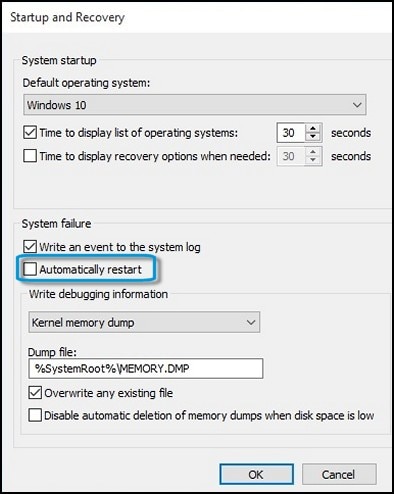
Many hardware drivers or operating system errors will cause the computer to display a specific error message before stopping the operation or shutting down the computer. However, if the Automatically restart option is enabled, an error message might not be displayed despite an error taking place. Disable this option to allow the computer to display the error message.
Follow these steps to disable the Automatically restart option:
-
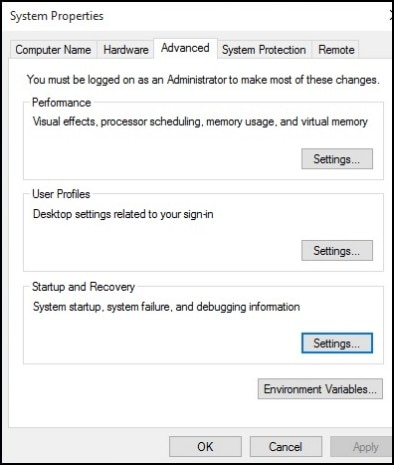
In Windows, search for and open View advanced system settings.
-
Click Settings in the Startup and Recovery section.
Figure : System Properties window
-
Remove the check mark next to Automatically restart under System Failure, then click OK.
Figure : Automatically restart check box
-
Restart the computer.
NOTE:
The computer no longer restarts automatically when a problem occurs. Instead, a blue screen appears with more useful information. You can now search for a resolution using the information in the error.
Step 2: Checking for failed hardware
Hardware problems can cause the computer to restart unexpectedly. For more information about checking for hardware problems, see Testing for Hardware Failures (Windows 10, 😎 for desktop computers, or Testing for Hardware Failures (Windows 10, 😎 for notebook computers.
CLICK HERE FOR MORE STEPS AND INSTRUCTIONS.
Keep me posted, how it goes!
If the information I've provided was helpful, give us some reinforcement by clicking the Accepted Solution and Kudos buttons, that'll help us and others see that we've got the answers!
Have a great day!
Cheers:)
Raj1788
I am an HP Employee
11-12-2018 12:17 PM
HP Recommended
Hi Raj1788, to aswer your questions:
my issue was not connected to any update.
The issue occured only twice last week when I posted. I'm about to start using my computer frequently again over the next couple of days so we'll see if it happens again.
I haven't tried any troubleshooting on my own The operating system is 64 bit.
The computer did not restart , it only shut off. Should I still follow your disable automatic restart steps?
I ran the diagnostic quick check and the only issue was battery check which cancelled itself. It did that a while ago and I have since bought a new battery. The computer wasn't running on battery at the time it switched off, it was plugged into mains.
Thank you
Jason
11-13-2018 11:07 AM
HP Recommended
I suggest you disable automatic restart, This will help us to get the error or the reason why the computer is shutting down.
Depending on the error we can further diagnose the issue.
Checking for failed hardware
Use the following steps to open the Component Tests menu and run power test.
-
Hold the power button for at least five seconds to turn off the computer.
-
Turn on the computer and immediately press Esc repeatedly, about once every second. When the menu appears, press the F2 key.
-
On the main menu, click Component Tests.
-
The Component Tests menu displays.
Your Component Tests menu might be different, depending on the components installed on your computer.
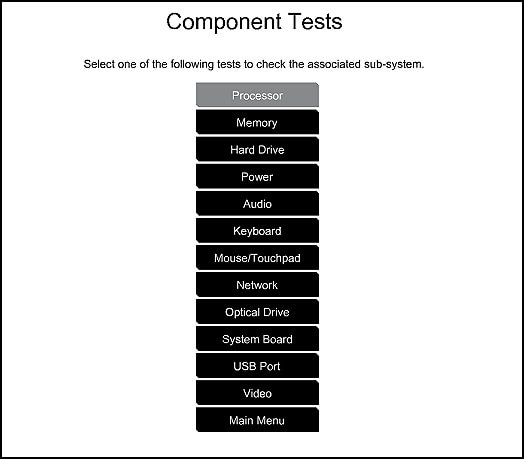
Power Tests - Power tests include the Power Source Test, the AC Adapter Test, and the Battery Test.
-
Power Source Test - This test checks that both the battery and the AC adapter are functioning properly.
To run the test, click Run once. The Power Source test time is 4 minutes. Battery Calibration time is 2 to 4 hours.
-
AC Adapter Test - This interactive test determines if the AC power adapter is functioning properly. This test requires a good battery. HP recommends verifying that your computer can receive power by connecting a known working AC adapter.
To run the test, click Run once. The test takes 2 minutes to run.
-
Battery Test - The Battery Test checks the battery and allows you to run calibration if needed.
The Battery Check test time is 2 minutes. Battery Calibration time is 2 to 4 hours.
To run the test and for battery information, follow the steps in Battery Test.
Have a great day!
CHeers:)
Raj1788
I am an HP Employee
11-15-2018 04:46 PM
HP Recommended
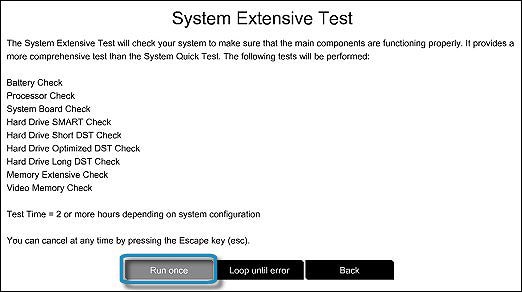
Let's run an Extensive test on the computer and check how it goes.
Open the System Tests menu when Windows won't start.
-
Hold the power button for at least five seconds to turn off the computer.
-
Turn on the computer and immediately press Esc repeatedly, about once every second. When the menu appears, press the F2 key.
-
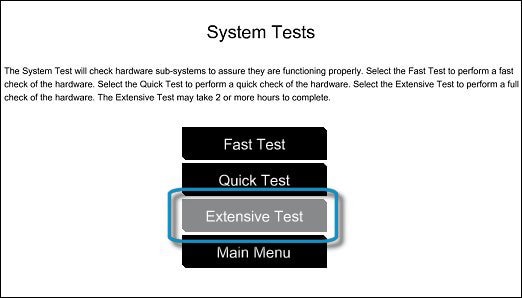
On the main menu, click System Tests.
The System Tests menu displays.
-
Then click Extensive Test.
-
Click Run once, or Loop until error.
While the test is running, the time remaining and test result for each component displays on the screen. The test can take 2 or more hours to complete.
-
If a component fails a test, write down the failure ID (24-digit code) for when you contact HP Customer Support. The information is also available in Test Logs on the main menu.
Keep me posted, how it goes!
Cheers:)
Raj1788
I am an HP Employee
11-19-2018 11:33 AM
HP Recommended
Hi Raj, the extensive results are:
processor : passed
memory extensive : passed
hard drive SMART : passed
hard drive short DST : passed
hard drive optimized DST : passed
hard drive long DST : passed
battery check : OK (0)
wireless module : passed
system board : passed
video memory : passed
System extensive : passed
11-19-2018 06:55 PM
HP Recommended
Thanks for the reply,
Let's try resetting your computer.
Note: Take a backup of all your important data.
Use this link: https://support.hp.com/gb-en/document/c04742289 to reset the computer.
Keep me posted, how it goes!
If the information I've provided was helpful, give us some reinforcement by clicking the Accepted Solution and Kudos buttons, that'll help us and others see that we've got the answers!
Have a great day!
Cheers:)
Raj1788
I am an HP Employee

11-24-2018 01:39 AM
HP Recommended
Thanks for getting back to us. You were interacting with @Raj1788 but he is out of the office today. But don't worry, I'll take over from here to assist you with the issue.
As the computer hasn't shut down in the last few hours, we don't have to re-install the operating system as suggested in the previous post.
I'd suggest you work on the computer and keep us posted.
Have a great weekend!
Asmita
I am an HP Employee

Be alert for scammers posting fake support phone numbers and/or email addresses on the community.
If you think you have received a fake HP Support message, please report it to us by clicking on "Flag Post".
† The opinions expressed above are the personal opinions of the authors, not of HP. By using this site, you accept the Terms of Use and Rules of Participation.


Didn't find what you were looking for?
Ask the community
† The opinions expressed above are the personal opinions of the authors, not of HP. By using this site, you accept the <a href="https://www8.hp.com/us/en/terms-of-use.html" class="udrlinesmall">Terms of Use</a> and <a href="/t5/custom/page/page-id/hp.rulespage" class="udrlinesmall"> Rules of Participation</a>.